Introduction
Code editors are lightweight yet powerful software tools that developers use to write, edit, and navigate source code. They offer syntax highlighting, auto‑completion, search and replace, extensions, and often integrate with development workflows. While Integrated Development Environments (IDEs) provide a full suite of development tools, code editors are often preferred for their speed, simplicity, and flexibility.
As development environments diversify and languages proliferate, the right code editor can significantly influence productivity and code quality. Whether you’re writing scripts, debugging, or editing configuration files, a quality code editor streamlines the process.
Common use cases include:
- Writing and editing source code in multiple languages
- Searching and navigating codebases
- Integrating with build tools and version control
- Quick editing of configuration and markup files
- Extending functionality with plugins and extensions
Buyers should evaluate:
- Language support and syntax highlighting
- Plugin ecosystem and extensibility
- Performance with large files and projects
- Debugging and terminal integration
- Cross‑platform availability
- Customization and themes
- Collaboration features
- Support and documentation
Best for: Developers, DevOps engineers, QA engineers, web developers, and anyone working with text/code regularly.
Not ideal for: Users needing full IDE capabilities like integrated debuggers, project templates, and build systems (though many editors can be extended).
Key Trends in Code Editors
- Built‑in AI assistance for code suggestions
- Deep integration with version control systems
- Real‑time collaboration features
- Rich plugin and extension marketplaces
- Cross‑platform performance and sync
- Terminal and REPL integration
- Language server protocol (LSP) for smart tooling
- Live preview for web development
- Themes and UI customizations
- Keyboard‑driven workflows for power users
How We Selected These Tools (Methodology)
- Evaluated global adoption and popularity
- Assessed language and syntax support
- Reviewed plugin ecosystems and extensions
- Considered performance and responsiveness
- Included cross‑platform availability
- Evaluated terminal and tool integrations
- Reviewed support for modern workflows
- Assessed ease of use and learning curve
- Considered collaboration and remote coding features
- Focused on real‑world developer usage signals
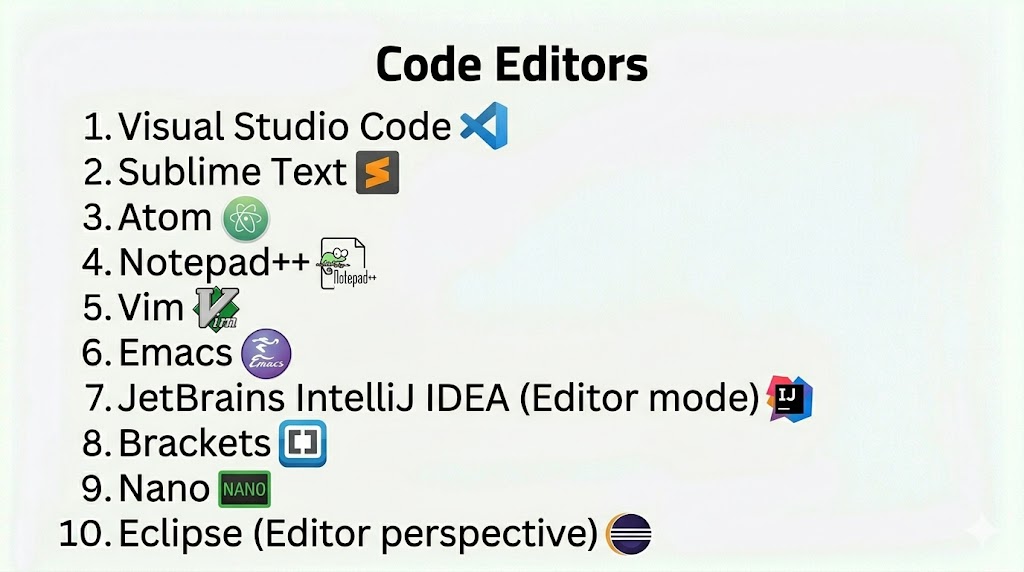
Top 10 Code Editors
#1 — Visual Studio Code
Short description: A highly popular, extensible code editor with rich language support and marketplace extensions.
Key Features
- IntelliSense and smart code completion
- Extension marketplace
- Integrated terminal
- Git integration
- Debugging support
- Themes and customization
Pros
- Broad language and ecosystem support
- Strong extension library
Cons
- Can be heavy for very low‑end machines
Platforms / Deployment
- Windows / macOS / Linux
Security & Compliance
- Not publicly stated
Integrations & Ecosystem
- GitHub, GitLab, CI/CD tools, Linters
Support & Community
Large global community with extensive resources.
#2 — Sublime Text
Short description: Fast and lightweight editor known for responsiveness and low memory usage.
Key Features
- Goto Anything
- Multiple selections
- Command palette
- Plugin support
- Split editing
- Performance optimized
Pros
- Extremely fast
- Low resource usage
Cons
- Many features require plugins
- Paid license
Platforms / Deployment
- Windows / macOS / Linux
Security & Compliance
- Not publicly stated
Integrations & Ecosystem
- Package managers, linters, Git plugins
Support & Community
Active community and plugin ecosystem.
#3 — Atom
Short description: Open‑source editor from GitHub focusing on hackability and extensibility.
Key Features
- Built‑in package manager
- Smart auto‑completion
- File system browser
- Themes
- Multiple panes
- Git integration
Pros
- Highly customizable
- Strong community packages
Cons
- Can be slow with large files
Platforms / Deployment
- Windows / macOS / Linux
Security & Compliance
- Not publicly stated
Integrations & Ecosystem
- GitHub, plugins, package ecosystem
Support & Community
Open‑source community driven.
#4 — Notepad++
Short description: Lightweight Windows editor for quick editing and scripting tasks.
Key Features
- Syntax highlighting
- Macro recording
- Tabbed interface
- Plugin support
- Lightweight footprint
- Search/replace
Pros
- Very fast and simple
- Ideal for quick edits
Cons
- Windows only
- Limited advanced tooling
Platforms / Deployment
- Windows
Security & Compliance
- Not publicly stated
Integrations & Ecosystem
- Plugins, scripting extensions
Support & Community
Active community support.
#5 — Vim
Short description: Powerful terminal‑based editor with modal editing and keyboard‑driven workflows.
Key Features
- Modal editing
- Highly customizable
- Scripts and macros
- Low resource usage
- Plugin ecosystem
- Keyboard shortcuts
Pros
- Extremely efficient for power users
- Works in terminal
Cons
- Very steep learning curve
Platforms / Deployment
- Cross‑platform
Security & Compliance
- Not publicly stated
Integrations & Ecosystem
- Plugins, terminals, remote workflows
Support & Community
Large veteran community.
#6 — Emacs
Short description: Highly extensible text editor often described as a self‑contained development environment.
Key Features
- Lisp‑based customization
- Powerful keybindings
- Extensions for almost any task
- Version control integration
- REPL and shell integration
- Project management
Pros
- Highly configurable
- Powerful ecosystem
Cons
- Very steep learning curve
- Can feel overwhelming
Platforms / Deployment
- Cross‑platform
Security & Compliance
- Not publicly stated
Integrations & Ecosystem
- Git, shells, plugins
Support & Community
Strong open‑source community.
#7 — JetBrains IntelliJ IDEA (Editor mode)
Short description: Although primarily an IDE, it is often used as a capable editor with smart code assistance.
Key Features
- Intelligent code completion
- Refactoring tools
- Built‑in debugger
- Version control
- Plugin ecosystem
- Language support
Pros
- Smart editing tools
- Rich feature set
Cons
- Heavier than lightweight editors
Platforms / Deployment
- Windows / macOS / Linux
Security & Compliance
- Not publicly stated
Integrations & Ecosystem
- JetBrains ecosystem, CI/CD, Git
Support & Community
Large active user base.
#8 — Brackets
Short description: Open‑source editor focused on web development with live preview capabilities.
Key Features
- Live HTML/CSS preview
- Inline editors
- Preprocessor support
- Extensions
- Split view
- Project management
Pros
- Excellent for web design
- Live preview boosts productivity
Cons
- Focused on web, limited general tooling
Platforms / Deployment
- Windows / macOS / Linux
Security & Compliance
- Not publicly stated
Integrations & Ecosystem
- Web development tools
Support & Community
Community driven.
#9 — Nano
Short description: Simple terminal‑based editor included on many Unix systems for quick text edits.
Key Features
- Simple interface
- Basic editing features
- Keyboard shortcuts
- Low resource usage
- No configuration required
Pros
- Easy to use
- Works in CLI
Cons
- Very basic
- Not suited for complex projects
Platforms / Deployment
- Unix/Linux / macOS
Security & Compliance
- Not publicly stated
Integrations & Ecosystem
- CLI workflows
Support & Community
Common tool with broad usage.
#10 — Eclipse (Editor perspective)
Short description: Primarily an IDE, but its editor perspective is powerful for coding and lightweight enough for editing tasks.
Key Features
- Syntax highlighting
- Code navigation
- Refactoring
- Project explorers
- Plugins
- Debugging tools
Pros
- Feature‑rich editor
- Plugin integrations
Cons
- Bulkier than standalone editors
Platforms / Deployment
- Windows / macOS / Linux
Security & Compliance
- Not publicly stated
Integrations & Ecosystem
- Eclipse ecosystem, build tools
Support & Community
Long‑standing community and documentation.
Comparison Table (Top 10)
| Tool Name | Best For | Platform(s) Supported | Deployment | Standout Feature | Public Rating |
|---|---|---|---|---|---|
| Visual Studio Code | General developers | Windows/macOS/Linux | Desktop | Extension ecosystem | N/A |
| Sublime Text | Performance | Win/macOS/Linux | Desktop | Speed and responsiveness | N/A |
| Atom | Hackable editor | Win/macOS/Linux | Desktop | Customizability | N/A |
| Notepad++ | Quick edits | Windows | Desktop | Lightweight | N/A |
| Vim | Power users | Cross‑platform | Desktop/CLI | Keyboard workflows | N/A |
| Emacs | Extensible workflows | Cross‑platform | Desktop/CLI | Configurability | N/A |
| IntelliJ (Editor) | Smart coding | Win/macOS/Linux | Desktop | Intelligent editing | N/A |
| Brackets | Web developers | Win/macOS/Linux | Desktop | Live preview | N/A |
| Nano | Quick CLI editing | Unix/Linux/macOS | Desktop/CLI | Simplicity | N/A |
| Eclipse (Editor) | Feature‑rich editing | Win/macOS/Linux | Desktop | Rich ecosystem | N/A |
Evaluation & Scoring of Code Editors
| Tool Name | Core (25%) | Ease (15%) | Integrations (15%) | Security (10%) | Performance (10%) | Support (10%) | Value (15%) | Weighted Total (0–10) |
|---|---|---|---|---|---|---|---|---|
| Visual Studio Code | 10 | 9 | 9 | 6 | 8 | 9 | 9 | 8.7 |
| Sublime Text | 8 | 8 | 7 | 6 | 9 | 8 | 8 | 8.0 |
| Atom | 8 | 7 | 7 | 6 | 7 | 7 | 7 | 7.2 |
| Notepad++ | 6 | 9 | 5 | 5 | 9 | 7 | 9 | 7.4 |
| Vim | 9 | 6 | 6 | 5 | 8 | 7 | 8 | 7.2 |
| Emacs | 9 | 5 | 7 | 5 | 8 | 7 | 8 | 7.1 |
| IntelliJ (Editor) | 9 | 8 | 9 | 6 | 7 | 8 | 8 | 8.1 |
| Brackets | 7 | 7 | 6 | 5 | 7 | 6 | 7 | 6.6 |
| Nano | 5 | 9 | 4 | 5 | 9 | 6 | 8 | 6.9 |
| Eclipse (Editor) | 8 | 7 | 8 | 6 | 7 | 7 | 7 | 7.5 |
Which Code Editor Is Right for You?
Solo / Freelancer
Visual Studio Code or Sublime Text for general editing and flexibility.
SMB
Visual Studio Code or Atom for cross‑platform and extensible features.
Mid‑Market
IntelliJ Editor mode or Visual Studio Code for robust workflows.
Enterprise
Visual Studio Code with standardized extension packs or IntelliJ for large teams.
Budget vs Premium
- Budget: VS Code, Atom, Nano
- Premium: Sublime Text, IntelliJ Editor features
Feature Depth vs Ease of Use
- Easy: Notepad++, Nano
- Advanced: VS Code, IntelliJ, Vim
Integrations & Scalability
- Best: VS Code, IntelliJ
Security & Compliance Needs
- Most depend on underlying system access controls and plugin vetting.
Frequently Asked Questions (FAQs)
1. What is a code editor?
It’s a tool for writing and editing source code with syntax highlighting and tooling.
2. Do I need a code editor?
Yes, if you write or edit code regularly—for scripts, apps, or config files.
3. Are code editors free?
Many are free; some premium editors require licenses.
4. Can editors replace IDEs?
Editors are lighter and focus on editing; IDEs bundle compilers and deep debugging.
5. What platform support matters?
Look for editors available on your OS (Windows/macOS/Linux).
6. Can code editors integrate with Git?
Yes, many support Git via built‑in tools or extensions.
7. Do code editors support plugins?
Most modern editors support extensions or plugins.
8. Which editor is best for web development?
Visual Studio Code or Brackets offer strong web‑focused features.
9. Are terminal‑based editors useful?
Yes, tools like Vim and Nano offer lightweight, CLI‑based workflows.
10. Can I use multiple editors?
Yes, many developers switch based on task and context.
Conclusion
Code editors play a vital role in software development, offering flexibility, speed, and enhanced productivity. From versatile editors like Visual Studio Code to lightweight tools like Notepad++ and Nano, there’s a suitable option for every workflow and preference. The best choice will depend on your platform, project size, and workflow—whether you prioritize speed, extensibility, or deep integration with development tools. A practical next step is to try a few editors, explore extensions, and customize your setup for peak productivity.
