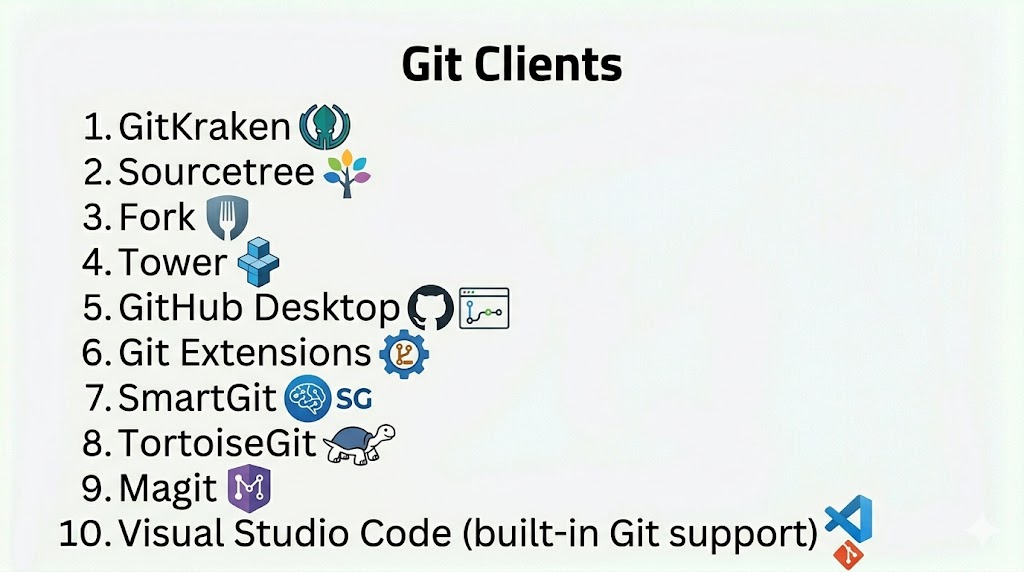
Introduction
Git Clients are standalone applications or interfaces that make interacting with Git repositories easier and more visual for developers. While Git itself is a command‑line tool, Git clients offer graphical interfaces, visualization of branches, commit history, staging panels, merge tools, and advanced integrations. They help users manage version control tasks more efficiently without memorizing command‑line syntax.
In modern development workflows where collaboration, branching strategies, and rapid iteration are key, Git clients improve productivity and reduce errors. Both beginners and seasoned developers benefit from visual context, drag‑and‑drop actions, and integrated diff/merge viewers.
Common use cases include:
- Committing and staging code
- Branch creation, merging, rebasing
- Visualizing commit graphs and histories
- Resolving merge conflicts with GUIs
- Integrating with remote hosting platforms
Buyers should evaluate:
- Ease of use and onboarding for new users
- UI clarity and workflow design
- Support for common Git operations (merge, rebase, stash)
- Integration with Git hosting services (GitHub, GitLab, Bitbucket)
- Diff/merge visualization tools
- Cross‑platform support
- Performance with large repositories
- Licensing and pricing
Best for: Developers, QA engineers, DevOps practitioners, and teams that value visual Git workflows.
Not ideal for: Scripted automation, CI/CD pipelines, or users who prefer command‑line workflows exclusively.
Key Trends in Git Clients
- Visual branch and commit graph improvements
- Deep integration with cloud Git platforms
- Built‑in conflict resolution and diff viewers
- Support for pull request workflows
- AI‑assisted commit messages and merge suggestions
- Theme‑aware UI and accessibility improvements
- Lightweight resource footprints for large repos
- Plugin ecosystems for extensibility
- Better support for monorepos
- Cross‑platform consistency
How We Selected These Tools (Methodology)
- Evaluated usability and interface experience
- Assessed support for core Git workflows
- Reviewed integration with Git hosting platforms
- Considered platform support (Windows, macOS, Linux)
- Included both free and premium options
- Analyzed performance with large repositories
- Reviewed merge/conflict resolution features
- Considered extensibility and plugin ecosystems
- Reviewed documentation and help resources
- Focused on real‑world developer productivity benefits
Top 10 Git Clients
#1 — GitKraken
Short description: A modern, cross‑platform Git client with a visually rich interface and powerful workflow tools.
Key Features
- Visual commit graph
- Drag‑and‑drop merging
- Built‑in merge conflict editor
- Integration with GitHub, GitLab, Bitbucket
- Task and issue linking
- Cross‑platform support
Pros
- Intuitive user interface
- Strong visual tools
Cons
- Paid tiers for advanced features
- Can be resource‑heavy
Platforms / Deployment
- Windows / macOS / Linux
Security & Compliance
- Not publicly stated
Integrations & Ecosystem
- GitHub, GitLab, Bitbucket
- CI/CD pipelines
- Issue trackers
Support & Community
Active documentation and support community.
#2 — Sourcetree
Short description: Free Git client from Atlassian with Git and Mercurial support.
Key Features
- Visual branching and history
- Staging and commit panels
- Git Flow support
- Support for large files
- Integration with Bitbucket and GitHub
- Submodule support
Pros
- Free to use
- Strong integration with Atlassian ecosystem
Cons
- Windows/macOS only
- Can be slow with very large repos
Platforms / Deployment
- Windows / macOS
Security & Compliance
- Not publicly stated
Integrations & Ecosystem
- Bitbucket, Jira, GitHub
Support & Community
Documentation and community forums.
#3 — Fork
Short description: Fast and efficient Git client focused on usability and performance.
Key Features
- Visual commit graph
- Interactive rebase
- Conflict resolution tools
- Stash management
- Quick actions and shortcuts
- Speed‑optimized UI
Pros
- Lightweight and fast
- Clean UI
Cons
- macOS/Windows only
- No built‑in issue integration
Platforms / Deployment
- Windows / macOS
Security & Compliance
- Not publicly stated
Integrations & Ecosystem
- Git hosting services
- Diff tools
Support & Community
Growing user support network.
#4 — Tower
Short description: Professional Git client with powerful workflows and team features.
Key Features
- Drag‑and‑drop operations
- Advanced undo
- Staging helpers
- Submodule and LFS support
- Pull request workflows
- Built‑in conflict resolution
Pros
- Strong productivity features
- Excellent UI
Cons
- Paid license
- Learning curve for new users
Platforms / Deployment
- macOS / Windows
Security & Compliance
- Not publicly stated
Integrations & Ecosystem
- GitHub, GitLab, Bitbucket
- CI/CD tools
Support & Community
Commercial support and tutorials.
#5 — GitHub Desktop
Short description: Free Git client from GitHub with simple workflows and native GitHub integration.
Key Features
- Easy setup and onboarding
- Visual staging and commit interface
- Repository cloning
- Pull request review access
- Branch management
- Sync with GitHub.com
Pros
- Simple and beginner‑friendly
- Free tool
Cons
- Limited features beyond basic Git operations
- Best when paired with GitHub
Platforms / Deployment
- Windows / macOS
Security & Compliance
- Not publicly stated
Integrations & Ecosystem
- GitHub repositories
- GitHub Actions
Support & Community
GitHub documentation and community support.
#6 — Git Extensions
Short description: Open‑source Git client with comprehensive features and customization.
Key Features
- Visual commit history
- Branch and tag management
- Integrated shell support
- Diff and merge tool integrations
- Plugin extensibility
- Multi‑repo support
Pros
- Free and extensible
- Windows‑oriented but cross‑platform tools
Cons
- UI can feel dated
- Slight learning curve
Platforms / Deployment
- Windows / Linux / macOS (via Mono)
Security & Compliance
- Not publicly stated
Integrations & Ecosystem
- Git hosting services
- CI/CD tools
Support & Community
Open‑source community support.
#7 — SmartGit
Short description: Cross‑platform Git client with robust features for both beginners and experts.
Key Features
- Visual commit history
- Conflict solver
- Submodule support
- Git‑Flow and Hg‑Flow
- Integrated SSH support
- File compare tools
Pros
- Powerful feature set
- Works on all major platforms
Cons
- License required for commercial use
- UI can feel complex
Platforms / Deployment
- Windows / macOS / Linux
Security & Compliance
- Not publicly stated
Integrations & Ecosystem
- GitHub, GitLab, Bitbucket
- CI/CD and IDEs
Support & Community
Commercial support and documentation.
#8 — TortoiseGit
Short description: Windows‑integrated Git client with Explorer context menu support.
Key Features
- Windows Shell integration
- Visual commit and log viewer
- Context menu Git operations
- Branching and merging tools
- Conflict resolution helpers
- External diff support
Pros
- Native Windows experience
- Useful for quick Git actions
Cons
- Windows only
- Interface feels dated
Platforms / Deployment
- Windows
Security & Compliance
- Not publicly stated
Integrations & Ecosystem
- Diff/merge tools
- IDEs
Support & Community
Active user community.
#9 — Magit
Short description: Highly regarded Git interface within the Emacs text editor.
Key Features
- Keyboard‑driven interface
- Real‑time status buffers
- Interactive staging
- Branch and stash management
- History visualization
- Emacs extensibility
Pros
- Extremely efficient for Emacs users
- Keyboard optimized
Cons
- Requires Emacs knowledge
- Steep learning curve
Platforms / Deployment
- Cross‑platform (via Emacs)
Security & Compliance
- Not publicly stated
Integrations & Ecosystem
- Emacs ecosystem
- CI/CD tools via hooks
Support & Community
Strong Emacs community.
#10 — Visual Studio Code (built‑in Git support)
Short description: Popular code editor with integrated Git source control tools and visual workflows.
Key Features
- Source control panel
- Commit, branch, merge UI
- Diff and staging interface
- Pull request integration
- Extensions for GitHub/GitLab
- Terminal and editor in one
Pros
- Built‑in and seamless for developers
- Extensible via extensions
Cons
- Not a dedicated Git client
- UI limited compared to standalone tools
Platforms / Deployment
- Windows / macOS / Linux
Security & Compliance
- Not publicly stated
Integrations & Ecosystem
- GitHub, GitLab, Bitbucket
- Extensions marketplace
Support & Community
Very large community and plugin ecosystem.
Comparison Table (Top 10)
| Tool Name | Best For | Platform(s) Supported | Deployment | Standout Feature | Public Rating |
|---|---|---|---|---|---|
| GitKraken | Cross‑platform devs | Windows/macOS/Linux | Desktop | Visual workflows | N/A |
| Sourcetree | Free GUI Git | Windows/macOS | Desktop | Atlassian integration | N/A |
| Fork | Fast Git client | Windows/macOS | Desktop | Lightweight UI | N/A |
| Tower | Professional teams | Windows/macOS | Desktop | Productivity features | N/A |
| GitHub Desktop | GitHub projects | Windows/macOS | Desktop | Native GitHub support | N/A |
| Git Extensions | Free & extensible | Windows/Linux/macOS | Desktop | Feature richness | N/A |
| SmartGit | Power users | Windows/macOS/Linux | Desktop | Robust feature set | N/A |
| TortoiseGit | Windows users | Windows | Desktop | Explorer integration | N/A |
| Magit | Emacs users | Cross‑platform | Desktop | Keyboard‑driven Git | N/A |
| VS Code Git | Code editor users | Windows/macOS/Linux | Desktop | Built‑in source control | N/A |
Evaluation & Scoring of Git Clients
| Tool Name | Core (25%) | Ease (15%) | Integrations (15%) | Security (10%) | Performance (10%) | Support (10%) | Value (15%) | Weighted Total (0–10) |
|---|---|---|---|---|---|---|---|---|
| GitKraken | 9 | 8 | 9 | 6 | 8 | 8 | 8 | 8.0 |
| Sourcetree | 8 | 8 | 7 | 6 | 7 | 7 | 9 | 7.6 |
| Fork | 8 | 9 | 7 | 6 | 8 | 7 | 8 | 7.8 |
| Tower | 9 | 8 | 8 | 6 | 8 | 8 | 7 | 7.9 |
| GitHub Desktop | 8 | 9 | 8 | 6 | 7 | 8 | 9 | 8.0 |
| Git Extensions | 7 | 7 | 7 | 6 | 7 | 7 | 9 | 7.4 |
| SmartGit | 8 | 7 | 8 | 6 | 8 | 8 | 7 | 7.7 |
| TortoiseGit | 7 | 8 | 6 | 6 | 7 | 7 | 8 | 7.3 |
| Magit | 8 | 6 | 6 | 5 | 7 | 7 | 8 | 7.0 |
| VS Code Git | 8 | 9 | 9 | 6 | 8 | 9 | 9 | 8.3 |
Which Git Client Is Right for You?
Solo / Freelancer
GitHub Desktop or Fork for ease of use and simplicity.
SMB
GitKraken, Sourcetree, or VS Code Git for balanced features and collaboration.
Mid‑Market
Tower or SmartGit for professional workflows and productivity.
Enterprise
GitKraken Enterprise or SmartGit for robust integrations and team features.
Budget vs Premium
- Budget: GitHub Desktop, VS Code Git, Sourcetree
- Premium: GitKraken, Tower
Feature Depth vs Ease of Use
- Easy: VS Code Git, GitHub Desktop
- Advanced: GitKraken, SmartGit
Integrations & Scalability
- Best: VS Code Git, GitKraken
Security & Compliance Needs
- Most clients rely on underlying Git hosting platform for access control.
Frequently Asked Questions (FAQs)
1. Do I need a Git client?
No, but it simplifies workflows and visualizes changes for developers.
2. Are Git clients free?
Many are free; some premium tools require licenses.
3. Can I use a Git client with GitHub?
Yes — all major clients integrate with hosted Git platforms.
4. Can Git clients handle large repos?
Yes, though performance varies by tool.
5. Do these tools replace command‑line Git?
They complement it — advanced users may still use CLI.
6. Which Git client is best for beginners?
GitHub Desktop and VS Code Git are ideal starting points.
7. Do Git clients offer merge conflict resolution?
Yes, most include conflict visualizers.
8. Are Git clients cross‑platform?
Many support Windows, macOS, and Linux.
9. Can I link issues to commits?
Yes, integrations with platforms like GitHub and GitLab enable this.
10. Do Git clients integrate with IDEs?
Most do, either directly or via extensions.
Conclusion
Git Clients empower developers with visual tools, improved workflows, and better collaboration compared to command‑line usage alone. From beginner‑friendly tools like GitHub Desktop and VS Code Git to professional options like GitKraken and Tower, there’s a client for every skill level and team size. The best choice depends on your workflow preferences, desired integrations, and platform support. A practical next step is to try a few clients with your repositories to see which fits your style and boosts your productivity.
