Introduction
UI Design Tools help designers, product teams, developers, and businesses create visual interfaces for websites, mobile apps, dashboards, SaaS products, and digital platforms. These tools are used to design screens, components, layouts, icons, prototypes, and design systems before development begins. A good UI design tool helps teams move from rough ideas to polished product interfaces with better collaboration and fewer handoff gaps.
This category matters because digital products need clear, consistent, and usable interfaces. Poor UI design can confuse users, reduce conversions, increase support requests, and slow down product adoption. UI design tools help teams test layouts, create reusable components, collaborate with stakeholders, and hand off assets to developers.
Real-world use cases
- Designing mobile app screens and web app interfaces
- Creating SaaS dashboards and admin panels
- Building reusable design systems and component libraries
- Creating clickable prototypes for feedback and testing
- Preparing developer handoff assets and specifications
Evaluation Criteria for Buyers
- Ease of interface design
- Collaboration and commenting features
- Prototyping capabilities
- Design system and component support
- Developer handoff quality
- Plugin and integration ecosystem
- Platform support
- Performance on large files
- Pricing and team scalability
- Learning curve and community support
Best for: UI designers, UX designers, product managers, developers, startups, agencies, SaaS teams, and enterprises building digital products.
Not ideal for: teams that only need simple image editing, basic wireframes, or static marketing graphics without product interface design workflows.
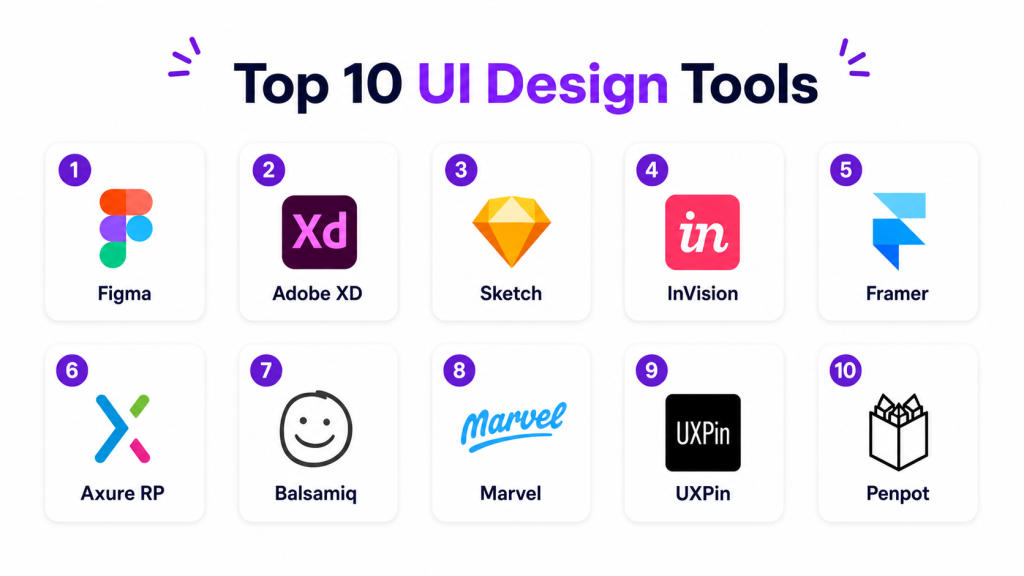
Top 10 UI Design Tools
#1 — Figma
Short description: Figma is a cloud-based UI design and collaboration tool widely used by product teams for interface design, prototyping, design systems, and developer handoff. It works well for teams that need real-time collaboration across designers, product managers, developers, and stakeholders. Figma is especially strong for web and app design because it combines vector editing, components, prototyping, comments, and shared libraries in one workspace. It is a strong choice for startups, agencies, SMBs, and enterprises that want a modern collaborative design workflow.
Key Features
- Real-time collaborative interface design
- Components and shared libraries
- Interactive prototyping
- Auto layout for responsive designs
- Design system management
- Developer handoff tools
- Large plugin and community ecosystem
Pros
- Excellent collaboration features
- Strong design system support
- Browser-based and easy to access
Cons
- Requires internet for best experience
- Large files can become harder to manage
- Advanced organization needs team discipline
Support & Community
Figma has extensive documentation, strong community resources, templates, plugins, tutorials, and broad adoption among designers and product teams.
#2 — Sketch
Short description: Sketch is a macOS-based UI design tool known for clean vector design, reusable symbols, design systems, and interface layout workflows. It has long been popular among product designers, especially those working in Apple-focused environments. Sketch is useful for designing websites, mobile apps, icons, and product interfaces with a strong focus on visual precision and reusable components. It is best for designers and teams that prefer a native macOS design experience.
Key Features
- Vector-based UI design
- Symbols and reusable components
- Shared libraries
- Prototyping features
- Design handoff tools
- Plugin ecosystem
- macOS-native performance
Pros
- Clean and focused design experience
- Strong component and library support
- Good for macOS-based design teams
Cons
- macOS-only desktop app
- Collaboration is less seamless than browser-first tools
- Not ideal for cross-platform teams
Support & Community
Sketch has strong documentation, design resources, plugins, templates, and an established community of UI and product designers.
#3 — Adobe XD
Short description: Adobe XD is a UI and UX design tool for creating wireframes, interface designs, prototypes, and design handoff assets. It is useful for designers already working within the Adobe ecosystem and needing integration with tools like Photoshop and Illustrator. Adobe XD supports screen design, interactive prototypes, components, and collaboration workflows. It is a practical choice for teams that already use Adobe Creative Cloud and want a familiar design environment.
Key Features
- UI and UX design workspace
- Interactive prototyping
- Components and reusable assets
- Design specs and handoff
- Adobe Creative Cloud integration
- Repeat grid and layout tools
- Voice and animation-based interaction support
Pros
- Good integration with Adobe tools
- Familiar workflow for Adobe users
- Supports design and prototyping in one place
Cons
- Ecosystem momentum is weaker than some alternatives
- Collaboration can be less flexible than cloud-first tools
- Not ideal for teams seeking the largest plugin community
Support & Community
Adobe XD has documentation, learning resources, Adobe ecosystem support, and a community of designers familiar with Creative Cloud workflows.
#4 — Framer
Short description: Framer is a design and prototyping platform focused on interactive websites, high-fidelity prototypes, and visually polished digital experiences. It is especially useful for designers who want to move from design concepts to interactive web experiences quickly. Framer combines UI design, animation, layout tools, and publishing workflows, making it popular among designers building landing pages, portfolios, startup sites, and interactive product demos. It is a strong option for teams that value motion, responsiveness, and production-like prototypes.
Key Features
- Interactive UI design
- High-fidelity prototyping
- Animation and motion design
- Responsive layout tools
- Website publishing workflow
- Component-based design
- Collaboration features
Pros
- Strong for interactive prototypes
- Good for polished web experiences
- Useful publishing features
Cons
- May be too advanced for simple UI work
- Learning curve for complex interactions
- Not always the best fit for large enterprise design systems
Support & Community
Framer provides documentation, templates, design resources, tutorials, and a growing community of designers focused on interactive digital products.
#5 — Penpot
Short description: Penpot is an open-source UI design and prototyping platform built for designers and developers who want a collaborative design tool based on open standards. It supports interface design, components, prototyping, and team collaboration through a browser-based workspace. Penpot is especially attractive for teams that prefer open-source software, self-hosting options, and design workflows that align closely with web technologies. It is a strong option for privacy-conscious teams, developers, and organizations seeking more control over their design environment.
Key Features
- Open-source UI design platform
- Browser-based collaboration
- Components and shared assets
- Prototyping support
- Self-hosting option
- SVG and web-friendly workflows
- Team workspaces
Pros
- Open-source and flexible
- Good for teams needing control
- Strong designer-developer alignment
Cons
- Smaller ecosystem than Figma
- Some workflows may feel less mature
- Community and plugin depth are still growing
Support & Community
Penpot has documentation, open-source community support, tutorials, and resources for teams interested in collaborative and self-hosted design workflows.
#6 — UXPin
Short description: UXPin is a UI design and prototyping tool focused on advanced interactions, design systems, and realistic product prototypes. It is useful for teams designing complex SaaS products, dashboards, enterprise applications, and component-driven interfaces. UXPin stands out because it supports more realistic prototypes with states, variables, logic, and component behavior. It is best for product teams that need prototypes closer to real application behavior rather than static screen flows.
Key Features
- Advanced interactive prototyping
- Design system support
- Component-based workflows
- States and conditional logic
- Variables and dynamic interactions
- Developer handoff features
- Collaboration tools
Pros
- Strong for complex prototypes
- Useful for design systems
- Good designer-developer workflow
Cons
- More complex than lightweight tools
- May be overkill for simple UI mockups
- Learning curve for advanced features
Support & Community
UXPin offers documentation, tutorials, support resources, webinars, and onboarding materials for design and product teams working on advanced prototypes.
#7 — Axure RP
Short description: Axure RP is a professional prototyping and wireframing tool known for advanced interactions, conditional logic, documentation, and complex user flows. It is commonly used by UX designers, business analysts, product teams, and enterprise teams that need detailed specifications and functional prototypes. Axure is useful for applications with complex workflows, forms, dashboards, rules, and dynamic content. It is best for teams that prioritize prototyping depth over visual simplicity.
Key Features
- Advanced wireframing
- Conditional logic
- Dynamic panels
- Functional prototypes
- Documentation and specifications
- Team collaboration
- Complex workflow modeling
Pros
- Excellent for complex prototypes
- Strong logic and interaction support
- Useful for enterprise workflows
Cons
- Steeper learning curve
- Less modern visual workflow than newer tools
- Can feel heavy for simple design projects
Support & Community
Axure RP has detailed documentation, learning resources, training materials, support options, and a long-established professional user base.
#8 — Balsamiq
Short description: Balsamiq is a low-fidelity wireframing tool designed for quickly sketching interface ideas without focusing too much on visual polish. It helps teams discuss layouts, content structure, and user flows early in the design process. Balsamiq is especially useful for product managers, founders, UX designers, and stakeholders who want fast ideation before moving into high-fidelity tools. It is best for early planning, concept validation, and simple wireframe communication.
Key Features
- Low-fidelity wireframing
- Drag-and-drop UI components
- Simple sketch-style interface
- Fast layout creation
- Collaboration support
- Export and sharing options
- Prebuilt wireframe elements
Pros
- Very easy to learn
- Great for early-stage ideas
- Keeps teams focused on structure
Cons
- Not suitable for high-fidelity UI design
- Limited prototyping depth
- Not ideal for final developer handoff
Support & Community
Balsamiq provides documentation, tutorials, templates, educational resources, and support for teams using wireframes in early product planning.
#9 — Lunacy
Short description: Lunacy is a UI design tool from Icons8 that supports interface design, vector editing, assets, and design collaboration. It is available across major desktop platforms and can be useful for designers who want offline-friendly workflows and built-in design resources. Lunacy supports UI kits, icons, illustrations, and design files, making it practical for quick product interface work. It is a good choice for individuals and small teams looking for a lightweight UI design option.
Key Features
- UI and vector design tools
- Offline-friendly workflow
- Built-in icons and illustrations
- UI kits and assets
- Collaboration features
- Cross-platform desktop support
- Design file compatibility options
Pros
- Lightweight and accessible
- Good built-in design assets
- Useful for offline work
Cons
- Smaller ecosystem than leading tools
- Limited enterprise adoption
- Collaboration may not match cloud-first platforms
Support & Community
Lunacy provides documentation, tutorials, user support, and design resources through the Icons8 ecosystem.
#10 — ProtoPie
Short description: ProtoPie is an advanced prototyping tool that helps designers create realistic, interactive prototypes for mobile apps, web interfaces, connected devices, and digital products. It is especially useful when teams need to simulate complex gestures, sensors, device interactions, and micro-interactions. ProtoPie is often used alongside other UI design tools rather than replacing them completely. It is best for product teams that need high-fidelity prototypes to test interactions before development.
Key Features
- High-fidelity interaction prototyping
- Sensor and device interaction support
- Conditional logic and variables
- Mobile app prototype testing
- Micro-interaction design
- Sharing and testing workflows
- Integration with design tools
Pros
- Excellent for realistic prototypes
- Strong interaction and motion support
- Useful for mobile and product testing
Cons
- Not a full UI design replacement
- Requires learning for advanced interactions
- Best used alongside other design tools
Support & Community
ProtoPie offers documentation, tutorials, learning resources, examples, and support for designers creating advanced interactive prototypes.
Comparison Table
| Tool Name | Best For | Ease of Use | Pricing | Standout Feature |
|---|---|---|---|---|
| Figma | Collaborative UI design | High | Medium | Real-time team collaboration |
| Sketch | macOS UI design | Medium | Medium | Native macOS design workflow |
| Adobe XD | Adobe ecosystem users | High | Medium | Creative Cloud integration |
| Framer | Interactive web experiences | Medium | Medium | High-fidelity interactive publishing |
| Penpot | Open-source design teams | Medium | Low | Open-source and self-hosting option |
| UXPin | Advanced product prototypes | Medium | Medium | Logic-based interactive prototypes |
| Axure RP | Enterprise prototyping | Low | High | Complex conditional interactions |
| Balsamiq | Low-fidelity wireframes | Very High | Medium | Fast sketch-style wireframing |
| Lunacy | Lightweight UI design | High | Low | Built-in design assets |
| ProtoPie | Advanced interaction prototyping | Medium | Medium | Realistic micro-interactions |
Scoring Table
| Tool Name | Core | Ease | Integrations | Security | Performance | Support | Value | Total |
|---|---|---|---|---|---|---|---|---|
| Figma | 9 | 9 | 9 | 8 | 8 | 9 | 8 | 8.6 |
| Sketch | 8 | 8 | 8 | 8 | 8 | 8 | 7 | 7.9 |
| Adobe XD | 7 | 8 | 8 | 8 | 7 | 8 | 7 | 7.6 |
| Framer | 8 | 7 | 8 | 8 | 8 | 8 | 8 | 7.9 |
| Penpot | 7 | 7 | 7 | 8 | 7 | 7 | 9 | 7.4 |
| UXPin | 8 | 7 | 8 | 8 | 8 | 8 | 7 | 7.7 |
| Axure RP | 8 | 5 | 7 | 8 | 7 | 8 | 6 | 7.0 |
| Balsamiq | 6 | 10 | 6 | 7 | 8 | 8 | 8 | 7.4 |
| Lunacy | 7 | 8 | 6 | 7 | 8 | 7 | 8 | 7.3 |
| ProtoPie | 8 | 6 | 7 | 7 | 8 | 7 | 7 | 7.2 |
These scores are comparative and help buyers understand which tools are stronger for different UI design needs. A higher score does not automatically make one platform the best for every team. Figma is strong for collaboration and design systems, Balsamiq is best for fast wireframes, UXPin and Axure RP are stronger for complex prototypes, and Penpot is attractive for teams that prefer open-source flexibility. The right choice depends on team workflow, platform preference, design maturity, and budget.
Which UI Design Tool Is Right for You?
Solo / Freelancer
Solo designers and freelancers usually need a tool that is easy to learn, affordable, and flexible enough for client work. Figma, Lunacy, Balsamiq, and Framer are practical choices depending on the work style. Figma is good for full UI projects, Balsamiq is useful for quick wireframes, Lunacy helps with lightweight design work, and Framer is useful for interactive web experiences.
SMB
SMBs need tools that support collaboration, design consistency, and fast delivery without creating too much complexity. Figma, Sketch, Framer, and Penpot are strong options. Figma works well for cross-functional teams, Sketch suits macOS-based teams, Framer helps with web-focused design, and Penpot is useful for teams that want open-source flexibility.
Mid-Market
Mid-market teams usually need design systems, shared libraries, better handoff, review workflows, and prototyping. Figma, UXPin, Framer, and Sketch are good choices for this segment. Figma helps teams collaborate in real time, UXPin supports realistic prototypes, Framer creates interactive experiences, and Sketch remains useful for teams committed to macOS design workflows.
Enterprise
Enterprises should prioritize governance, access controls, design systems, team libraries, documentation, and developer handoff. Figma, UXPin, Axure RP, and Penpot are strong candidates depending on requirements. Figma is strong for collaborative design operations, UXPin helps with component-driven prototypes, Axure RP supports complex workflows, and Penpot may appeal to organizations needing open-source or self-hosted options.
Budget vs Premium
Budget-focused users can consider Penpot, Lunacy, Balsamiq, or entry-level plans of broader design tools. These options are useful for small teams, early-stage ideas, and simpler design workflows. Premium platforms like Figma, UXPin, Axure RP, and Framer are better for teams that need stronger collaboration, advanced prototyping, design systems, or production-level workflow support.
Feature Depth vs Ease of Use
If ease of use is the priority, Balsamiq, Figma, and Lunacy are good choices. Balsamiq is simplest for wireframes, Figma balances ease with depth, and Lunacy is lightweight for visual UI work. If feature depth matters more, UXPin, Axure RP, Framer, and ProtoPie provide richer prototyping, logic, animation, and interaction capabilities.
Integrations & Scalability
Teams should choose tools that connect well with design systems, developer handoff, product management, project tracking, and collaboration platforms. Figma has a large integration and plugin ecosystem, Sketch has strong macOS design resources, Framer supports interactive web workflows, and UXPin supports deeper component-based prototyping. Enterprises should also consider admin controls, workspace organization, and library governance.
Security & Compliance Needs
Security-sensitive teams should review access controls, SSO, permissions, file sharing rules, audit features, workspace management, and data handling. Enterprise buyers should validate security details directly before storing sensitive product designs. Teams working on regulated products should also review whether self-hosting, private workspaces, or strict permission management is required.
Frequently Asked Questions
1. What are UI Design Tools?
UI Design Tools are software platforms used to create digital interfaces for websites, mobile apps, dashboards, and software products. They help designers build layouts, screens, components, icons, prototypes, and design systems before development starts. These tools make it easier to visualize product ideas and share them with teams. They also support collaboration between designers, developers, product managers, and stakeholders.
2. Why are UI Design Tools important?
UI Design Tools are important because they help teams create clear, consistent, and user-friendly digital interfaces. Without them, design work can become scattered, inconsistent, and difficult to communicate. These tools reduce confusion during product planning and improve developer handoff. They also help teams test layouts and interactions before spending time on engineering.
3. Which UI Design Tool is best for beginners?
Figma, Balsamiq, and Lunacy are good choices for beginners depending on the type of work. Figma is useful for full interface design and collaboration, while Balsamiq is best for simple wireframes. Lunacy is helpful for lightweight visual design and offline work. Beginners should choose a tool that is easy to learn and fits their project needs.
4. What is the difference between UI design and prototyping?
UI design focuses on the visual appearance of screens, including layout, typography, color, spacing, icons, and components. Prototyping focuses on how those screens connect and behave when users interact with them. Some tools handle both design and prototyping, while others specialize in advanced interactions. A strong workflow usually includes both visual design and prototype validation.
5. Are UI Design Tools only for designers?
No, UI Design Tools are useful for designers, product managers, developers, founders, marketers, and stakeholders. Designers use them to create interfaces, while product managers use them to review flows and validate ideas. Developers use them for handoff details like spacing, assets, and specifications. Stakeholders use them to give feedback before development starts.
6. Can UI Design Tools help with design systems?
Yes, many UI Design Tools support design systems through shared components, libraries, styles, variables, and reusable assets. Design systems help teams keep product interfaces consistent across screens and platforms. Tools like Figma, Sketch, UXPin, and Penpot are useful for building and managing reusable UI components. This is especially important for growing product teams and enterprises.
7. What should I look for before choosing a UI Design Tool?
You should evaluate ease of use, collaboration, prototyping, component support, developer handoff, integrations, platform compatibility, and pricing. If your team works remotely, real-time collaboration may be very important. If your product is complex, advanced prototyping and design system support may matter more. Always test the tool with a real project before committing.
8. Can UI Design Tools replace coding?
UI Design Tools do not fully replace coding because they mainly help create visual designs, prototypes, and specifications. Some tools can generate assets or code-like outputs, but production development still requires engineering work. They are best used to improve communication between design and development teams. The goal is to reduce rework, not eliminate developers.
9. Which UI Design Tool is best for enterprises?
Figma, UXPin, Axure RP, and Penpot can be strong enterprise options depending on needs. Figma is useful for collaboration and design systems, while UXPin supports advanced prototypes and component-driven workflows. Axure RP is strong for complex business flows and functional prototypes. Penpot may be useful for organizations that want open-source or self-hosted flexibility.
10. Are free UI Design Tools good enough?
Free or lower-cost UI Design Tools can be enough for solo designers, students, startups, and small projects. They are useful for learning, wireframing, and creating basic product interfaces. However, growing teams may need paid features like shared libraries, admin controls, advanced collaboration, and better handoff. The best option depends on project complexity and team size.
Conclusion
UI Design Tools help teams turn product ideas into clear, testable, and development-ready interfaces. The best tool depends on your workflow, budget, team size, platform preference, and design maturity. Figma is a strong all-round choice for collaboration, Sketch works well for macOS-focused teams, Framer is useful for interactive web experiences, UXPin and Axure RP fit advanced prototyping needs, and Penpot is attractive for open-source flexibility. The right next step is to shortlist two or three tools, test them with a real design project, review collaboration and handoff quality, then choose the platform that best supports your product design workflow.

Great article with a clear and balanced comparison. It helped me quickly understand the strengths of each UI design tool and narrow down the options for different design needs.