Introduction
Photo Organization Tools are software platforms designed to help individuals and teams manage, organize, search, and share large collections of digital images. These tools address common challenges like sorting thousands of photos by date, place, or content type, tagging people and objects, detecting duplicates, and facilitating collaborative curation across devices. In an era where digital media is ubiquitous and storage limits are vast, effective photo organization has become essential for professionals and hobbyists who need quick access to visual assets.
Real-world use cases include photographers sorting client sessions, families organizing personal memories, social media managers curating branded visual libraries, e‑commerce teams managing product images, and creative agencies maintaining campaign visuals. Photo Organization Tools offer structured organization that saves time, enhances discoverability, and maintains orderly archives.
Evaluation criteria include automatic detection and tagging, search and filter capabilities, integration with cloud storage and editing tools, batch processing, duplicate detection and cleanup, privacy and security controls, cross‑platform synchronization, collaboration features, user interface and ease of use, and pricing flexibility.
Best for: Photographers, creative professionals, social media managers, families with extensive personal collections, and anyone needing efficient visual asset management.
Not ideal for: Users who need only simple folder sorting without advanced search or tagging, or teams requiring enterprise digital asset management with tailored metadata schemas.
Key Trends in Photo Organization Tools
- AI‑powered image recognition for automated tagging of people, objects, and scenes
- Cloud synchronization across devices with smart caching
- Integration with editing suites for seamless post‑processing workflows
- Advanced duplicate detection and cleanup tools
- Smart albums generated by detected themes, faces, or locations
- Secure sharing links with access controls and expiration settings
- Batch editing and tagging for rapid processing
- Visual search based on image content
- Support for RAW and high‑resolution formats
- Privacy‑forward options with local indexing and encrypted storage
How We Selected These Tools
- Reviewed adoption by photographers and creative teams
- Assessed automatic tagging and recognition intelligence
- Evaluated search and filtering depth
- Checked sync and cross‑device performance
- Considered editing workflow integrations
- Weighed collaboration features and share controls
- Examined duplicate detection and batch processing tools
- Reviewed privacy and security options
- Considered ease of use for varied skill levels
- Compared pricing flexibility and value
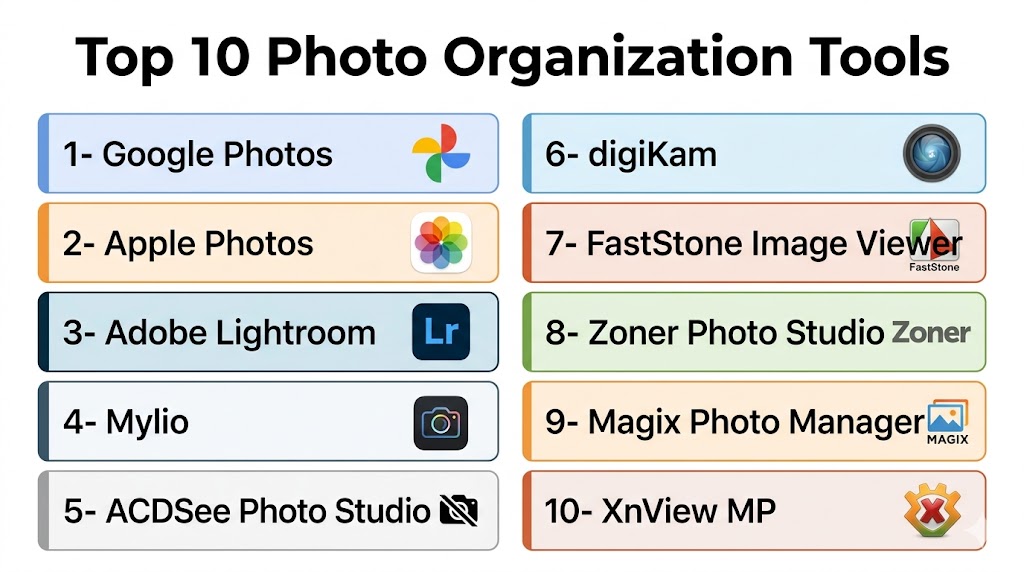
Top 10 Photo Organization Tools
#1 — Google Photos
Short description: Google Photos is a popular photo storage and organization platform that offers automatic backup, smart search, and intuitive grouping features. It is suitable for individuals and casual users who want powerful AI assistance without complexity.
Key Features
- Automatic backup and sync
- AI‑powered search by people, places, and objects
- Smart albums and highlights
- Built‑in editing tools
- Duplicate detection
- Sharing links with access control
Pros
- Strong search and recognition capabilities
- Easy backup and sync across devices
Cons
- Privacy concerns for some users
- Advanced features tied to premium storage plans
Platforms / Deployment
- Web, iOS, Android
- Cloud
Security & Compliance
- Secure login and encrypted storage
- Not publicly stated for certifications
Integrations & Ecosystem
Google Photos integrates with wider productivity and editing features
- Native editing tools
- Sharing to communication apps
- Integration with cloud storage APIs
Support & Community
- Help resources and FAQs
- Community support
- In‑app guidance
#2 — Apple Photos
Short description: Apple Photos provides a native photo organization and editing experience for users within its ecosystem, with intelligent search, album creation, and seamless device synchronization.
Key Features
- Intelligent search by people, places, and content type
- Shared albums and shared library features
- Built‑in editing tools
- Memories and highlights
- Object and scene detection
- Integration with device storage
Pros
- Seamless sync within ecosystem
- Strong visual search and memory features
Cons
- Limited to specific devices
- Fewer advanced management tools for pros
Platforms / Deployment
- macOS, iOS
- Cloud
Security & Compliance
- Device security and encrypted sync
- Not publicly stated for certifications
Integrations & Ecosystem
- Integration with device apps
- Sharing tools
- Direct edit workflows
Support & Community
- Device support
- Online help resources
#3 — Adobe Lightroom
Short description: Adobe Lightroom combines photo organization with professional editing, enabling photographers to tag, rate, and classify images while also applying advanced edits.
Key Features
- Catalog and metadata management
- Star ratings and flagging
- Keyword tagging and collections
- Advanced editing tools
- Cloud sync and presets
- Smart search
Pros
- Professional workflow for photographers
- Strong organization plus editing capabilities
Cons
- Subscription pricing
- Learning curve for beginners
Platforms / Deployment
- Web, Windows, macOS, iOS, Android
- Cloud / Local
Security & Compliance
- Enterprise‑grade login
- Not publicly stated for additional certifications
Integrations & Ecosystem
Lightroom integrates with creative and storage tools
- Creative editing suite
- Cloud storage
- Preset sharing
Support & Community
- Tutorials and guides
- Community forums
- Professional resources
#4 — Mylio
Short description: Mylio is a photo management tool that emphasizes local device organization with optional cloud backup, designed for users who want control over storage and privacy.
Key Features
- Local photo organization
- Sync across devices
- Smart albums and tagging
- Face recognition
- Calendar view for moments
- Duplicate detection
Pros
- Local control with sync options
- Privacy‑oriented design
Cons
- Sync setup can be complex
- Cloud features are optional add‑ons
Platforms / Deployment
- Windows, macOS, iOS, Android
- Local / Cloud optional
Security & Compliance
- Local encryption
- User‑controlled storage
Integrations & Ecosystem
- Import from cameras and storage
- Export options
- Calendar workflows
Support & Community
- Active help guides
- Support portal
- Community discussions
#5 — Amazon Photos
Short description: Amazon Photos offers secure photo storage and smart organization features, particularly appealing to members who want unlimited storage for images with object recognition.
Key Features
- Unlimited photo storage options
- Smart search by objects and people
- Shared family vault
- Album creation
- Duplicate detection
Pros
- Generous storage options
- Easy sharing features
Cons
- Minor advanced editing tools
- Best value tied to membership
Platforms / Deployment
- Web, iOS, Android
- Cloud
Security & Compliance
- Secure encrypted storage
- Access controls
Integrations & Ecosystem
- Integration with family sharing tools
- Desktop upload
- Shared albums
Support & Community
- Help documentation
- Support resources
#6 — Digikam
Short description: Digikam is an open‑source photo organization tool with powerful tagging, metadata management, and batch processing features, suited for power users and enthusiasts.
Key Features
- Tagging and face detection
- Batch processing
- Metadata editing
- Image filters and search
- RAW support
- Custom collections
Pros
- Highly customizable open‑source tool
- Strong metadata and batch tools
Cons
- Interface can feel complex
- Less cloud integration
Platforms / Deployment
- Windows, macOS, Linux
- Local
Security & Compliance
- Local control
- Community maintained
Integrations & Ecosystem
- Plugin support
- Export options
- Metadata tools
Support & Community
- Community forums
- Documentation
#7 — Zoner Photo Studio
Short description: Zoner Photo Studio combines organization with editing and sharing tools for hobbyist and enthusiast photographers who want a comprehensive photo workflow.
Key Features
- Photo catalog and tagging
- RAW processing
- Batch rename and processing
- Smart folders
- Export and sharing tools
Pros
- Combines editing and organization
- Flexible catalog tools
Cons
- Desktop focus limits cross‑device sync
- Interface may feel busy
Platforms / Deployment
- Windows
- Local
Security & Compliance
- Local storage
- Not publicly stated for certifications
Integrations & Ecosystem
- Camera import
- Export to social
- Batch workflows
Support & Community
- Tutorials and help articles
- User community
#8 — ACDSee Photo Studio
Short description: ACDSee is a powerful photo management and editing suite with advanced tagging, keywording, batch tools, and professional catalog options.
Key Features
- Extensive keyword tagging
- Hierarchical categories
- Batch scripting
- Facial recognition
- Editing modules
Pros
- Professional‑grade organization
- Deep metadata tools
Cons
- Interface complexity
- Cost for full suite
Platforms / Deployment
- Windows, macOS
- Local
Security & Compliance
- Local control
- Not publicly stated
Integrations & Ecosystem
- Import from devices
- Export tools
- Catalog sharing
Support & Community
- Knowledge base
- User forums
- Tutorials
#9 — PhotoDirector
Short description: PhotoDirector combines photo organizing with creative editing tools, AI‑powered effects, and content‑aware tools for visual enhancement.
Key Features
- AI object tagging
- Smart albums
- Creative editing tools
- Batch processing
- Face detection
Pros
- Great hybrid organization and editing
- Creative enhancement tools
Cons
- Interface has learning curve
- Local storage focus
Platforms / Deployment
- Windows, macOS
- Local
Security & Compliance
- Local storage control
- Not publicly stated
Integrations & Ecosystem
- Camera import
- Share outputs
- Batch workflows
Support & Community
- Tutorials
- Help center
#10 — Phototheca
Short description: Phototheca offers robust photo organization with tagging, smart albums, duplicate detection, and event-based sorting for home and professional users.
Key Features
- Smart albums
- Tagging and keywords
- Duplicate finder
- Timeline and event views
- Batch operations
Pros
- Strong sorting and organization
- Good duplicate tools
Cons
- Less cloud sync capability
- Desktop first
Platforms / Deployment
- Windows
- Local
Security & Compliance
- Local control
- Not publicly stated
Integrations & Ecosystem
- Import from drives
- Export options
- Timeline view
Support & Community
- Documentation
- Support forums
Comparison Table
| Tool Name | Best For | Platform(s) Supported | Deployment | Standout Feature | Public Rating |
|---|---|---|---|---|---|
| Google Photos | Casual users & everyday photos | Web, iOS, Android | Cloud | AI‑powered search | N/A |
| Apple Photos | Ecosystem users | macOS, iOS | Cloud | Seamless device sync | N/A |
| Adobe Lightroom | Professional photographers | Web, Windows, macOS, iOS, Android | Cloud / Local | Combined editing and organization | N/A |
| Mylio | Privacy‑oriented organization | Windows, macOS, iOS, Android | Local / Cloud | Local control and sync | N/A |
| Amazon Photos | Storage‑centric users | Web, iOS, Android | Cloud | Unlimited photo storage | N/A |
| Digikam | Open‑source enthusiasts | Windows, macOS, Linux | Local | Custom tagging and metadata | N/A |
| Zoner Photo Studio | Hobbyist photographers | Windows | Local | Catalog and editing | N/A |
| ACDSee Photo Studio | Professional organization | Windows, macOS | Local | Deep metadata control | N/A |
| PhotoDirector | Organization + creative editing | Windows, macOS | Local | AI tagging and creative tools | N/A |
| Phototheca | Duplicate detection & events | Windows | Local | Smart sorting features | N/A |
Evaluation & Scoring
| Tool Name | Core (25%) | Ease (15%) | Integrations (15%) | Security (10%) | Performance (10%) | Support (10%) | Value (15%) | Weighted Total |
|---|---|---|---|---|---|---|---|---|
| Google Photos | 8 | 9 | 8 | 7 | 9 | 7 | 8 | 8.3 |
| Apple Photos | 8 | 9 | 7 | 8 | 9 | 8 | 8 | 8.4 |
| Adobe Lightroom | 9 | 7 | 8 | 8 | 8 | 8 | 7 | 8.1 |
| Mylio | 8 | 7 | 7 | 9 | 8 | 7 | 7 | 7.5 |
| Amazon Photos | 7 | 8 | 7 | 8 | 8 | 7 | 8 | 7.7 |
| Digikam | 8 | 6 | 7 | 9 | 7 | 6 | 8 | 7.7 |
| Zoner Photo Studio | 7 | 6 | 6 | 8 | 7 | 7 | 7 | 7.0 |
| ACDSee Photo Studio | 8 | 6 | 7 | 8 | 7 | 8 | 7 | 7.4 |
| PhotoDirector | 7 | 6 | 6 | 8 | 7 | 7 | 7 | 7.0 |
| Phototheca | 7 | 7 | 6 | 8 | 7 | 7 | 7 | 7.1 |
These scores offer a comparative perspective across organization, ease, integrations, security, performance, support, and value.
Which Photo Organization Tool Is Right for You?
Solo / Freelancer
Casual users and hobbyists benefit from Google Photos and Apple Photos for effortless backup, search, and basic organization, while Phototheca and Amazon Photos serve users prioritizing storage and album control.
SMB
Small creative teams benefit from Adobe Lightroom and Mylio for combined editing and organization with control over archives.
Mid‑Market
Professional workflows benefit from Adobe Lightroom’s advanced search and tagging, Apple Photos for ecosystem users, and Digikam for open‑source customization.
Enterprise
Teams requiring professional cataloging with advanced metadata and workflow tools may consider Adobe Lightroom and ACDSee for structured visual asset control.
Budget vs Premium
Budget‑friendly tools like Phototheca and Digikam deliver strong features without ongoing subscriptions, while premium platforms like Lightroom offer professional workflows and cross‑device sync.
Feature Depth vs Ease of Use
Tools like Lightroom and ACDSee deliver deep metadata and professional workflows but require learning, while Google Photos and Apple Photos are simple and intuitive.
Integrations & Scalability
Cloud‑centric tools with cross‑device sync like Google Photos and Apple Photos scale well for personal and team use, while local‑first tools like Mylio provide privacy and control.
Security & Compliance Needs
Users prioritizing local data control should choose Mylio or Digikam, while cloud sync tools offer secure authentication and encrypted backups.
Frequently Asked Questions
1. What features should I look for in photo organization tools?
Look for automatic tagging and recognition, search and filter depth, duplicate detection, backup and sync options, batch processing, collaboration features, and integration with editing tools.
2. How do tools automatically organize photos?
Many use AI‑powered recognition of faces, objects, places, and content types, combined with metadata like date and location, to group photos into intelligent albums and search categories.
3. Can these tools handle professional photo workflows?
Yes. Tools like Adobe Lightroom, ACDSee, and Zoner combine advanced cataloging with editing, keyword tagging, and performance workflows ideal for professional photographers.
4. How important is cloud synchronization?
Cloud sync ensures your collection is accessible across devices and backed up. Tools vary in how they sync and the privacy controls they offer, so choose based on your ecosystem and security needs.
5. Can photo organization tools detect duplicates?
Most advanced tools provide duplicate detection and cleanup, saving storage space and ensuring your collections remain organized without redundant files.
6. Do these tools support RAW and high‑resolution formats?
Many professional and enthusiast tools support RAW files and high‑resolution image formats with metadata tagging and batch operations designed for large archives.
7. Are there privacy concerns?
Privacy depends on how the tool stores and processes data. Local indexing tools keep data on your devices, while cloud solutions require secure authentication and encrypted backups.
8. Can I share organized albums easily?
Yes. Most tools offer shared albums, collaborative streams, and shareable links with access controls for friends, family, or team members.
9. Do these tools replace simple folder management?
Yes. Advanced organization systems with smart tagging and search are far more efficient than manual folders, especially for large image collections.
10. How do I choose the right photo organization tool?
Identify your priorities such as simplicity versus professional workflows, cloud sync versus local control, and automation needs. Compare tools with trials and evaluate how they integrate into your creative processes.
Conclusion
Photo Organization Tools provide powerful ways to manage and retrieve digital image libraries efficiently, whether for personal memories, professional photography, creative teams, or social media workflows. The best choice depends on your priorities such as cloud‑based ease of use, professional metadata control, cross‑device sync, or local privacy requirements. Casual users may prefer tools that automate tagging and backup, while professionals seek deep search, batch operations, and advanced editing integration. Comparing features, workflows, and value helps narrow the options to tools that fit your needs. The next step is to shortlist two or three tools, test them with your photo collections, and validate performance before adopting one for everyday use. Organized photos save time, enhance creativity, and keep visual memories accessible and meaningful.

A very helpful comparison that makes it easy to understand the strengths of different photo organization tools. The feature breakdown is clear and useful for anyone looking to manage their photo collection more efficiently.