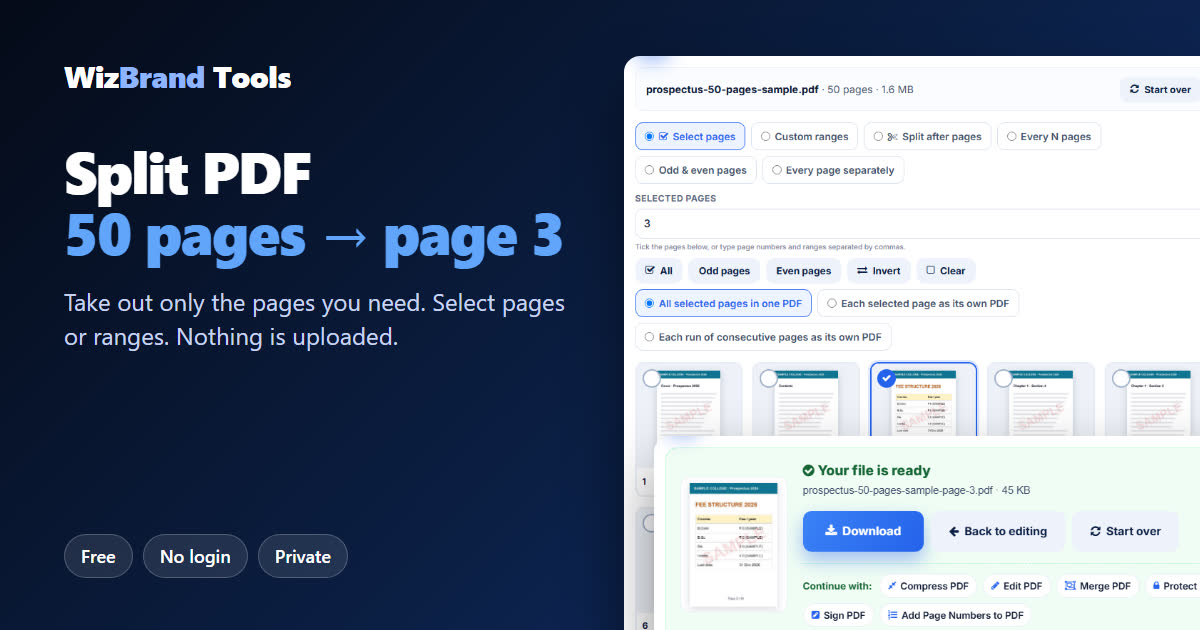
50 pages, and you need only one
The college sends a 50-page prospectus. Your parents want to see just one page: the fee structure on page 3. Send the whole PDF and they scroll through 50 pages to find it. Send a screenshot and the table gets cut off or turns blurry.
It happens at work too: one invoice from a monthly statement, one chapter from a book, the signed page of a contract. The free Split PDF tool by WizBrand fixes this in seconds. Open the PDF, type the page number, click Split PDF and download a small file with just that page. No sign-up, no watermark – and your PDF is never uploaded. Everything happens in your own browser.
Below is a real test: a 50-page, 1.6 MB PDF → only page 3, as a 45 KB PDF.
What the Split PDF tool can do
| Mode | What it does |
|---|---|
| Select pages | Tick page thumbnails or type numbers like 3 or 1,3-5,9. Get them in one PDF, each page as its own PDF, or each run of pages as its own PDF. |
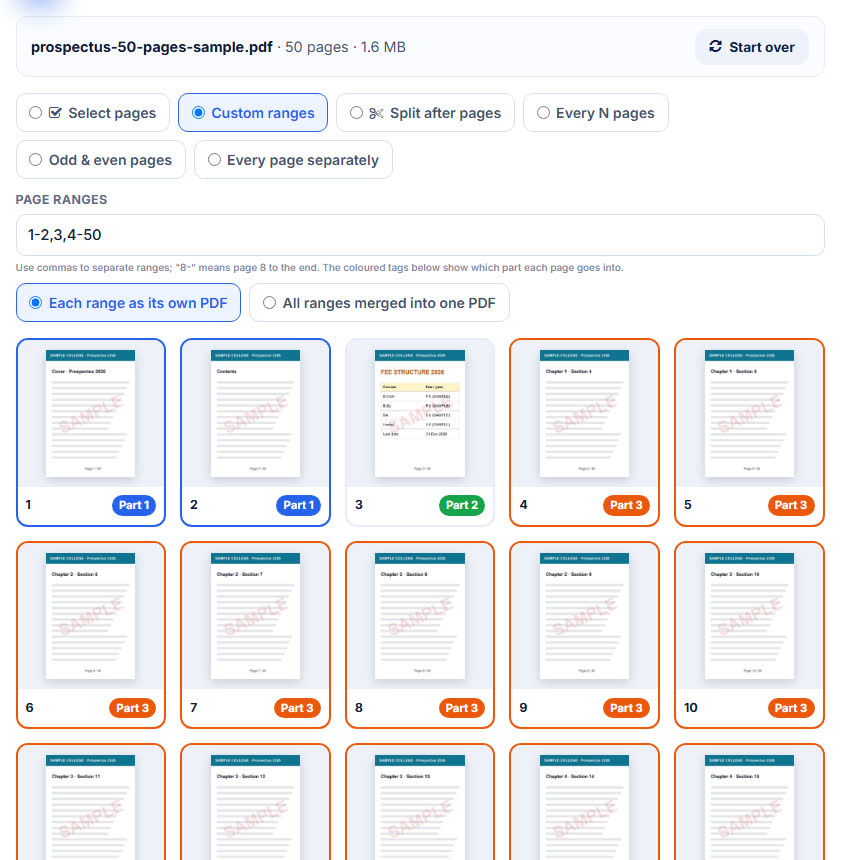
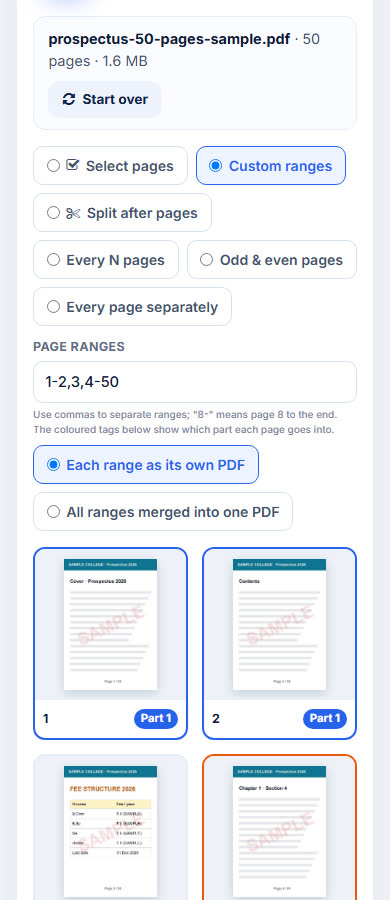
| Custom ranges | Type ranges like 1-2,3,4-50. Coloured tags show which part every page goes into. “8-” means page 8 to the end. |
| Split after pages | Click a page to cut the PDF after it. Each part between cuts becomes its own PDF. |
| Every N pages | For example every 2 pages, or a set number of files with equal pages. |
| Odd & even pages | Separate odd and even pages – handy for double-sided scans. |
| Every page separately | Turn every page into its own PDF. |
When the result has more than one PDF, you get them together in one ZIP file.
How to split a PDF (3 easy steps)
Step 1: Select your PDF
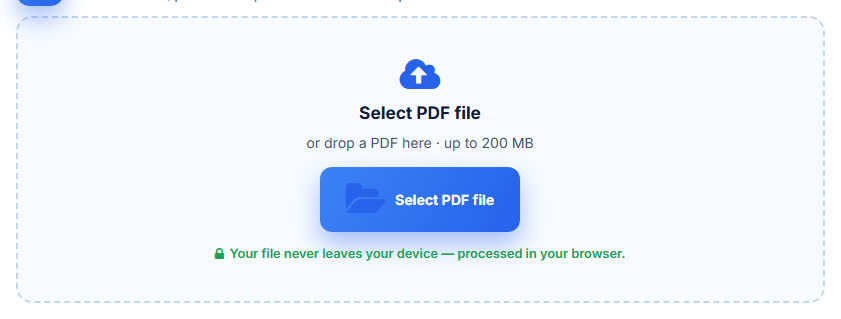
Open the Split PDF tool and click Select PDF file, or drop the PDF onto the page. Files up to 200 MB work.

Step 2: Type the page number (or tick the page)
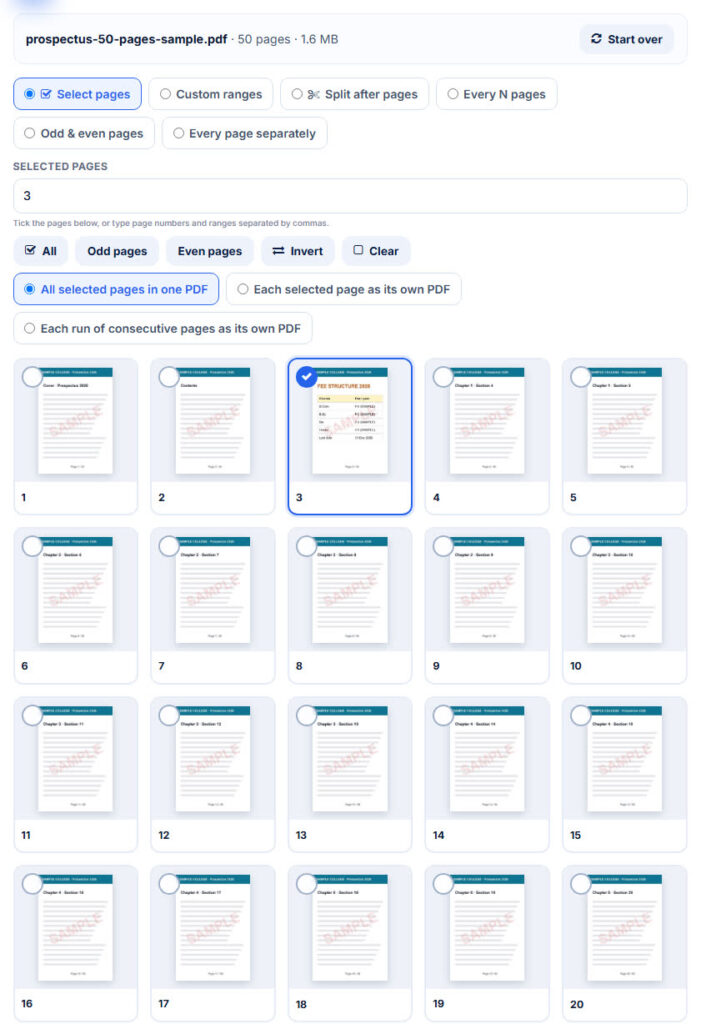
The tool shows every page as a thumbnail. Our sample loaded as “prospectus-50-pages-sample.pdf · 50 pages · 1.6 MB”. We typed 3 in Selected pages, and page 3 (the fee structure) got a blue tick. The tool confirmed: “This will create 1 PDF with 1 page (page 3).”

Step 3: Split and download
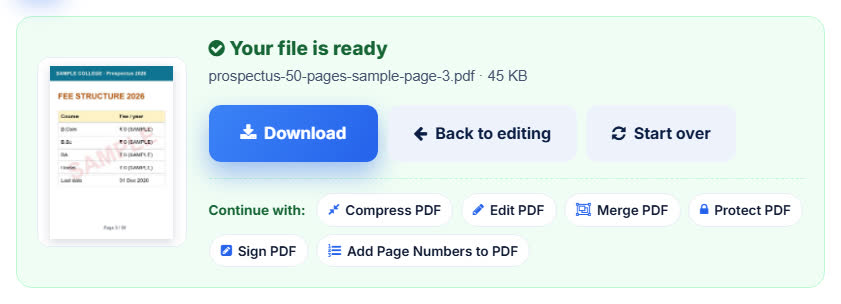
Click Split PDF. The result was ready at once: prospectus-50-pages-sample-page-3.pdf · 45 KB. Click Download and send it.

Our real test results
We made a 50-page sample prospectus (every page stamped SAMPLE) and split it on 18 November 2026.
| Result | |
|---|---|
| Original PDF | 50 pages, 1.6 MB |
| Pages asked for | Page 3 (typed “3”) |
| Result | prospectus-50-pages-sample-page-3.pdf – 1 page, 45 KB |
| Time | Under a second |
The new file is much smaller because it holds only one page. That page is copied as it is, so the text and table stay sharp and selectable – unlike a screenshot.
Need several parts? Use Custom ranges
Want the intro, the fee page and the rest as three separate files? Choose Custom ranges and type 1-2,3,4-50. In our test the tool said: “This will create 3 PDF files (downloaded as a ZIP) — Part 1: 1–2 · Part 2: 3 · Part 3: 4–50.” The coloured tag on each page shows exactly where it goes. Prefer one file? Pick All ranges merged into one PDF.
Is it safe? Your PDF never leaves your device
A prospectus is public, but bank statements, salary slips and contracts are not. Many online splitters upload your file to a server. The WizBrand tool works entirely in your browser – the page itself says “Your file never leaves your device — processed in your browser.” In our check, the browser sent no request to any server between choosing the PDF and getting the result.
Works on your phone too
Got the PDF on WhatsApp or in Downloads? Open the tool in Chrome or Safari, select the file, type the pages and split – no app needed.
Who uses Split PDF?
- Students and parents – the fee page from a prospectus, one chapter from a book, one paper from a set.
- Job seekers – upload only the certificate a form asks for, not the whole bundle.
- Accountants and office teams – one invoice or one month out of a long statement.
- Landlords and tenants – send only the signed page of an agreement.
- Anyone with a size limit – a few pages are much smaller than the whole PDF.
Tips
- Check the number on the thumbnail. The number printed on a page is not always its PDF page number (covers and contents pages shift it).
- Several pages in one file? Type them like 1,3-5 and keep “All selected pages in one PDF”.
- Only want to remove a few pages? Use Delete PDF pages instead.
- Put parts back together in a new order with Merge PDF.
- Still too big? Compress the PDF to 200 KB.
Frequently asked questions
Is Split PDF free?
Yes. It is completely free, with no sign-up, watermark or credit card.
Is my PDF uploaded to your server?
No. The tool runs in your web browser, so your PDF never leaves your device.
How do I take out just one page?
Choose “Select pages”, type the page number (for example 3) or click that page’s thumbnail, then click Split PDF and download.
Can I split a PDF into many files at once?
Yes. Use Custom ranges, Split after pages, Every N pages, Odd & even pages or Every page separately. Several files download together as one ZIP.
Will the quality drop?
No. Pages are copied as they are, so text stays sharp and selectable.
Can I split a password-protected PDF?
Remove the password first with Unlock PDF (you need to know the password), then split the unlocked file.
Does it work on mobile?
Yes. It works in any modern browser on Android and iPhone.
Conclusion: send only the page that matters
No need to send 50 pages or a blurry screenshot. In our test, page 3 of a 50-page, 1.6 MB PDF became its own 45 KB PDF in under a second, without uploading anything.
Try it now with the free Split PDF tool. It is free, needs no login, and your PDF never leaves your device.
More free PDF tools
- Merge PDF – combine several PDFs into one
- Delete PDF pages – remove pages you don’t need
- Organize PDF – reorder, rotate and delete pages
- Compress PDF – make a PDF small enough for email and forms
- PDF to JPG – turn a page into an image
- Sign PDF – add your signature without printing
