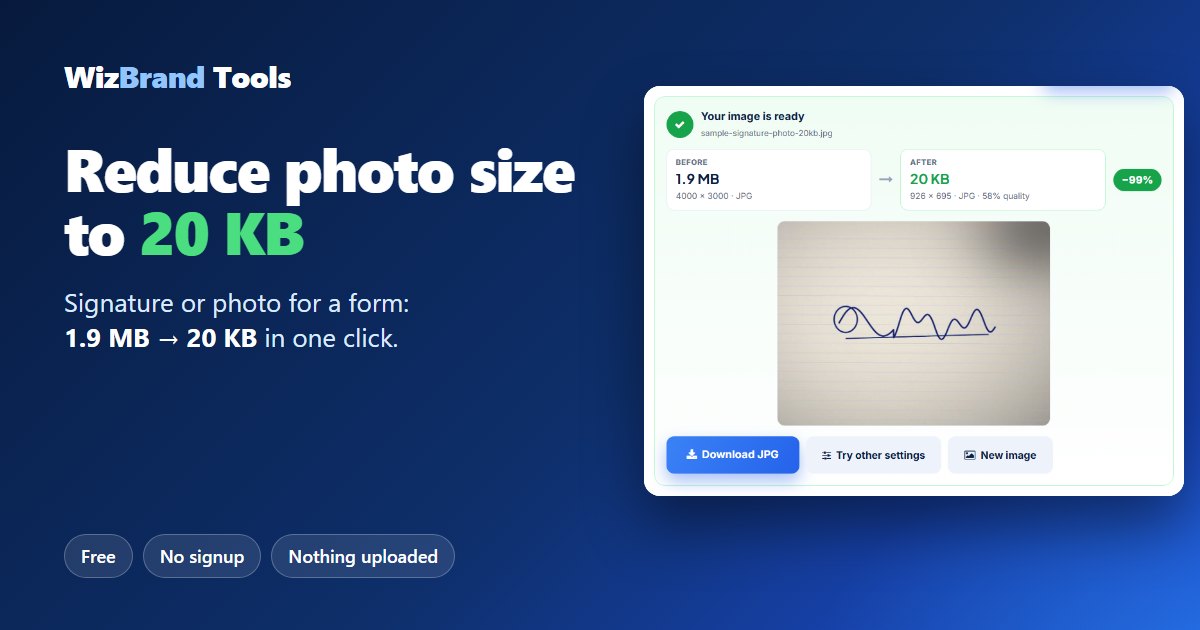
“Image size must be less than 20 KB” – sound familiar?
You are filling an online form for a job, an exam, a college admission or a scholarship. Everything is done. Then you upload your photo or signature and get an error: “File size should be between 10 KB and 20 KB.”
The photo from your phone is 2 MB or more – about a hundred times too big. Most people then try a jugaad: shrink it in Paint, take a screenshot of a screenshot, or send it to themselves on WhatsApp and hope. The result is usually still too big, or so blurry that the signature can’t be read.
There is an easier way. The free Image Size Reducer by WizBrand lets you pick the size you need – 20 KB, 50 KB, 100 KB or any number – and makes your image fit under it in one click. In our test, a 1.9 MB phone photo of a signature became 20 KB.
No app, no signup, and your photo is never uploaded: it is processed inside your own browser.
What the Image Size Reducer can do
| Feature | What it means for you |
|---|---|
| Target file size | Choose 20, 50, 100, 200 or 500 KB, or type any number (for example 30 or 40 KB). The tool finds the best quality that fits under it. |
| Smart shrinking | Quality is lowered only as much as needed. If that is not enough, the width and height are reduced too, keeping the same shape. |
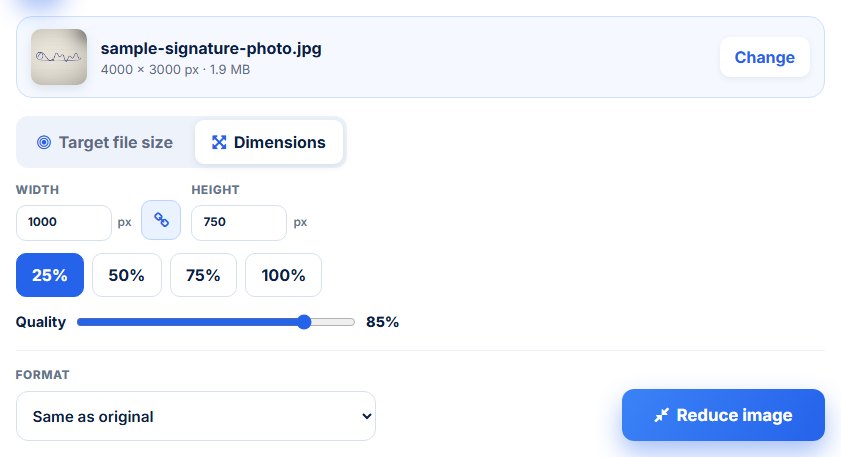
| Exact dimensions | The Dimensions tab lets you type a width and height in pixels, or pick 25%, 50% or 75%, with the aspect ratio locked so nothing looks stretched. |
| Formats | Opens JPG, PNG, WebP, BMP and GIF (first frame). Save as the same format, JPG, WebP or PNG. |
| Before / after | Shows the old and new file size, the pixel size, the quality used and how much smaller the file got. |
| Private | The image is processed in your browser. It is not sent to a server. |
| Free | No account, no limit and no watermark. |
How to reduce image size to 20 KB (3 steps)
Step 1: Add your photo
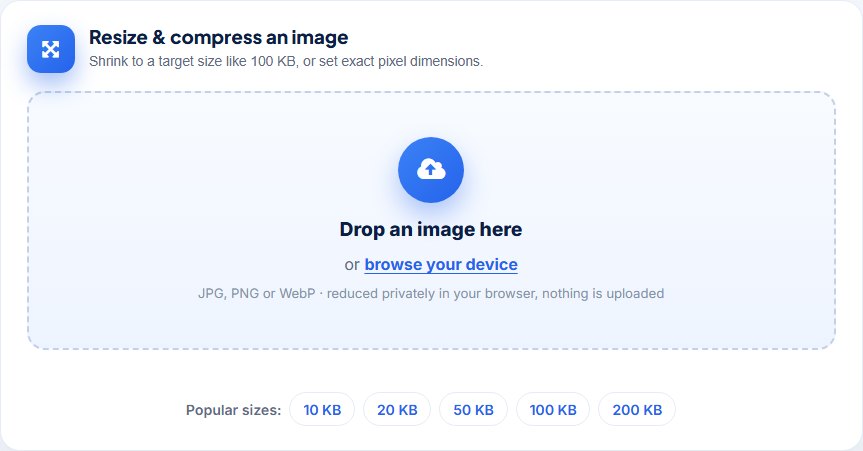
Open the Image Size Reducer. Drop your photo into the box, or click browse your device and pick it from your gallery or files.
Step 2: Choose 20 KB and click Reduce image
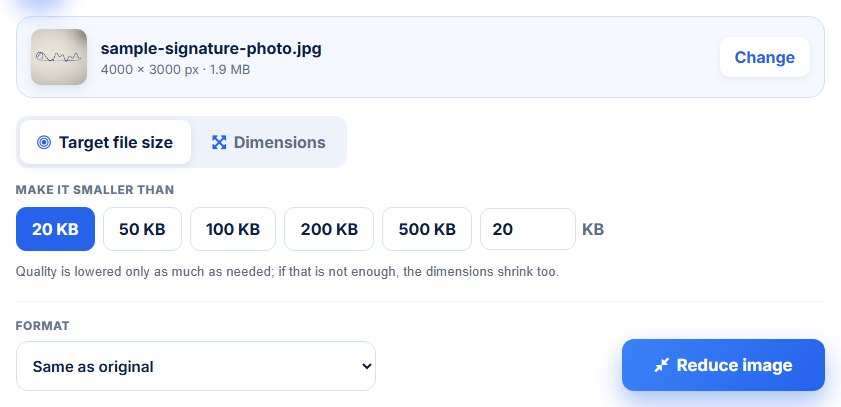
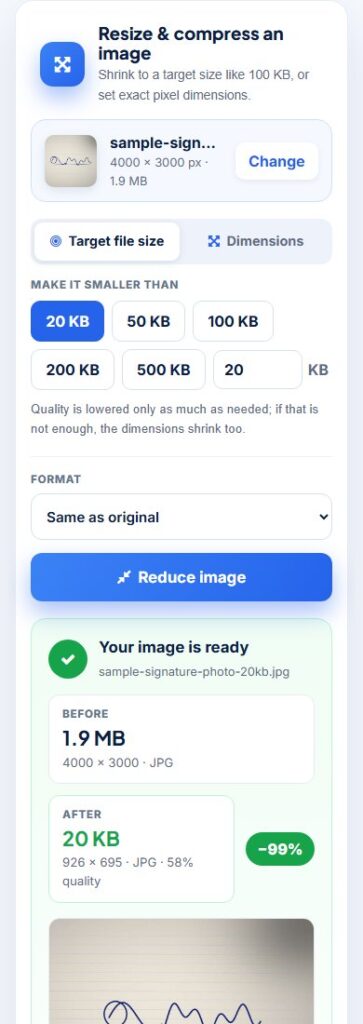
The tool shows your photo’s name, pixel size and file size – ours was 4000 × 3000 px, 1.9 MB. Under Make it smaller than, click 20 KB (or the size your form asks for), then click Reduce image.
Step 3: Check the result and download
In about a second you get the new image with a before/after comparison. Ours went from 1.9 MB to 20 KB (−99%), at 926 × 695 pixels. The signature is still clear. Click Download JPG and upload the file to your form.
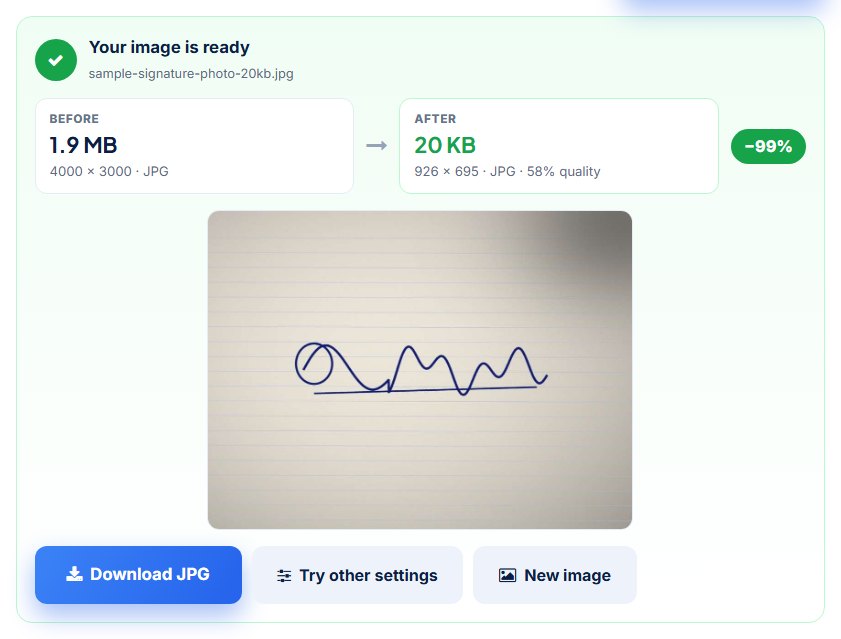
The downloaded file is named with the target, for example sample-signature-photo-20kb.jpg, so you can easily find the right one later.
Real test: one photo, three sizes
We ran the same sample signature photo (4000 × 3000 px, 1.9 MB) through the tool on 17 November 2026. These are the real results.
| Setting | New file size | New pixel size | Quality used | Smaller by |
|---|---|---|---|---|
| Target 20 KB | 20 KB | 926 × 695 | 58% | −99% |
| Target 50 KB | 50 KB | 1775 × 1331 | 46% | −97% |
| Dimensions 25% (quality 85%) | 57 KB | 1000 × 750 | 85% | −97% |
What this tells you
- A big target keeps more pixels. At 50 KB the image stayed almost twice as wide as at 20 KB. Always choose the largest size your form allows – the image will look better.
- The tool balances quality and size for you. For 20 KB it kept 58% quality and reduced the pixels. You don’t need to guess the right numbers.
- Need exact pixels? Some forms ask for a fixed width and height (for example a signature of a certain size in pixels). Use the Dimensions tab for that – type the width, and the height follows automatically.
Shortcut pages for the most asked sizes
If you always need the same size, open its page and the size is already selected:
- Resize image to 10 KB
- Resize image to 20 KB – common for signatures
- Resize image to 50 KB – common for passport-size photos
- Resize image to 100 KB
- Resize image to 200 KB
Works on your phone
Most people fill forms on their phone, so the tool is made for it. Open it in Chrome or Safari, pick the photo straight from your gallery, choose the size and download – no app to install.

Tips for photos and signatures in online forms
- Read the form’s rules first. Note the file type (usually JPG), the size range in KB and any pixel size. Some forms also have a minimum size, so don’t go far below it.
- Sign on plain white paper with a dark pen. A black or blue signature on white stays clear even at 10–20 KB.
- Crop before you reduce. Cut away the empty paper around the signature, or the background around your face, with the Image Cropper. Less empty space means more detail in the same KB.
- Take the photo in good light. Daylight from a window, no flash, no shadow on the paper. A clean photo compresses better.
- Save as JPG. For photos, JPG gives the smallest file. Choose “JPG – smallest for photos” in the Format box if your original is PNG.
- Check the result before you upload. Look at the preview: can you read the signature and see your face clearly? If not, choose a bigger target if the form allows it.
- Keep the original. The tool makes a new file, so your original photo stays safe in your gallery.
Frequently asked questions
Is the Image Size Reducer free?
Yes. It is free and unlimited, with no signup and no watermark.
Is my photo uploaded anywhere?
No. The image is processed inside your browser on your own device. It is not sent to WizBrand or any other server.
How do I reduce a photo to exactly 20 KB?
Choose the 20 KB button and click Reduce image. The tool makes the file as good as possible while keeping it under 20 KB. In our test a 1.9 MB photo came out at 20 KB.
Can I choose a size that is not in the list, like 30 KB?
Yes. Type any number in the KB box next to the buttons.
Will my photo look stretched?
No. The width and height are always reduced together, keeping the same shape. In the Dimensions tab, the ratio lock keeps it in proportion when you type a new width or height.
Which formats are supported?
You can open JPG, PNG, WebP, BMP and GIF (first frame) and save as JPG, WebP or PNG. If you save a transparent PNG as JPG, the background becomes white.
Does it work on mobile?
Yes. It works in any modern mobile browser on Android and iPhone.
My form needs a PDF under 100 KB, not an image. What do I use?
Use Compress PDF to 100 KB. To turn photos into a PDF first, use JPG to PDF.
Conclusion: no more “file too large” errors
A size limit on an online form shouldn’t stop you at the last step. Pick the size, click once, and download – the photo stays on your device and the form goes through.
Try it now with the free Image Size Reducer.
More free image and PDF tools
- Image Cropper – cut away empty space before reducing
- Remove Background – make a clean white or transparent background
- Bulk Image Compressor – compress many photos at once
- JPG to PDF – turn photos or scans into one PDF
- Compress PDF to 100 KB – for documents with a size limit
- Merge PDF – join several PDFs into one
