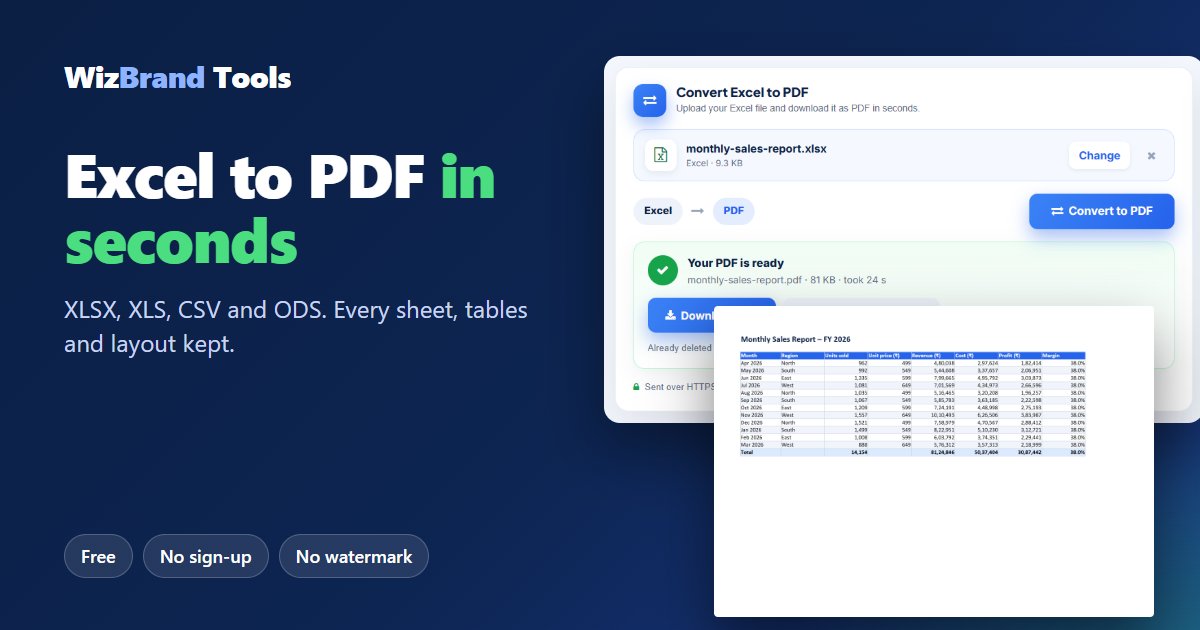
Convert Excel to PDF online – free, fast and with your layout intact
Your sales report, invoice or attendance sheet is ready in Excel. Now your manager, client or accountant wants it as a PDF. If you send the .xlsx file as it is, they may not have Excel, the columns may spill onto extra pages, or someone may change a number by mistake.
That is why people convert Excel to PDF. A PDF shows your sheet exactly as you laid it out, on every phone, laptop and printer, and nobody can edit the figures by accident.
You do not need Microsoft Office or any paid software for this. With the free Excel to PDF converter by WizBrand, you upload your spreadsheet, click Convert, and download a clean PDF. There is no signup and no watermark.
This guide shows you how to convert Excel to PDF online step by step. It also explains how to fit a wide sheet on one page and answers the most common questions.
What is Excel to PDF conversion?
Excel to PDF conversion turns a spreadsheet file (.xlsx, .xls, .csv or .ods) into a PDF (Portable Document Format) file. The rows, columns, colours, borders and number formats are fixed in place. Formulas are not lost either: the PDF shows the results they calculated.
A spreadsheet is made for working with numbers. A PDF is made for sharing the final result. Here is why PDF is the better choice when you send a sheet to someone:
- Opens anywhere – the reader does not need Excel, Google Sheets or any app; every browser opens a PDF.
- Numbers stay locked – nobody can change a price, total or formula by mistake.
- Prints as you planned – page breaks, orientation and margins stay the same on any printer.
- Looks professional – invoices, quotations and reports look finished, not like a working file.
- Accepted everywhere – banks, tax portals, schools and clients usually ask for PDF.
How to convert Excel to PDF online free (3 easy steps)
Step 1: Upload your Excel file
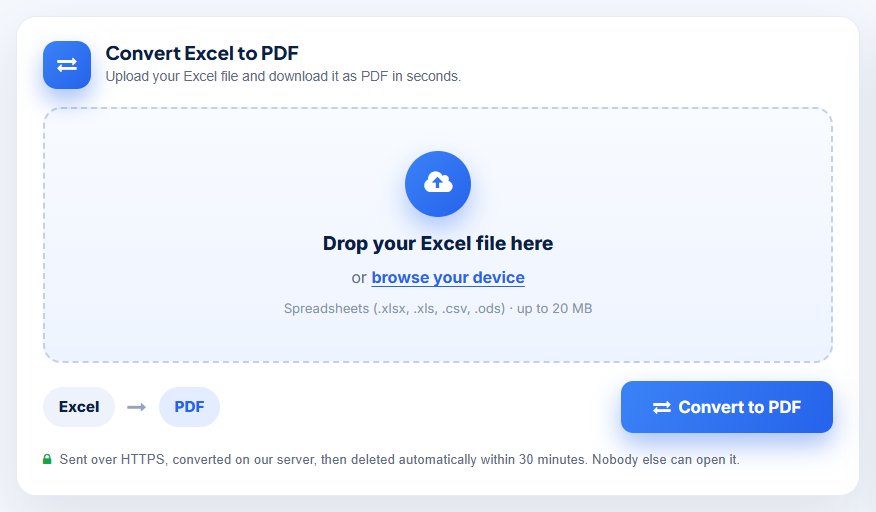
Open the Excel to PDF converter. Drag your file into the box, or click browse your device and pick it. You can upload .xlsx, .xls, .csv and .ods files up to 20 MB.
Step 2: Click Convert to PDF
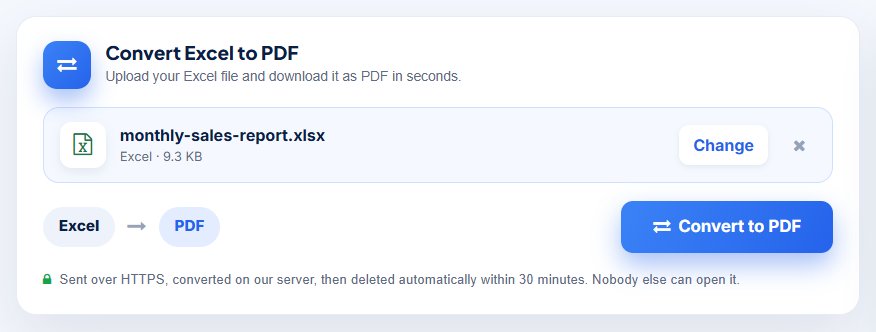
Your file name and size appear in the box, so you can check that you picked the right sheet. Click Change if it is the wrong one. Then click Convert to PDF. The file is sent over a secure connection and converted on our server. This usually takes a few seconds; very large workbooks can take a little longer.
Step 3: Download your PDF
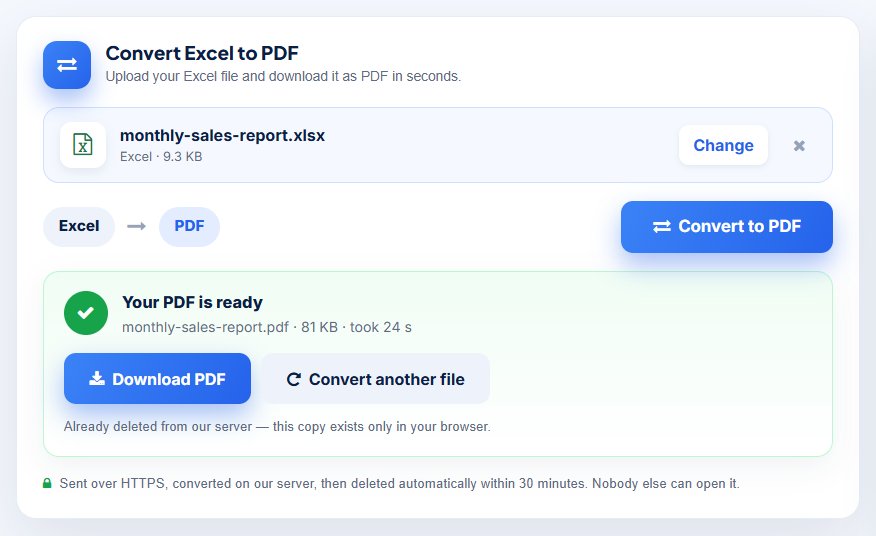
When the conversion is finished you will see Your PDF is ready, with the file size. Click Download PDF to save it. To convert another spreadsheet, click Convert another file.
The result: your sheet as a clean PDF
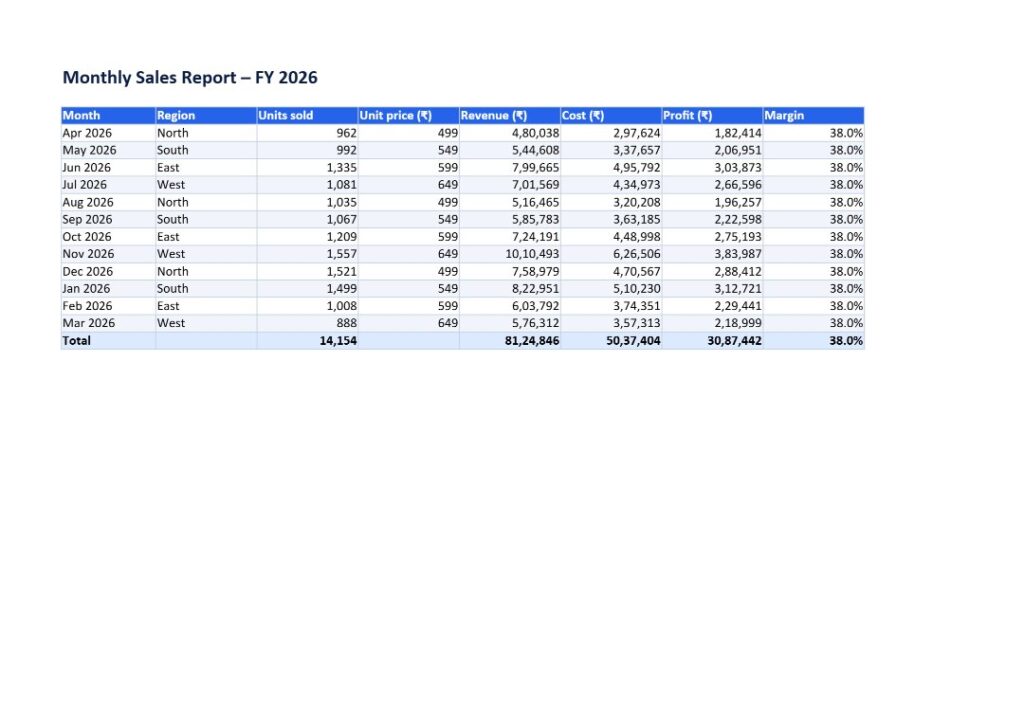
Here is the PDF we got from a sample monthly sales report. The header colours, borders, alternate row shading, ₹ symbol, Indian number format (4,80,038) and the formula totals are all exactly as they were in Excel. Because the sheet was set to landscape in Excel, the PDF page is landscape too. The second sheet of the workbook became page 2.
Why use the WizBrand Excel to PDF converter?
- 100% free – no trial, no daily limit, no hidden charges.
- No signup – just open the page and convert.
- No watermark – your PDF is clean, with no logo added.
- Every sheet is converted – a workbook with several tabs becomes one PDF with all of them, not just the open sheet.
- Formatting kept – fonts, colours, borders, merged cells, number and date formats, and charts.
- Your print settings are respected – orientation, print area and “fit to page” from Excel carry over to the PDF.
- CSV made readable – a CSV file is laid out as a proper table, and its encoding and separator (comma or semicolon) are detected automatically.
- Hindi and other languages – Unicode text such as Hindi, and symbols like ₹, are converted correctly.
- Works on any device – Windows, Mac, Android or iPhone, in any modern browser.
Excel to PDF online vs Excel “Save as PDF” vs Google Sheets
| WizBrand online | MS Excel (Save as PDF) | Google Sheets (Download PDF) | |
|---|---|---|---|
| Cost | Free | Needs Microsoft 365 / Office | Free |
| Install needed | No | Yes | No |
| Account needed | No | Microsoft licence | Google account |
| All sheets in one PDF | Yes, automatically | Only if you choose “Entire workbook” | Only if you choose “Workbook” |
| Keeps Excel formatting | Yes | Yes | Mostly – some styles change on import |
| Works on phone | Yes | Limited | Yes, in the app |
| Speed | A few seconds | Fast, once installed | Upload, open, then export |
If Excel is already open on your computer, File > Save As > PDF works well. On a phone, a shared computer, or a system without Office, the online converter is the quickest way.
Who needs to convert Excel to PDF?
- Accountants and small businesses – invoices, quotations, GST summaries and balance sheets.
- Sales and marketing teams – monthly reports, price lists and campaign numbers for clients.
- HR teams – salary sheets, attendance records and leave registers.
- Teachers and students – mark sheets, timetables and project data.
- Shop owners – stock lists and product catalogues to share on WhatsApp or email.
Tips for a perfect Excel to PDF conversion
The PDF follows the page setup saved in your Excel file. A minute spent on these settings before you upload gives a much neater PDF:
- Fit wide sheets on one page – in Excel go to Page Layout > Scale to Fit and set Width to 1 page. This stops extra columns from moving onto a separate page.
- Use landscape for wide tables – Page Layout > Orientation > Landscape.
- Set a print area – select the cells you want, then Page Layout > Print Area > Set Print Area. Notes and helper cells outside it stay out of the PDF.
- Repeat the header row – Page Layout > Print Titles > “Rows to repeat at top”, so every PDF page shows the column names.
- Hide or delete sheets you do not want – every sheet in the workbook goes into the PDF.
- Widen columns that show #### – if a number does not fit in its column in Excel, it does not fit in the PDF either.
Common problems and quick fixes
| Problem | Fix |
|---|---|
| Columns split onto a second page | Set Scale to Fit > Width: 1 page, or use landscape |
| PDF has empty pages | Clear stray formatting or content far below or to the right of your data, or set a print area |
| Numbers show as #### | Widen the column in Excel and upload again |
| “Please upload a valid Excel file” | The file is damaged or is not really a spreadsheet; open it in Excel or Google Sheets and save it again as .xlsx |
| Password-protected workbook fails | Remove the password in Excel (File > Info > Protect Workbook), then convert |
| File larger than 20 MB | Remove large images or unused sheets, or split the workbook into two files |
Is it safe to convert Excel to PDF online?
Yes. Spreadsheets often hold salaries, bank details or client data, so privacy matters.
- Your file is sent over a secure HTTPS connection.
- The converted PDF is deleted from our server as soon as your browser has received it. Anything left behind is removed automatically within 30 minutes.
- The download link is private and expires, so nobody else can open your file.
- No account means no personal data is stored with your files.
- We never share, sell or read your spreadsheets.
Need to send a confidential report? After converting, add a password to it with Protect PDF.
Frequently asked questions
How do I convert Excel to PDF for free?
Open the free Excel to PDF converter, upload your .xlsx, .xls, .csv or .ods file, click Convert to PDF and download your PDF.
Can I convert Excel to PDF without Microsoft Excel?
Yes. The conversion happens online, so you do not need Microsoft Office installed.
Are all the sheets in my workbook converted?
Yes. Every sheet in the workbook is added to the same PDF, one after the other. Hide or delete any sheet you do not want before you upload.
How do I fit an Excel sheet on one PDF page?
In Excel, go to Page Layout > Scale to Fit, set Width to 1 page (and Height to 1 page if you want the whole sheet on a single page), save, then convert. The PDF follows these settings.
Will my formulas and formatting be kept?
The PDF shows the calculated values of your formulas, with your fonts, colours, borders and number formats. A PDF cannot recalculate, so make your final changes in Excel before converting.
Can I convert a CSV file to PDF?
Yes. Upload the .csv file just like an Excel file. Its encoding and separator are detected automatically, and it is laid out as a readable table.
What is the maximum file size?
You can upload spreadsheets up to 20 MB.
Does the PDF have a watermark?
No. Your PDF is clean, with no watermark or branding added.
Can I convert Excel to PDF on my phone?
Yes. The tool works in Chrome, Safari and other mobile browsers on Android and iPhone.
Is my file safe?
Yes. Files travel over HTTPS. The PDF is deleted from the server once you receive it, and everything else is removed automatically within 30 minutes.
Conclusion: turn your spreadsheet into a PDF now
A PDF keeps your report, invoice or price list looking exactly the way you set it up in Excel. Every number stays where it should, and anyone can open the file. You do not need Office or paid software to make one.
Upload your file to the free Excel to PDF converter and get a clean, watermark-free PDF in seconds. No signup, no install.
More free PDF tools you may like
- PDF to Excel – turn PDF tables back into an editable spreadsheet
- Word to PDF – convert DOC and DOCX files to PDF
- PPT to PDF – convert PowerPoint slides to PDF
- Merge PDF – join several PDFs into one file
- Compress PDF – make a PDF smaller for email
- Protect PDF – add a password to a PDF
- Split PDF – pull pages out of a PDF
