The background is ruining a perfectly good photo
You took a nice photo of your product, but the kitchen wall and the plant behind it make it look homemade. Or your logo sits in an ugly white box on every coloured banner. Or a marketplace asks for product photos on a plain white background.
Cutting the subject out by hand in a photo editor takes skill and time. The free Remove Background tool by WizBrand does it automatically. Choose a photo, let the AI find the subject, fix any spot it missed with a brush, and download a transparent PNG or a version on a new background. No watermark, no sign-up.
Below we show every step with a real test: a product photo of a mug on a kitchen table.
What the Remove Background tool does
| Feature | What it means for you |
|---|---|
| Automatic cut-out | The AI finds the main subject (a product, a person, a pet, a logo) and removes the rest. |
| Erase & Restore brush | Paint over anything that should go, or bring back anything that should stay. Undo and Reset included. |
| Transparent PNG | Download at the full size of your photo (up to 4096 px). |
| New background | White, black, blue, grey, any colour you pick, a blur of the original, or your own photo. Then save as PNG or JPG. |
| Crop to subject | Trims the empty space around the cut-out. |
| Quality modes | Best quality uses WizBrand’s own AI server; the photo is deleted right after. Private modes run on your own device, so the photo never leaves it. |
| Free, no watermark | No account, no credit card, no logo stamped on your image. |
How to remove the background from a photo (3 steps)
Step 1: Choose a quality and a photo
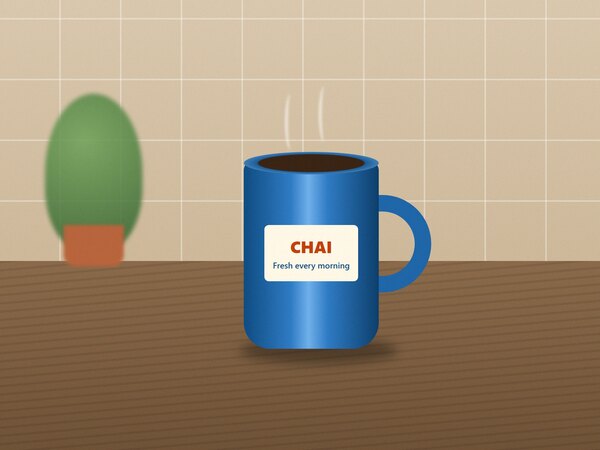
Open the Remove Background tool. Pick Best quality for the cleanest edges, or a Private mode if the photo must stay on your device. Then click Choose a photo or drop a JPG, PNG or WebP file.
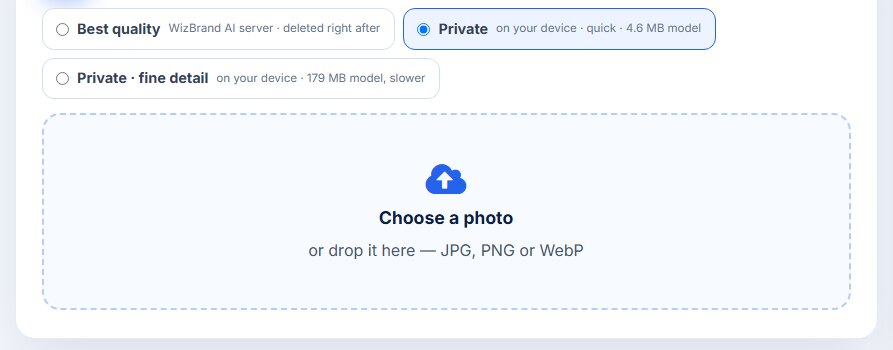
This is the photo we used: a blue “CHAI” mug on a wooden table, with a tiled wall and a plant behind it.
Step 2: Let the AI cut it out – and fix anything it missed
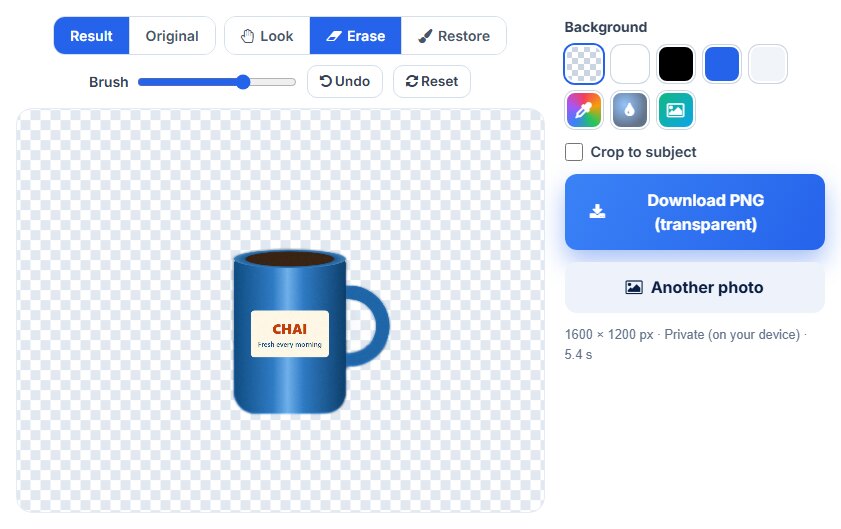
In a few seconds the background is gone. Our test ran in Private mode on a laptop and took 5.4 seconds for the 1600 × 1200 px photo. The wall and table disappeared, but the AI also kept the blurred plant, because it looked like a second object.
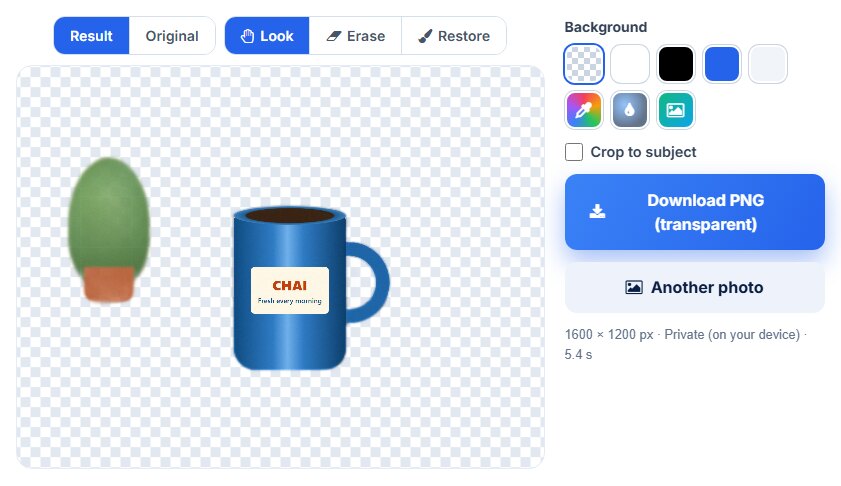
That is what the brush is for. Click Erase, make the brush bigger with the slider, and paint over the plant. It disappears. If you erase too much, switch to Restore and paint it back, or press Undo.
Step 3: Download a transparent PNG
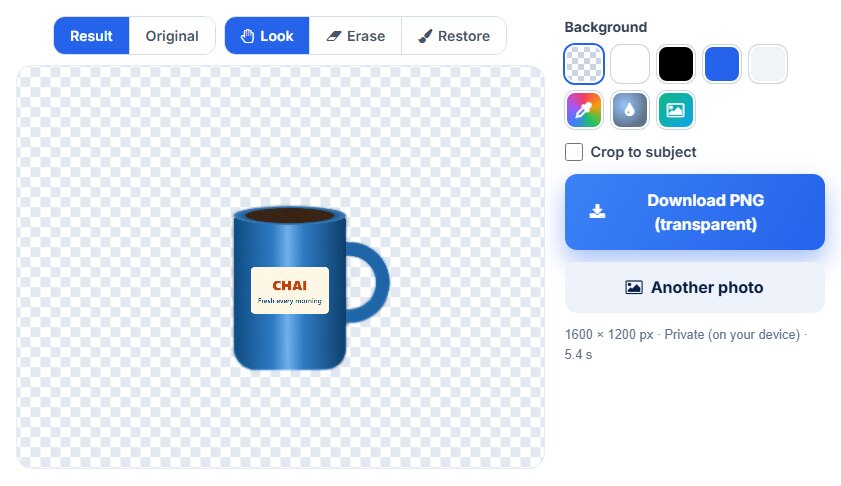
Click Download PNG (transparent). You get the cut-out at the full size of your photo, ready for a website, a banner, a presentation or a design app.
Put the subject on a new background
A transparent PNG is great for designs, but often you want a finished photo. Pick a background swatch and the tool shows it instantly. A Download JPG button appears next to the PNG one.
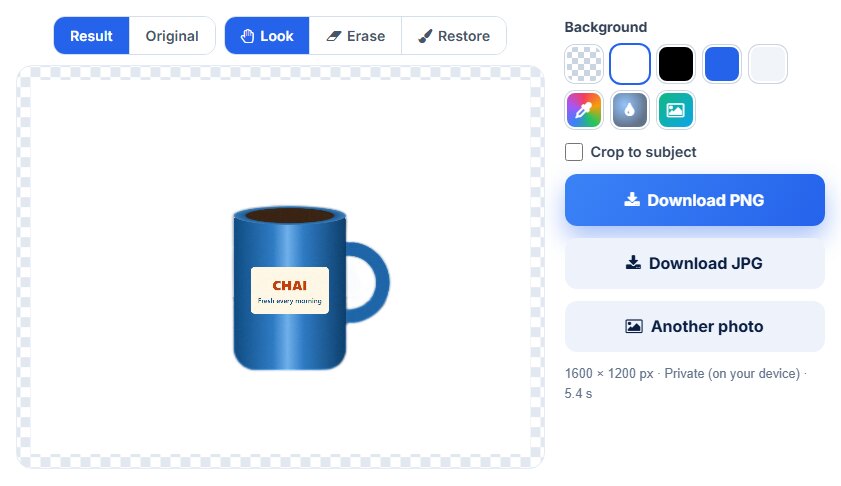
White background for product listings
Online shops and marketplaces often prefer product photos on plain white. One click on the white swatch:
Blur the original background
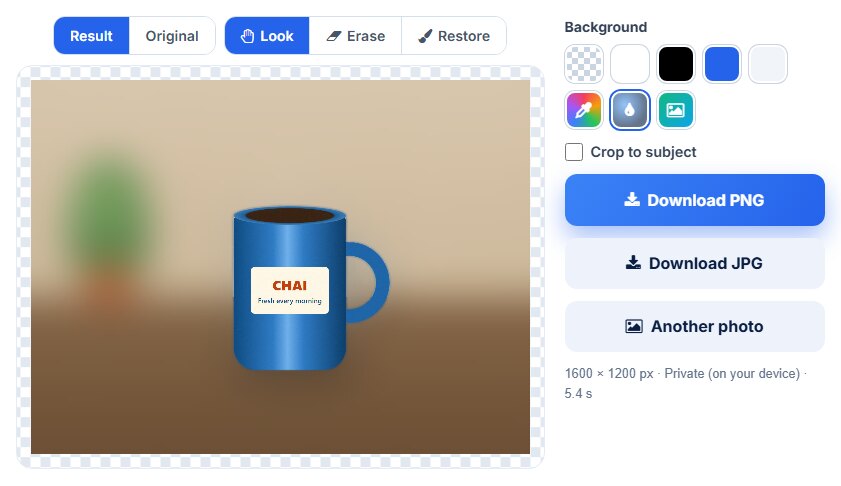
Want the “portrait mode” look instead? The blur option keeps the original scene but softens it, so the product stands out.
Any colour, cropped to the subject
Use the colour picker to match your brand colours, and turn on Crop to subject to trim the empty space. This is handy for thumbnails and social posts.
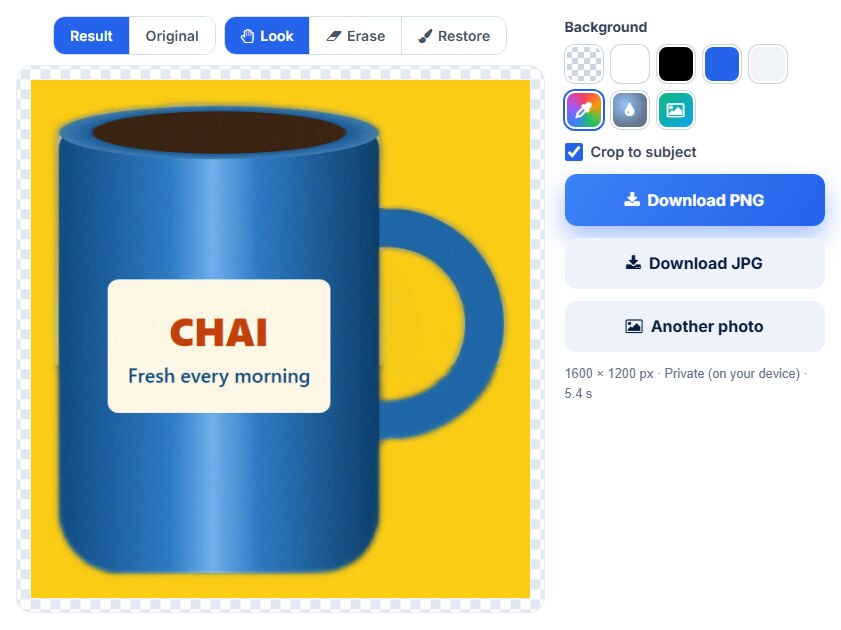
You can also choose your own photo as the new background with the picture button.
Best quality or Private – which should you choose?
| Mode | Where it runs | Choose it when… |
|---|---|---|
| Best quality | WizBrand’s own AI server over HTTPS (no outside service). The photo is processed in memory and deleted as soon as the cut-out is ready. | You want the cleanest edges. |
| Private | On your own device. A 4.6 MB AI model runs in your browser. | The photo is private and must never leave your device; quick results. |
| Private · fine detail | On your own device, with a larger 179 MB model. Slower. | Private photos with fine edges, such as hair or fur. |
If the AI server is busy when you choose Best quality, the tool doesn’t leave you stuck. It does the photo in Private mode on your device and tells you so. You can try Best quality again a minute later.
Honest tips for the cleanest cut-out
- One clear subject works best. In busy photos the AI may keep a second object, like the plant in our test. Use Erase to remove it in seconds.
- Check thin or see-through parts. Handles, straps, hair and text on logos are the hardest parts. Zoom in and use Restore if anything faded.
- Use good light and contrast. A subject that stands out from its background gives a cleaner edge.
- Start with a big photo. The PNG keeps your photo’s full size, so a sharp original gives a sharp cut-out.
Works on your phone too
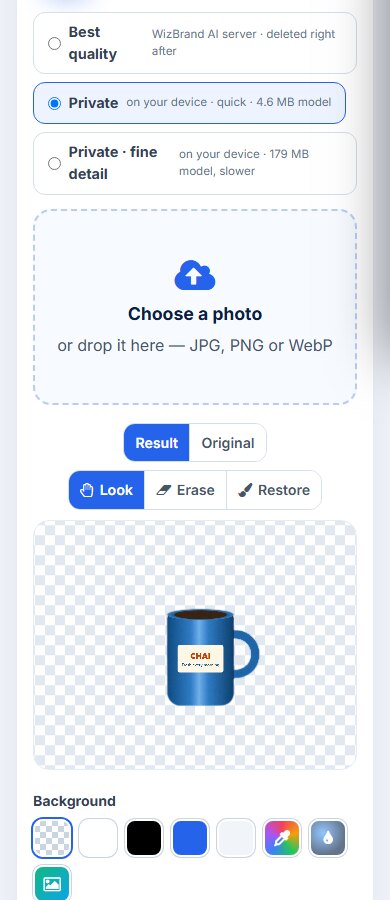
Open the tool in your phone’s browser, choose a photo from the gallery and download the result. No app needed.
Who uses a background remover?
- Online sellers – clean white product photos for Amazon, Flipkart, Meesho, Etsy or your own store.
- Small businesses – logos without a white box for banners, menus and social posts.
- Creators – YouTube thumbnails and Instagram posts with the subject popping out.
- Students and office teams – clean images for presentations and reports.
Frequently asked questions
Is the background remover free?
Yes. It is free, with no sign-up and no watermark on your image.
Is my photo uploaded?
With Best quality, the photo is sent over HTTPS to WizBrand’s own AI server, processed in memory and deleted as soon as the cut-out is ready. With a Private mode, the photo never leaves your device.
The AI kept or removed the wrong part. Can I fix it?
Yes. Pick Erase and paint over anything that should go, or Restore and paint over anything that should stay. Change the brush size with the slider, and use Undo if you slip.
What file do I get?
A PNG with a transparent background at the full size of your photo (up to 4096 px), or a JPG when you choose a background.
Can I put a white background behind my product?
Yes. Click the white swatch, then Download JPG or PNG. You can also pick any colour, blur the original, or use your own photo.
Which photos work?
JPG, PNG and WebP photos of people, products, pets, logos and other clear subjects.
Does it work on mobile?
Yes. It works in modern mobile browsers on Android and iPhone.
Conclusion: a clean cut-out in seconds, and you stay in control
The AI does the hard part, and the Erase and Restore brush lets you fix the rest. In our test the tool removed the wall and table in seconds. We removed the one leftover plant with a few brush strokes, then turned the mug into a transparent PNG, a white-background product photo, a blurred-background shot and a brand-colour thumbnail.
Try it now with the free Remove Background tool. It has no watermark and needs no sign-up.
More free image tools
- Image Size Reducer – shrink a photo to 20 KB, 50 KB or any size
- Image Cropper – crop to passport, Instagram or any size
- WhatsApp DP Cropper – full photo as your WhatsApp DP
- Photo Editor – brightness, filters and more
- Bulk Image Compressor – compress many photos at once
- Image Converter – JPG, PNG and WebP
