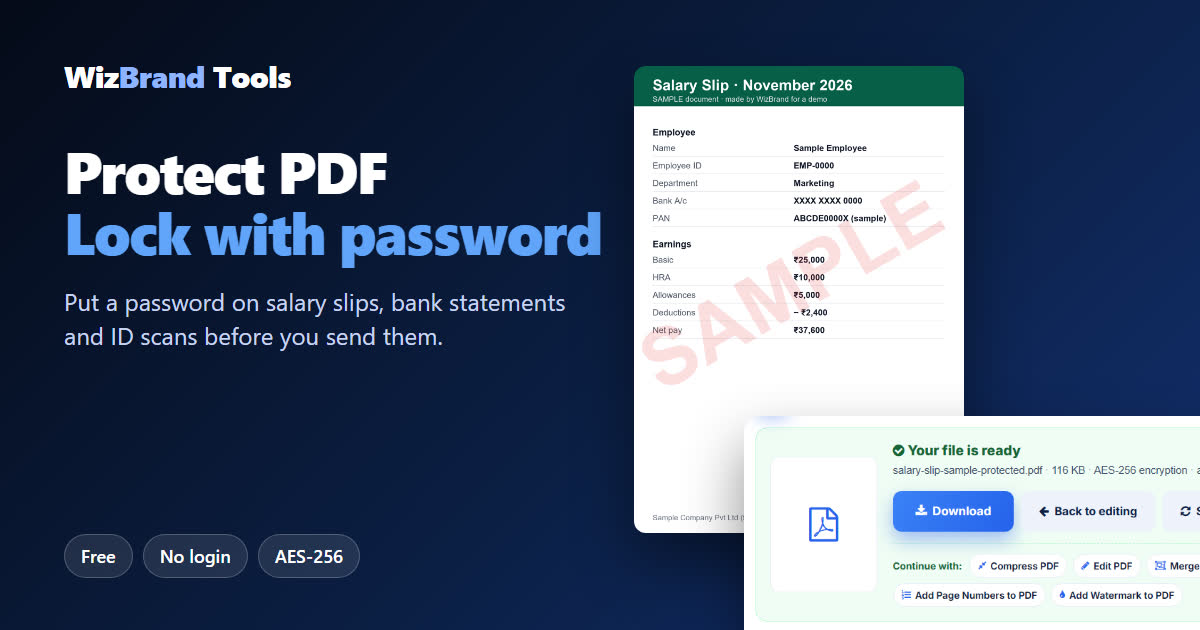
One forward, and everyone knows your salary
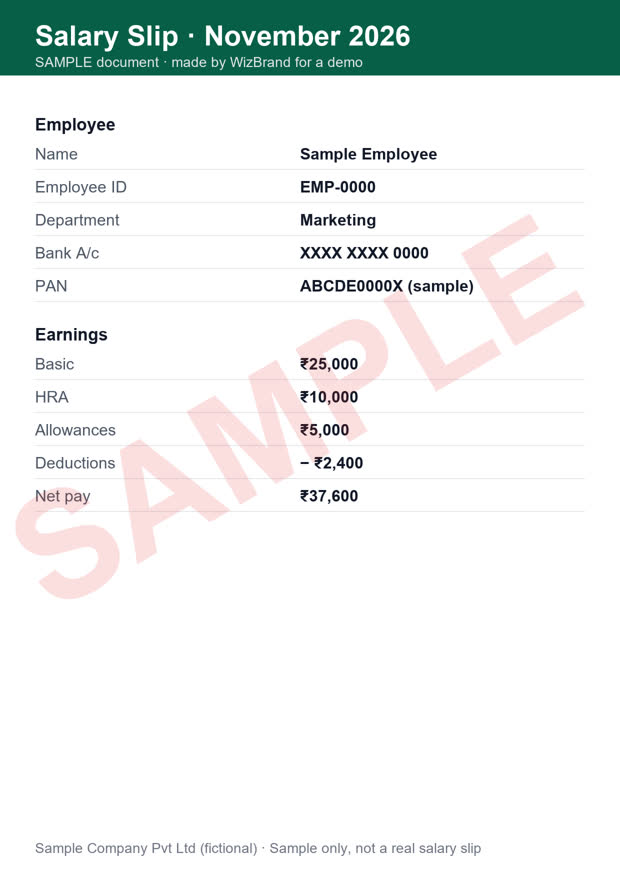
A salary slip has your name, employee ID, bank account number, PAN and exactly how much you earn. So do bank statements, Form 16, ID scans and medical reports. You send one to HR, a bank or a landlord on WhatsApp or email – and from there it can be forwarded to anyone, any number of times.
The fix takes ten seconds: put a password on the PDF before you send it. The free Protect PDF tool by WizBrand locks any PDF with strong AES-256 encryption. Without the password, the file simply won’t open. No sign-up, no watermark – and your file and password never leave your device, because the encryption happens inside your own browser.
Below we show it with a real test on a sample salary slip, and we also tested the locked file to make sure it really can’t be opened without the password.

What the Protect PDF tool does
| Feature | What it means for you |
|---|---|
| Open password | Nobody can open the PDF without the password you choose. You type it twice so a typo can’t lock you out. |
| AES-256 encryption | The strongest standard PDF encryption (AES-128 is also offered for very old PDF readers). |
| Password strength meter | Shows how strong your password is as you type. |
| Permissions | Switch off printing, copying text and images, or editing for people who open the file. |
| Owner password (optional) | A second password that opens the PDF with full access, even when printing or copying is switched off. |
| Never uploaded | The file and the password stay on your device. Nothing is sent to a server. |
| Free, no login | Files up to 200 MB, no account, no watermark. |
How to password-protect a PDF (3 easy steps)
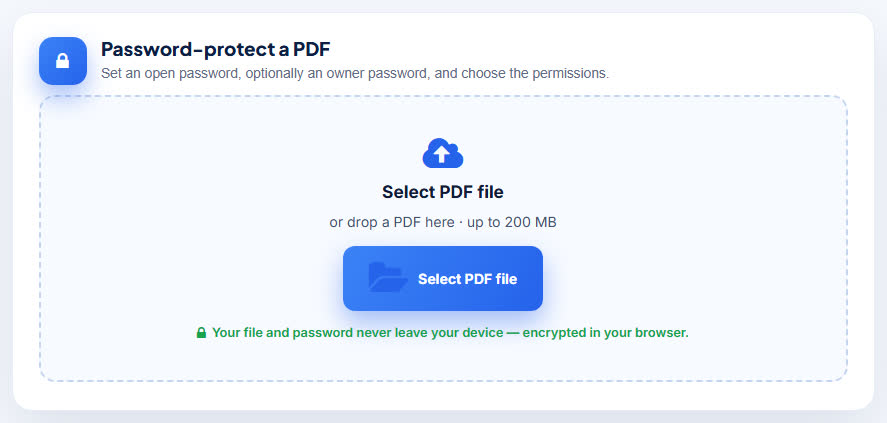
Step 1: Select your PDF
Open the Protect PDF tool and click Select PDF file, or drag and drop the PDF onto the page.

Step 2: Type a password (twice)
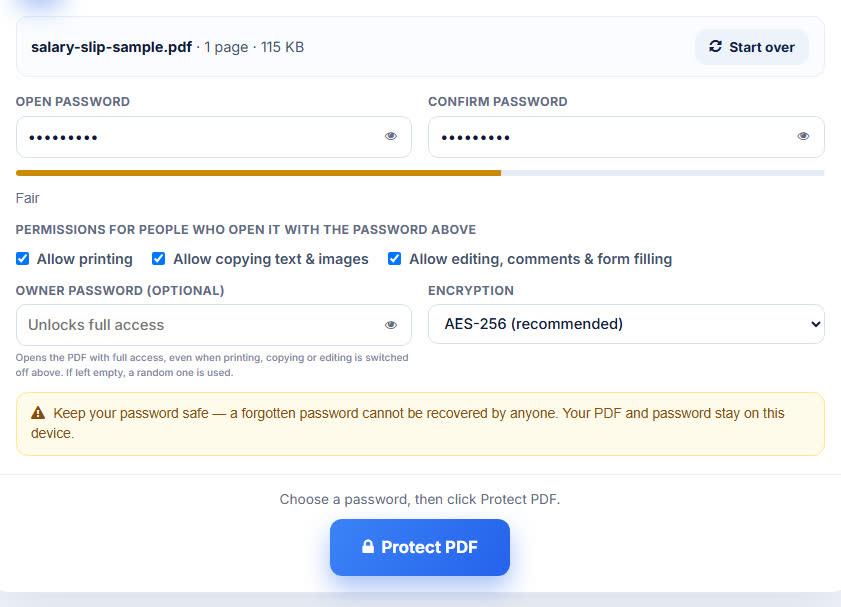
The tool shows the file – in our test salary-slip-sample.pdf · 1 page · 115 KB. Type your password in Open password and again in Confirm password. If you want, untick Allow printing or Allow copying, and leave the encryption on AES-256 (recommended).
Step 3: Protect and download
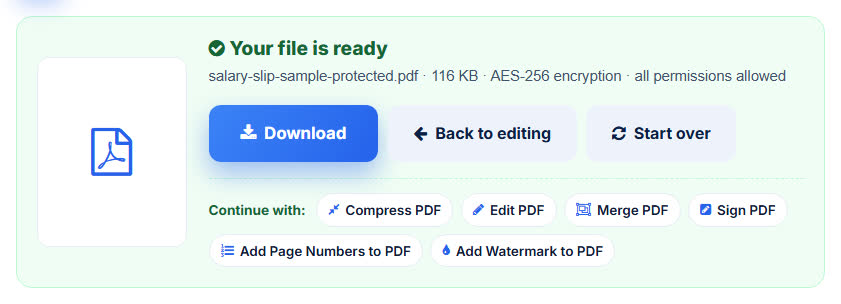
Click Protect PDF. In our test the result came in under a second: salary-slip-sample-protected.pdf · 116 KB · AES-256 encryption · all permissions allowed. Click Download – the locked file is ready to send.
We tested the lock
A password tool is only useful if the lock really works, so we checked the downloaded file ourselves on 18 November 2026. We opened it with Mozilla pdf.js (the PDF engine behind Firefox’s PDF viewer) and read the file’s encryption settings directly.
| Test on the downloaded file | Result |
|---|---|
| Open with no password | ❌ Refused – “No password given” |
| Open with a wrong password | ❌ Refused – “Incorrect Password” |
| Open with the right password | ✅ Opened – 1 page, displayed normally |
| Encryption inside the file | AES-256 (PDF standard security, revision 6, 256-bit key, AESV3). The original file had no encryption. |
| File size | 115 KB before, 116 KB after |
Adobe Reader and phone PDF apps were not part of this test, but AES-256 is the standard PDF encryption that all modern PDF readers support.
Is it safe? Your file and password stay with you
Most online PDF tools upload your document to their server – which is exactly what you don’t want for a salary slip or bank statement. The WizBrand tool runs entirely in your browser. When we checked this on 18 November 2026 (while recording our video of the tool), the page made no request to any server between adding the file and downloading the result. Nobody else ever sees the document or the password.
Works on your phone too
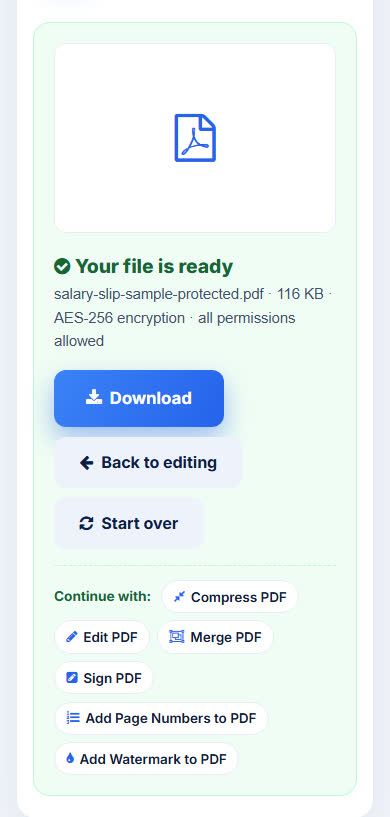
Most documents today are sent from a phone. Open the tool in Chrome or Safari, pick the PDF from your Downloads or WhatsApp folder, type the password twice and tap Protect PDF – no app needed.

Which documents should you lock?
- Salary slips and Form 16 – for loans, rentals and new jobs.
- Bank statements – for visas, loans and KYC.
- ID scans – Aadhaar, PAN, passport copies.
- Medical reports – for insurance claims.
- Business documents – invoices, quotations, contracts and price lists for clients.
- Teachers and coaches – question papers and paid study material.
Tips for using PDF passwords
- Send the password separately. Share it by phone call or SMS – not in the same chat or email as the PDF. Otherwise anyone who gets the chat gets both.
- Use a strong password. Longer is better: 12 or more characters mixing words, numbers and a symbol.
- Save the password somewhere safe. A forgotten password cannot be recovered by anyone – not even by us.
- Keep the original. Protect a copy and keep the unlocked file safely on your device.
- Switch off printing or copying when you share material you don’t want reused.
- Compress first if there is a size limit. Make the file small with Compress PDF, then protect it.
Frequently asked questions
Is Protect PDF free?
Yes. It is completely free, with no sign-up, watermark or credit card.
Is my PDF uploaded to your server?
No. The file and the password stay in your browser. The encryption happens on your own device.
How strong is the encryption?
AES-256 by default – the strongest standard PDF encryption. We checked the downloaded file: without the right password it does not open.
What if I forget the password?
It cannot be recovered – that is what makes it secure. Keep the password written somewhere safe and keep an unlocked copy of the original.
Can I stop people from printing or copying my PDF?
Yes. Untick “Allow printing” or “Allow copying text & images” before you click Protect PDF. You can also set an owner password that gives full access only to you.
How do I remove the password later?
Use Unlock PDF. You need to know the password.
Does it work on mobile?
Yes. It works in any modern mobile browser on Android and iPhone.
Conclusion: lock first, then send
A salary slip or bank statement sent without a password can travel anywhere. With WizBrand Protect PDF it takes three steps – select, type a password twice, download – and in our test the locked file refused to open without the right password.
Try it now with the free Protect PDF tool. It is free, needs no login and your file never leaves your device.
More free PDF tools
- Unlock PDF – remove a password you know
- Add Watermark to PDF – put your name on every page
- Sign PDF – add your signature without printing
- Merge PDF – combine several PDFs into one
- Compress PDF – make a PDF small enough for email and forms
