Your notes, someone else’s name
You stayed up three nights making clean notes. You share the PDF in the class group – and a day later the same notes are going around with someone else saying “I made these”. Everyone thanks them, not you.
It happens to students, teachers, designers and freelancers every day. The simple answer is a watermark: your name, faintly printed across every page. The free Add Watermark to PDF tool by WizBrand does it in seconds – type your name, choose where it goes, click Add watermark and download. No sign-up, and your PDF is never uploaded. Everything happens in your own browser.
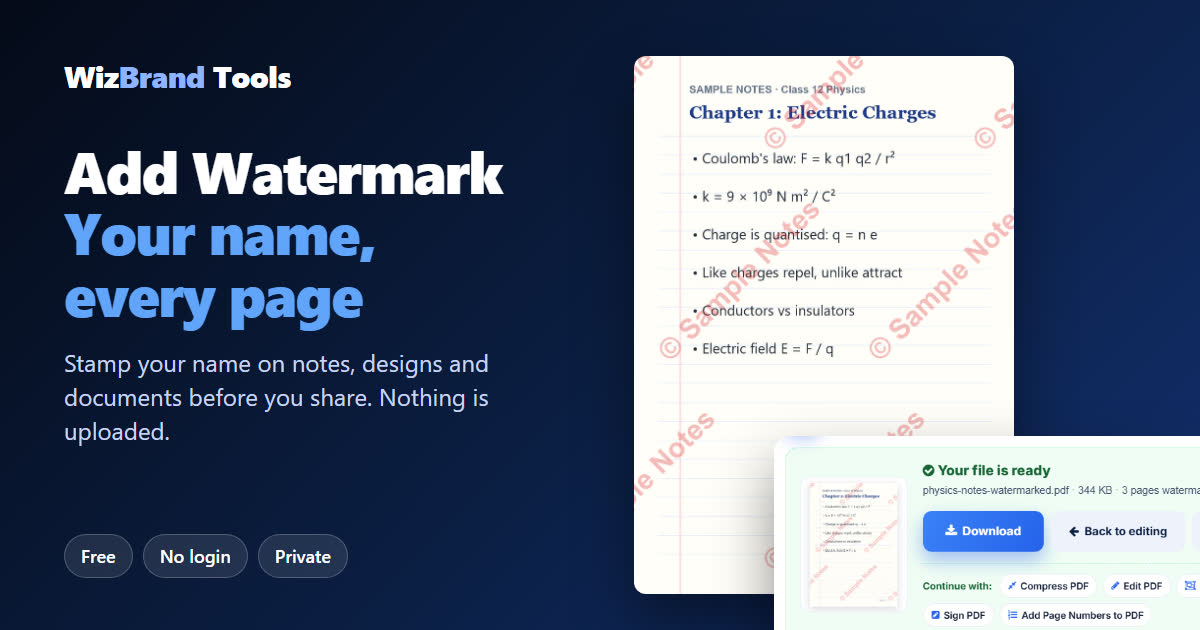
Below is a real test: a 3-page notes PDF → “© Sample Notes” on every page.
What the Add Watermark tool does
| Option | What it means for you |
|---|---|
| Watermark text | Your name, brand, “© 2026”, “Confidential”, “Draft” – anything you type. |
| Position | Center, Tiled (repeated across the whole page), or any corner or edge – 10 choices. |
| Font and size | Helvetica, Times or Courier, bold or regular, any size. |
| Color and opacity | Pick any color and make it light (we used 30%) so the page stays easy to read. |
| Rotation | Set the angle – a 45° diagonal is the classic look. |
| Pages | Leave empty for every page, or type a range such as 1-3,5. |
| Never uploaded | “Your file never leaves your device – processed in your browser.” |
| Free, no login | Files up to 200 MB, no account, no extra WizBrand mark added. |
How to add a watermark to a PDF (3 easy steps)
Step 1: Select your PDF
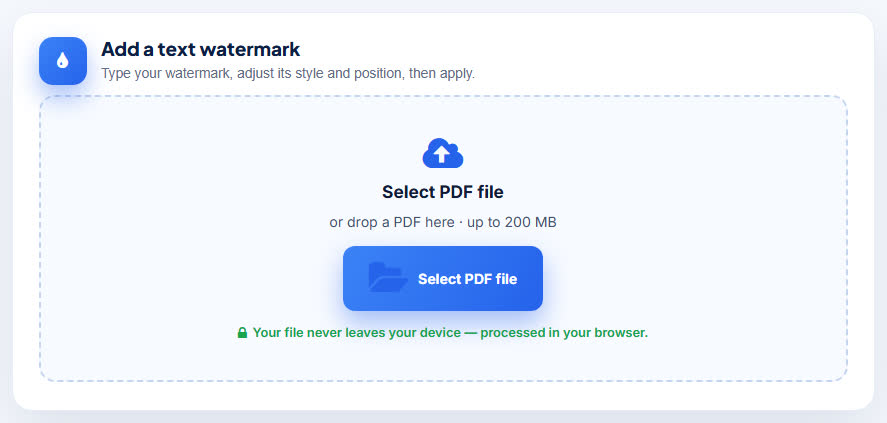
Open the Add Watermark to PDF tool and click Select PDF file, or drag and drop the PDF onto the page.

Step 2: Type your name and choose the style
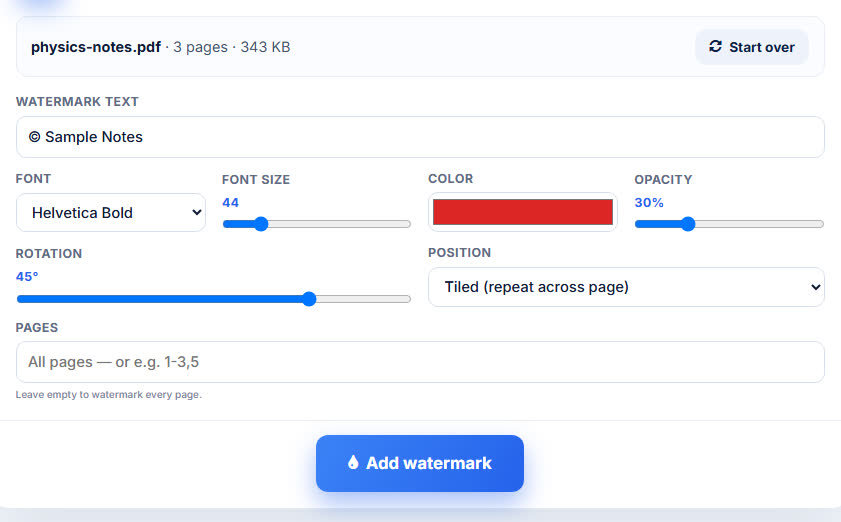
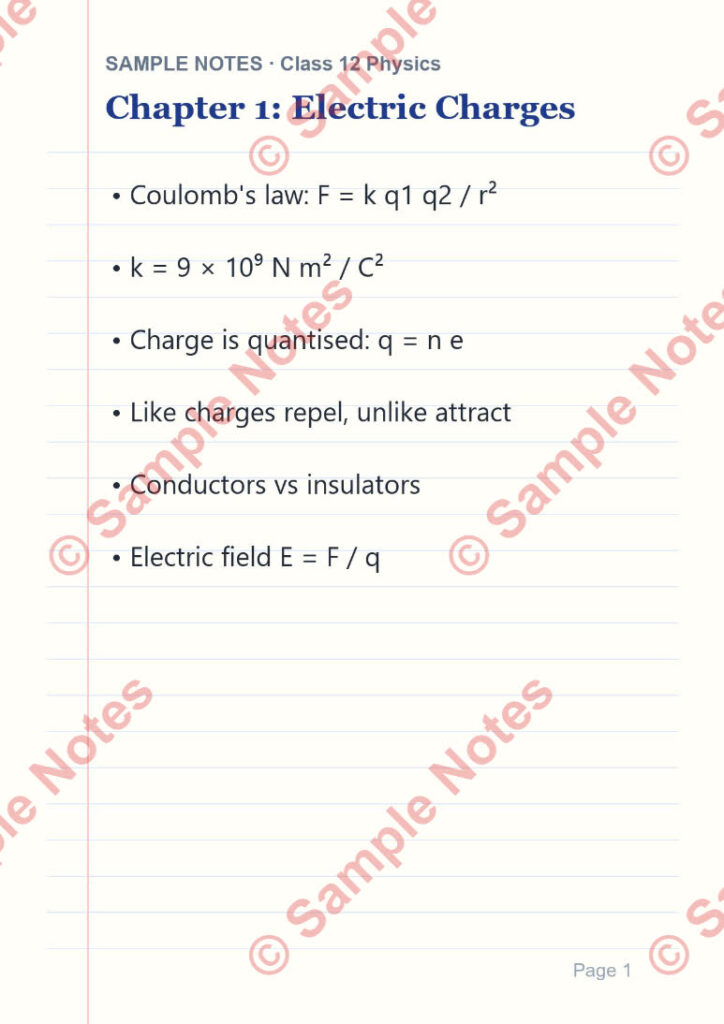
The tool shows the file – in our test physics-notes.pdf · 3 pages · 343 KB. We typed © Sample Notes, set the position to Tiled (repeat across page) and the font size to 44. We kept the other defaults: Helvetica Bold, red, 30% opacity, 45° rotation, all pages.

Step 3: Add the watermark and download
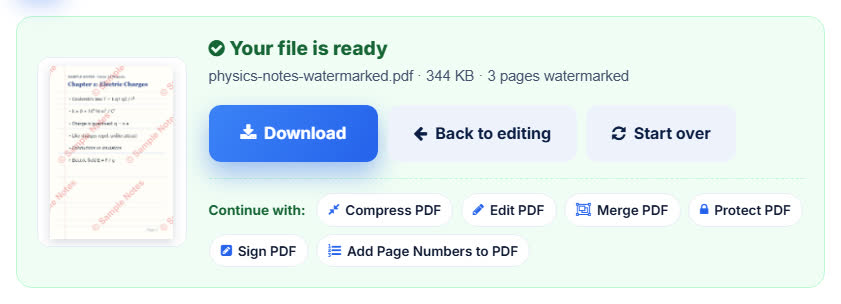
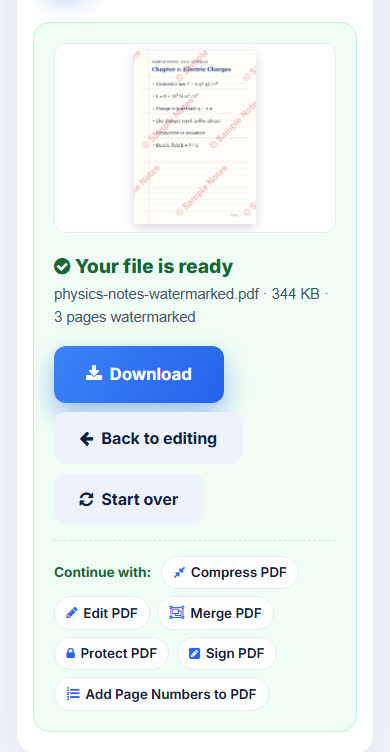
Click Add watermark. In our test it took under a second: physics-notes-watermarked.pdf · 344 KB · 3 pages watermarked. Click Download and share it.

What the watermarked page looks like
This is page 1 of the real downloaded file. The name runs diagonally across the whole page, light enough that the notes are still easy to read.

Our real test results
We made a 3-page sample notes PDF and watermarked it on 18 November 2026. Then we opened the downloaded file with Mozilla pdf.js (the PDF engine behind Firefox’s viewer) to check every page.
| Result | |
|---|---|
| Original file | physics-notes.pdf – 3 pages, 343 KB, no watermark |
| Settings | “© Sample Notes”, Tiled, size 44, red, 30% opacity, 45° |
| Watermarked file | physics-notes-watermarked.pdf – 3 pages, 344 KB |
| Watermark found on | All 3 pages (checked in the downloaded file) |
| Time | Under a second |
The file grew by only about 1 KB, because the watermark is added as text on top of the page – the original content is not re-compressed and stays sharp.
Be honest about what a watermark does
A watermark does not make copying impossible. It puts your name on every page, so anyone who sees the notes or the design knows where it came from, and removing it takes real effort. If you also want to stop people opening or printing the file, add a password with Protect PDF – the result screen offers it under “Continue with”.
Works on your phone too
Open the tool in Chrome or Safari on your phone, select the PDF, type your name and tap Add watermark – no app needed.

Who uses PDF watermarks?
- Students and toppers – share notes in groups with your name on every page.
- Teachers and coaching classes – brand your worksheets, test papers and study material.
- Designers and freelancers – send drafts and proposals marked “Draft” or “Sample” until the client pays.
- Offices – mark documents “Confidential” or “Internal use only”.
- Small businesses – put the shop name on price lists and catalogues that get forwarded.
Tips for a good watermark
- Keep it light. 20–35% opacity is easy to see but doesn’t get in the way of reading.
- Use Tiled for notes and designs. One name in the centre is easy to crop out; a repeated pattern is not.
- Add a contact. “© Your Name · @yourhandle” turns every forward into free promotion.
- Pick a contrasting color. Red or grey works on most white pages.
- Skip the cover page with a range like 2-10 if you want the first page clean.
- Keep your original. Watermark a copy and keep the clean file for yourself.
Frequently asked questions
Is Add Watermark to PDF free?
Yes. It is completely free, with no sign-up and no credit card.
Is my PDF uploaded to your server?
No. The tool runs entirely in your browser, so your PDF never leaves your device.
Can I put the watermark on every page?
Yes. Leave the Pages box empty to watermark every page, or type pages like 1-3,5 for only some of them.
Can I repeat the watermark across the page?
Yes. Choose “Tiled (repeat across page)” in Position. You can also place it in the centre or any corner.
Can I add an image or logo as the watermark?
This tool adds a text watermark. You can type your brand name, website or “© Your Name”.
Will the watermark make my PDF blurry or much bigger?
No. In our test the file went from 343 KB to 344 KB, and the original pages are not re-compressed.
Does it work on mobile?
Yes. It works in any modern mobile browser on Android and iPhone.
Conclusion: your work, your name
Before you share notes, designs or documents, give them your name. In our test, three steps turned a 3-page notes PDF into a watermarked file with “© Sample Notes” on every page, in under a second, without uploading anything.
Try it now with the free Add Watermark to PDF tool. It is free, needs no login and your file never leaves your device.
More free PDF tools
- Protect PDF – lock a PDF with a password
- Add Page Numbers to PDF – number every page
- Merge PDF – combine several PDFs into one
- Sign PDF – add your signature without printing
- Compress PDF – make a PDF small enough for email and forms
