Introduction
Classroom interactive whiteboards (IWBs) are digital teaching tools that allow instructors and students to interact with content in real time. They replace traditional chalkboards with touch-sensitive screens, supporting multimedia content, annotations, and collaborative learning. With hybrid and digital learning becoming standard, interactive whiteboards enhance engagement, accessibility, and collaboration in classrooms and training environments.
Real-world use cases include:
- Interactive lectures with multimedia content and live annotations
- Group activities and collaborative problem-solving exercises
- Remote and hybrid learning with real-time screen sharing
- Digital lesson plan integration and resource management
- Assessments, quizzes, and interactive student participation
Key evaluation criteria for buyers:
- Screen size, resolution, and touch responsiveness
- Multi-user interaction capability
- Integration with learning management systems (LMS)
- Annotation tools and content creation software
- Connectivity and compatibility with devices
- Remote access and hybrid classroom support
- Durability and maintenance requirements
- Security and data privacy compliance
- Software ecosystem and updates
- Training and support availability
Best for: Schools, universities, training centers, educators, and corporate learning environments.
Not ideal for: Classrooms with limited budgets, minimal technology adoption, or those relying exclusively on traditional whiteboards.
Key Trends in Classroom Interactive Whiteboards
- Integration with hybrid learning platforms for remote and in-person students
- Cloud-based lesson storage and content sharing
- Multi-touch and multi-user support for collaborative exercises
- AI-assisted content suggestions and automated grading tools
- Compatibility with tablets, laptops, and mobile devices
- Enhanced resolution and touch accuracy for visual clarity
- Built-in digital lesson libraries and resource management
- Security features for student data and remote access
- Plug-and-play wireless connectivity for easy setup
- Subscription-based software with regular updates
How We Selected These Tools (Methodology)
- Evaluated adoption in educational and corporate settings
- Assessed screen responsiveness, touch accuracy, and multi-user capabilities
- Measured software ecosystem, integrations, and LMS compatibility
- Reviewed connectivity, device support, and cloud features
- Considered durability, warranty, and maintenance requirements
- Examined security, privacy, and compliance features
- Evaluated content creation, annotation, and collaboration tools
- Reviewed ease of use, training resources, and support services
- Compared pricing models and value for institutions
- Assessed scalability for different classroom sizes
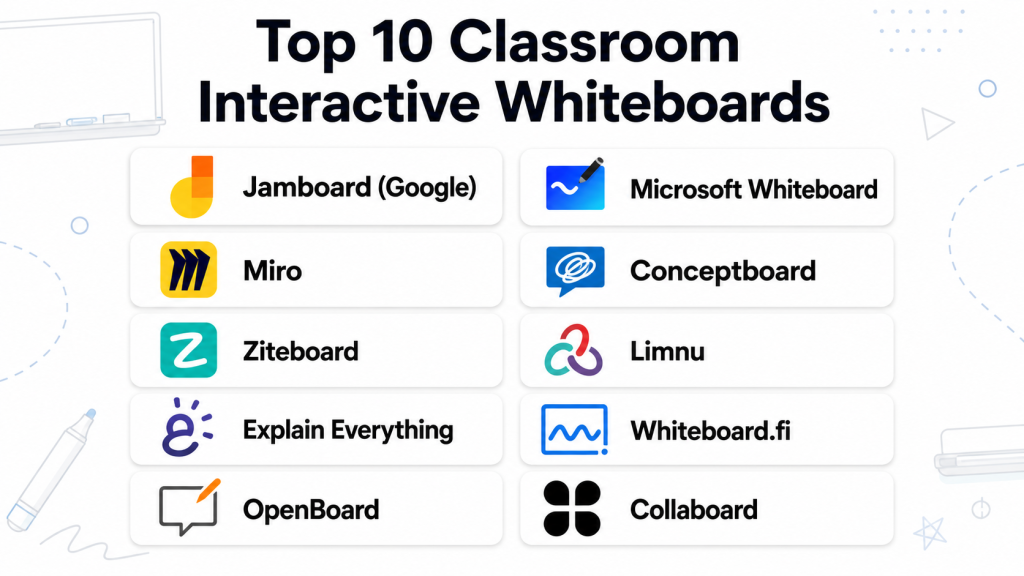
Top 10 Classroom Interactive Whiteboards Tools
#1 — SMART Board
Short description (4–5 lines): SMART Board is a widely used interactive whiteboard offering multi-touch functionality and integrated educational software. Ideal for K-12 classrooms and professional training environments.
Key Features
- Multi-touch and multi-user support
- SMART Notebook educational software
- Cloud integration for lesson storage
- Built-in screen recording and sharing
- Device connectivity for tablets and laptops
Pros
- Robust software ecosystem
- Reliable multi-user interactivity
Cons
- Premium pricing
- Requires software subscription for full features
Platforms / Deployment
- Windows, macOS, iOS; Classroom & Cloud-based
Security & Compliance
- Not publicly stated
Integrations & Ecosystem
- LMS platforms
- Tablets and laptops
- SMART Notebook software
Support & Community
Official tutorials, teacher forums, customer support.
#2 — Promethean ActivPanel
Short description (4–5 lines): Promethean ActivPanel combines touch-sensitive displays with collaborative software. Suitable for classrooms seeking interactive lessons and remote connectivity.
Key Features
- Multi-user touch display
- Promethean software suite
- Cloud-based lesson sharing
- Annotation tools
- Integration with student devices
Pros
- Strong collaborative features
- Remote learning support
Cons
- Learning curve for new users
- Software subscription needed for advanced tools
Platforms / Deployment
- Windows, macOS, Android; Classroom & Cloud-based
Security & Compliance
- Not publicly stated
Integrations & Ecosystem
- LMS integration
- Device casting
- Cloud lesson libraries
Support & Community
Documentation, teacher training, user forums.
#3 — Google Jamboard
Short description (4–5 lines): Google Jamboard is a cloud-connected interactive whiteboard ideal for hybrid learning. Supports real-time collaboration across devices, including Chromebooks and tablets.
Key Features
- Real-time cloud collaboration
- Touch and stylus input
- Integration with Google Workspace
- Cloud storage for lessons and notes
- Screen sharing and remote participation
Pros
- Excellent for remote and hybrid classrooms
- Simple, intuitive interface
Cons
- Limited offline functionality
- Smaller display compared to large panels
Platforms / Deployment
- Web, iOS, Android; Cloud-based
Security & Compliance
- Not publicly stated
Integrations & Ecosystem
- Google Workspace apps
- Chromebooks
- Cloud lesson storage
Support & Community
Google tutorials, educator forums, online guides.
#4 — ViewSonic ViewBoard
Short description (4–5 lines): ViewSonic ViewBoard is an interactive display with multi-touch input, annotation software, and cloud-based content sharing. Ideal for both classrooms and corporate training.
Key Features
- Multi-touch display
- myViewBoard annotation and management software
- Cloud-based lesson sharing
- Wireless device integration
- Built-in collaboration tools
Pros
- Flexible and scalable for classrooms
- Supports hybrid learning
Cons
- Requires myViewBoard subscription for full features
- Premium pricing for larger displays
Platforms / Deployment
- Windows, macOS, Android; Classroom & Cloud-based
Security & Compliance
- Not publicly stated
Integrations & Ecosystem
- LMS integration
- Cloud collaboration
- Device casting
Support & Community
Official documentation, training resources, forums.
#5 — Microsoft Surface Hub
Short description (4–5 lines): Microsoft Surface Hub is a large-format interactive display integrated with Microsoft Teams and Office 365. Suitable for classrooms and corporate training environments.
Key Features
- Multi-touch and pen input
- Microsoft Teams and Office 365 integration
- Whiteboard app for collaborative sessions
- Cloud storage and remote access
- Video conferencing capabilities
Pros
- Seamless integration with Microsoft ecosystem
- Excellent for hybrid and collaborative sessions
Cons
- High cost
- Requires Microsoft ecosystem adoption
Platforms / Deployment
- Windows, Cloud; Classroom & Enterprise
Security & Compliance
- Not publicly stated
Integrations & Ecosystem
- Microsoft Teams
- Office 365 apps
- Cloud whiteboard and note-sharing
Support & Community
Documentation, Microsoft support, user forums.
#6 — Clevertouch
Short description (4–5 lines): Clevertouch provides interactive touch displays with educational software and collaboration tools. Ideal for K-12 schools and training centers.
Key Features
- Multi-touch display
- CleverLive software for lesson delivery
- Cloud content sharing
- Annotation tools
- Wireless device connectivity
Pros
- Engaging for students
- Supports remote collaboration
Cons
- Subscription needed for full software
- Setup may be complex
Platforms / Deployment
- Windows, Android; Classroom & Cloud-based
Security & Compliance
- Not publicly stated
Integrations & Ecosystem
- LMS systems
- Tablets and laptops
- Cloud content libraries
Support & Community
Teacher tutorials, online forums, technical support.
#7 — Newline Interactive
Short description (4–5 lines): Newline Interactive offers multi-touch displays with collaboration software for classrooms and corporate learning. Supports cloud connectivity and multi-device interaction.
Key Features
- Multi-user touch support
- Annotation and whiteboarding tools
- Cloud lesson sharing
- Device casting
- Integration with remote learning platforms
Pros
- Strong collaborative features
- Supports hybrid classrooms
Cons
- Higher cost for larger panels
- Some software features require subscriptions
Platforms / Deployment
- Windows, Android; Classroom & Cloud-based
Security & Compliance
- Not publicly stated
Integrations & Ecosystem
- LMS integration
- Cloud collaboration
- Device casting
Support & Community
Tutorials, online documentation, support forums.
#8 — SMART kapp
Short description (4–5 lines): SMART kapp is a portable interactive whiteboard that enables real-time collaboration and cloud integration. Ideal for mobile classrooms and small-group sessions.
Key Features
- Portable touch display
- Cloud-based session sharing
- Annotation tools
- Multi-device access
- Easy setup
Pros
- Portable and flexible
- Cloud collaboration supported
Cons
- Smaller display than traditional panels
- Limited advanced features
Platforms / Deployment
- Web, iOS, Android; Cloud-based
Security & Compliance
- Not publicly stated
Integrations & Ecosystem
- SMART Notebook
- Cloud session sharing
- Device casting
Support & Community
Documentation, tutorials, user forums.
#9 — Epson BrightLink
Short description (4–5 lines): Epson BrightLink projectors offer interactive whiteboard capabilities using projection and touch pens. Suitable for classrooms and small meeting spaces.
Key Features
- Interactive projection with touch pens
- Multi-user collaboration
- Annotation and drawing tools
- Integration with classroom software
- Remote lesson access
Pros
- Affordable compared to large panels
- Portable projection-based interaction
Cons
- Requires wall space and setup
- Limited multi-touch capability
Platforms / Deployment
- Windows, macOS; Classroom & Cloud-based
Security & Compliance
- Not publicly stated
Integrations & Ecosystem
- LMS software
- Cloud lesson sharing
- Projection tools
Support & Community
Documentation, training videos, online forums.
#10 — Ricoh Interactive Whiteboard
Short description (4–5 lines): Ricoh Interactive Whiteboards combine multi-touch displays with collaboration software for educational and corporate environments. Offers cloud integration and multi-device access.
Key Features
- Multi-touch and stylus input
- Cloud lesson sharing
- Annotation tools and content management
- Device casting
- Hybrid classroom support
Pros
- Reliable hardware and software integration
- Good for hybrid and collaborative learning
Cons
- Higher price point
- Some advanced features require subscriptions
Platforms / Deployment
- Windows, Android; Classroom & Cloud-based
Security & Compliance
- Not publicly stated
Integrations & Ecosystem
- LMS platforms
- Cloud lesson libraries
- Device casting
Support & Community
Documentation, training, user forums.
Comparison Table (Top 10)
| Tool Name | Best For | Platforms Supported | Deployment | Standout Feature | Public Rating |
|---|---|---|---|---|---|
| SMART Board | K-12 classrooms | Windows, macOS, iOS | Cloud | SMART Notebook software | N/A |
| Promethean ActivPanel | Collaborative classrooms | Windows, macOS, Android | Cloud | Promethean suite | N/A |
| Google Jamboard | Hybrid learning | Web, iOS, Android | Cloud | Cloud-based collaboration | N/A |
| ViewSonic ViewBoard | Classrooms & training | Windows, macOS, Android | Cloud | myViewBoard software | N/A |
| Microsoft Surface Hub | Corporate & classrooms | Windows, Cloud | Cloud | Office 365 & Teams integration | N/A |
| Clevertouch | K-12 schools | Windows, Android | Cloud | CleverLive software | N/A |
| Newline Interactive | Collaborative learning | Windows, Android | Cloud | Cloud lesson sharing | N/A |
| SMART kapp | Portable whiteboard | Web, iOS, Android | Cloud | Mobile collaboration | N/A |
| Epson BrightLink | Projector-based classrooms | Windows, macOS | Cloud | Interactive projection | N/A |
| Ricoh Interactive WB | Hybrid classrooms | Windows, Android | Cloud | Multi-touch & cloud integration | N/A |
Evaluation & Scoring of Classroom Interactive Whiteboards
| Tool Name | Core (25%) | Ease (15%) | Integrations (15%) | Security (10%) | Performance (10%) | Support (10%) | Value (15%) | Weighted Total |
|---|---|---|---|---|---|---|---|---|
| SMART Board | 9 | 8 | 8 | 7 | 8 | 8 | 7 | 7.95 |
| Promethean ActivPanel | 8 | 8 | 8 | 7 | 8 | 8 | 7 | 7.80 |
| Google Jamboard | 8 | 9 | 8 | 7 | 8 | 7 | 7 | 7.80 |
| ViewSonic ViewBoard | 8 | 8 | 7 | 7 | 8 | 7 | 7 | 7.55 |
| Microsoft Surface Hub | 9 | 7 | 8 | 7 | 8 | 7 | 7 | 7.65 |
| Clevertouch | 8 | 8 | 7 | 7 | 8 | 7 | 7 | 7.55 |
| Newline Interactive | 8 | 8 | 7 | 7 | 8 | 7 | 7 | 7.55 |
| SMART kapp | 7 | 8 | 7 | 7 | 7 | 7 | 7 | 7.25 |
| Epson BrightLink | 7 | 8 | 6 | 7 | 7 | 6 | 6 | 6.75 |
| Ricoh Interactive WB | 8 | 7 | 7 | 7 | 8 | 7 | 7 | 7.45 |
Which Classroom Interactive Whiteboard Tool Is Right for You?
Solo / Freelancer
Portable options like SMART kapp or Jamboard allow individual instructors to facilitate small workshops or mobile teaching sessions.
SMB / Small Team
Clevertouch, Newline Interactive, or ViewSonic ViewBoard offer multi-touch collaboration, lesson sharing, and hybrid learning support for small classrooms or training centers.
Mid-Market
Promethean ActivPanel and SMART Board provide full software ecosystems and multi-user support for medium-sized educational institutions.
Enterprise
Microsoft Surface Hub, Ricoh Interactive WB, and large SMART Boards suit universities, corporate training centers, and hybrid classrooms with multi-device integration.
Budget vs Premium
Budget-conscious classrooms may adopt Jamboard or SMART kapp, while full-featured solutions with robust software ecosystems require premium investment.
Feature Depth vs Ease of Use
Advanced panels like Microsoft Surface Hub and Promethean offer extensive features but require training. Jamboard and SMART kapp prioritize simplicity and rapid adoption.
Integrations & Scalability
SMART Board, ViewSonic, and Newline integrate with LMS platforms, cloud lesson libraries, and multiple device types for scalable deployments.
Security & Compliance Needs
Cloud-based whiteboards require attention to data privacy, secure logins, and compliance with institutional policies for student and teacher data.
Frequently Asked Questions (FAQs)
1. What is a classroom interactive whiteboard?
An interactive whiteboard is a digital display that allows touch and stylus input, supporting real-time annotation, multimedia content, and collaborative learning.
2. Can multiple users interact simultaneously?
Yes, most modern IWBs support multi-touch inputs, enabling several students or teachers to interact with the board at once.
3. Are these boards compatible with remote learning?
Yes, boards like Jamboard, SMART Board, and Surface Hub support hybrid classrooms, remote collaboration, and cloud lesson sharing.
4. Do interactive whiteboards support annotation and drawing?
All major IWBs include annotation tools, drawing, highlighting, and note-taking to enhance interactive teaching.
5. Can I integrate them with LMS platforms?
Most boards integrate with popular learning management systems for lesson distribution, resource sharing, and assignment tracking.
6. Are these boards suitable for corporate training?
Yes, IWBs like Surface Hub and ViewSonic provide large-screen collaboration, video conferencing, and presentation tools for corporate learning.
7. How portable are these devices?
Portable options like SMART kapp are lightweight and mobile, whereas large panels like SMART Board or Surface Hub require fixed installation.
8. Are software subscriptions required?
Some advanced features, like cloud lesson sharing and analytics, require paid subscriptions for full functionality.
9. What about durability and maintenance?
Professional IWBs are designed for classroom use with durable touch surfaces and long lifespans, though some maintenance is required for calibration.
10. How should I choose the right whiteboard?
Consider classroom size, number of simultaneous users, hybrid learning needs, software ecosystem, budget, and ease of integration with existing systems.
Conclusion
Classroom interactive whiteboards transform learning experiences by enabling real-time collaboration, multimedia integration, and hybrid teaching. For small or mobile classrooms, Jamboard and SMART kapp provide simplicity and portability, while medium to large classrooms benefit from Promethean ActivPanel, SMART Board, and ViewSonic for feature-rich collaboration. Enterprise settings with hybrid needs may prefer Microsoft Surface Hub or Ricoh Interactive WB for advanced software integration. Evaluate screen size, software ecosystem, multi-user capabilities, and hybrid support before selecting a solution. Begin by shortlisting 2–3 boards, testing key software features, and ensuring compatibility with classroom workflows.
