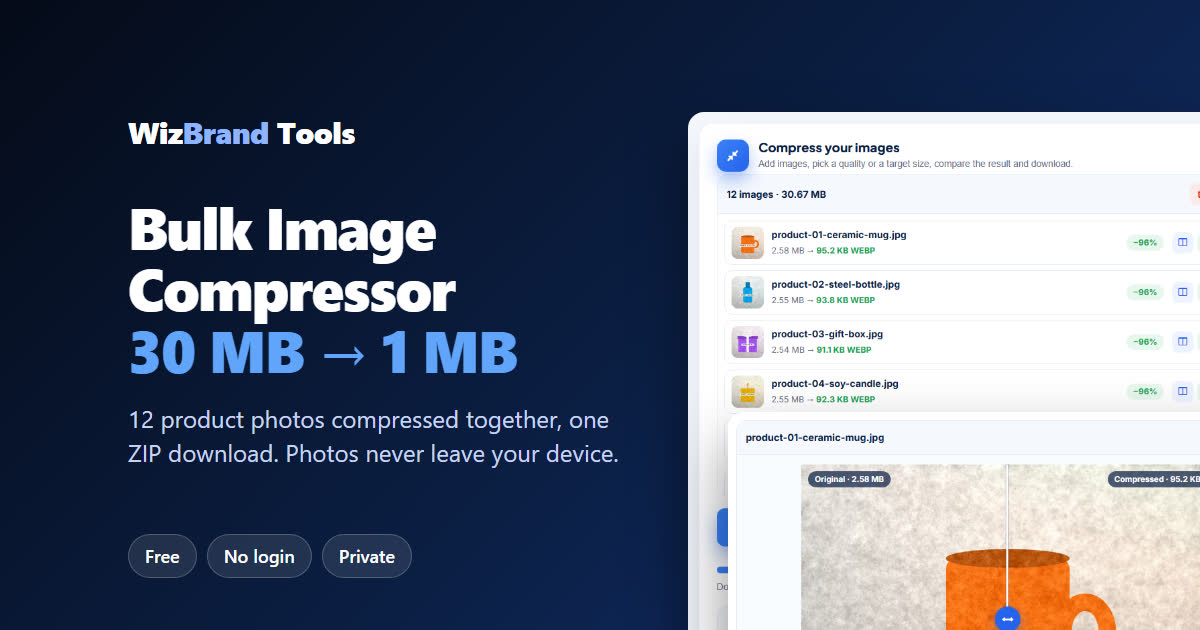
“12 photos = 30 MB” – and everything is slow
You run a small online shop. You shot 12 new product photos on your phone – a mug, bottles, candles, jars, bags. Each photo is about 2.5 MB, so the whole set is 30 MB. Your website loads slowly, the marketplace upload keeps spinning and WhatsApp says “sending 3 of 12…”.
Compressing them one by one in an app takes forever. The free Bulk Image Compressor by WizBrand does the whole batch together: add all the photos, click Compress images and download them in one ZIP. No sign-up, no watermark – and your photos are never uploaded. Everything happens inside your own browser.
Below we show exactly how it works with a real test: 12 sample product photos, 30.67 MB → 1.09 MB (96% smaller).
What the Bulk Image Compressor does
| Feature | What it means for you |
|---|---|
| Many images at once | Select or drop a whole folder of photos together, and add more any time. |
| JPG, PNG, WebP, GIF, BMP | Works with the formats your phone, camera and design apps make. |
| By quality or Target size | Pick a quality (High quality, Recommended 70%, Smallest), or ask for a target size in KB. |
| Output format | “Smart (smallest file)” picks the lightest format for each photo, or you can choose JPG, PNG or WebP yourself. |
| Max width | Shrinks huge phone photos to a sensible size such as 1920 px (Full HD) – big savings, no visible loss on a screen. |
| Before / after compare | A slider shows the original and the compressed photo side by side, so you can check the quality. |
| One ZIP download | Download all the compressed photos together, or each photo on its own. |
| Never uploaded | Compression happens on your own device. Nobody else sees your photos. |
How to compress many images at once (3 easy steps)
Step 1: Choose your images
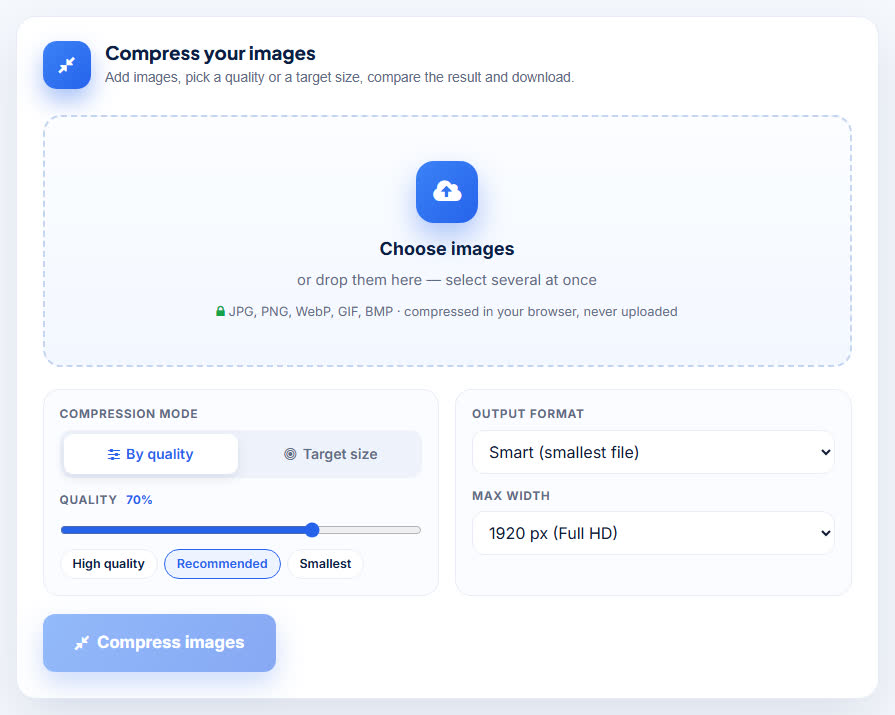
Open the Bulk Image Compressor and click Choose images. Select all your photos at once (hold Ctrl, or Cmd on a Mac, or tap “Select” in your phone’s gallery), or drag and drop them onto the page. The default settings – By quality 70% (Recommended), Smart (smallest file) and 1920 px width – are good for websites, shops and WhatsApp.

Step 2: Check the list and click Compress images
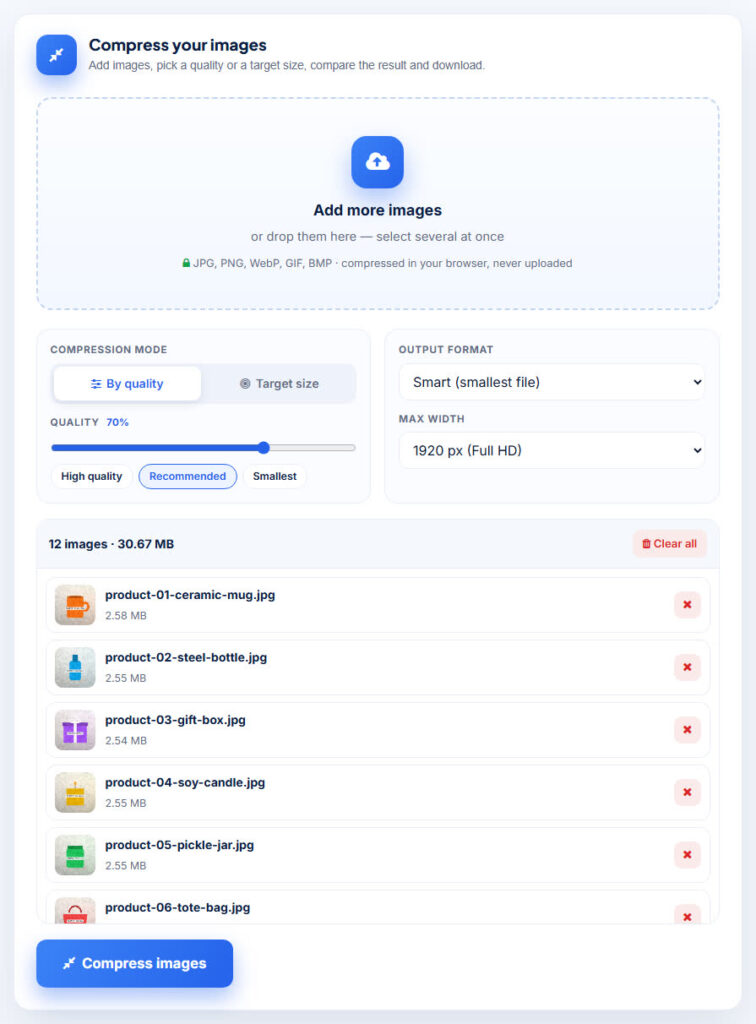
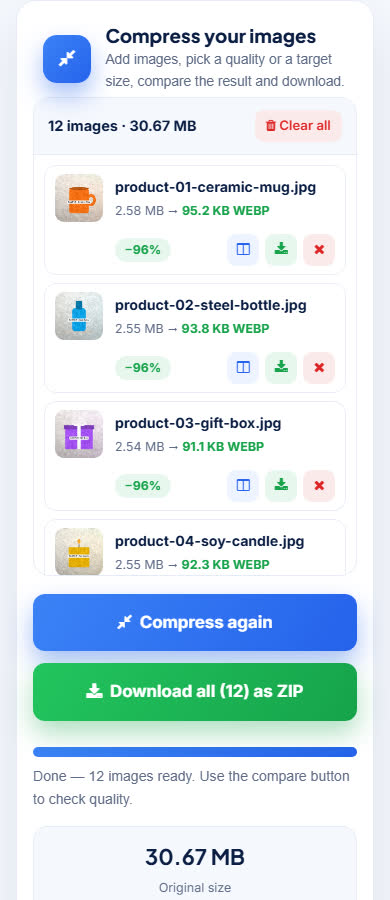
Every photo appears in a list with its name and size. In our test the tool showed “12 images · 30.67 MB” – each sample photo was between 2.54 MB and 2.58 MB. Click Compress images and a progress bar works through the batch.

Step 3: See the savings and download the ZIP
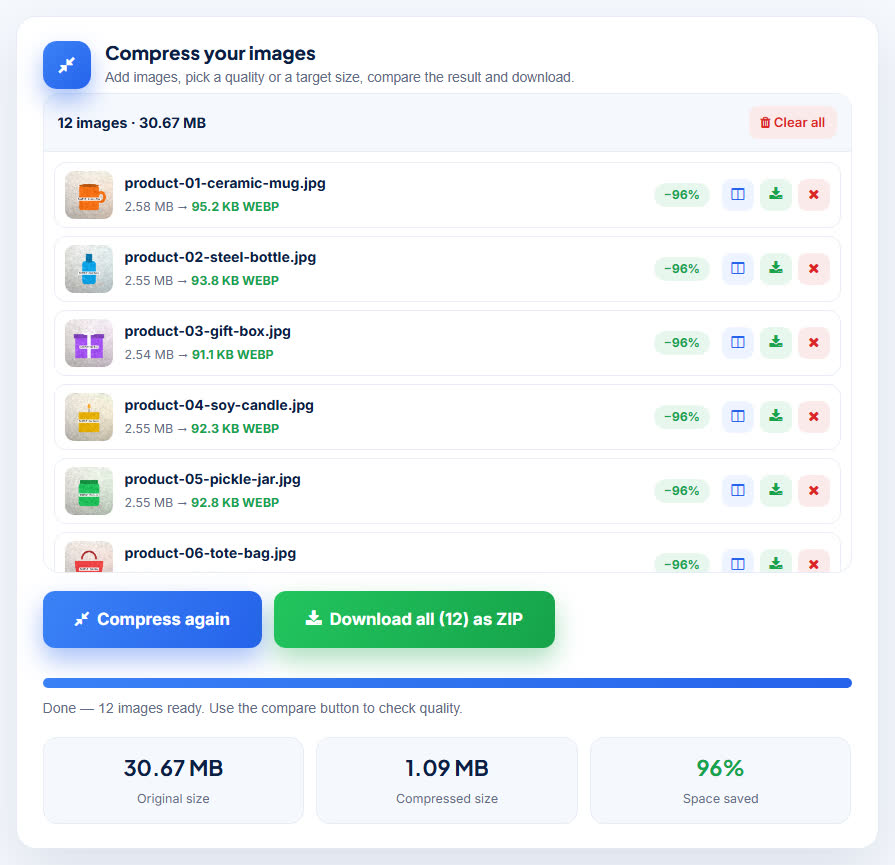
When it is done, the tool shows the result for every photo and a summary. Our result: Original size 30.67 MB · Compressed size 1.09 MB · 96% space saved. Each photo went from about 2.5 MB to around 91–95 KB. Click Download all (12) as ZIP.

Check the quality with the compare slider
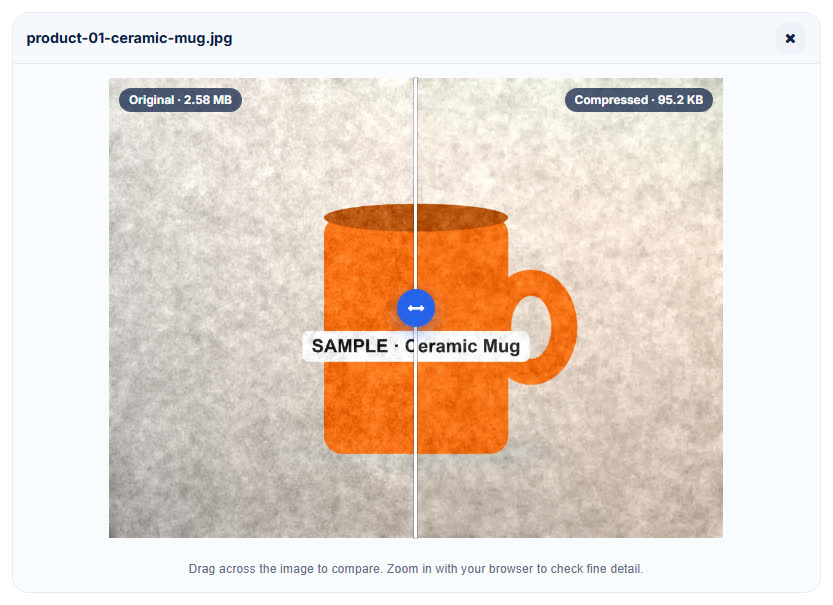
Smaller is only good if the photo still looks right. Click the compare button next to any photo and drag the slider across it: the left side is the original (2.58 MB), the right side is the compressed copy (95.2 KB).

Our real test results
We made 12 sample product photos (4000 × 3000 px JPG, with photo-like texture and grain, each labelled SAMPLE) and compressed them on 18 November 2026 with the default settings.
| Result | |
|---|---|
| Photos added | 12 JPG photos, 2.54 MB to 2.58 MB each |
| Settings | By quality 70% (Recommended), Smart (smallest file), max width 1920 px |
| Before | 30.67 MB |
| After | 1.09 MB – each photo 91.1 KB to 95.2 KB |
| Space saved | 96% (one photo 97%) |
| Format chosen by “Smart” | WebP |
| Time | About 28 seconds for all 12 photos on our test computer |
Your own savings depend on your photos. Big, detailed phone photos shrink a lot; photos that are already small or already compressed shrink less.
Need JPG instead of WebP?
With “Smart (smallest file)” the tool picked WebP for our photos, because it was the smallest. WebP works on websites, WhatsApp, Instagram and most shop platforms. Some older forms and portals accept only JPG – for those, choose JPG in Output format before you click Compress. Need one photo under an exact size, like 20 KB or 50 KB? Use the Image Size Reducer, or the Target size mode here.
Is it safe? Your photos never leave your device
Unreleased products, customer photos and family pictures are private. Many online compressors upload them to a server. The WizBrand tool compresses everything inside your browser, so your photos are not uploaded, stored or seen by anyone. The page itself says it: “compressed in your browser, never uploaded”.
Works on your phone too
Product photos are usually on your phone anyway. Open the tool in Chrome or Safari, select the photos from your gallery, tap Compress images and download the ZIP – no app needed.

Who uses a bulk image compressor?
- Online shops and sellers – lighter product photos make your store load faster and upload quicker to marketplaces.
- Website owners and bloggers – smaller images help page speed, which visitors and search engines both like.
- Social media managers – send a whole shoot to a client on WhatsApp or email without “file too large”.
- Photographers – share quick previews of a full set before sending the originals.
- Anyone short on phone storage – keep light copies of big photo sets.
Tips for the best result
- Start with “Recommended” (70%) and check one photo with the compare slider. Go to “High quality” only if you see a difference.
- Keep max width at 1920 px for websites and WhatsApp. Choose a smaller width for thumbnails.
- Pick JPG if a portal says “format not supported”. You can also convert later with the Image Converter.
- Remove the background first for clean product shots with Remove Background, then compress.
- Keep your originals. Compressed copies are for sharing and the web; keep the full-size photos for printing.
Frequently asked questions
Is the Bulk Image Compressor free?
Yes. It is completely free, with no sign-up, watermark or credit card.
Are my photos uploaded to your server?
No. The photos are compressed inside your web browser, so they never leave your device.
How many images can I compress at once?
You can add many images in one go – we compressed 12 large photos together in our test. Very big batches depend on your device’s memory.
Which formats are supported?
You can add JPG, PNG, WebP, GIF and BMP images. You can save them as JPG, PNG or WebP, or let “Smart” pick the smallest.
Will my photos lose quality?
At the Recommended setting the difference is very hard to see on a screen, and you can check every photo with the before/after slider. Choose “High quality” if you need more detail.
Can I compress images to a specific size in KB?
Yes. Switch the Compression mode to “Target size” and enter the size you need. For one photo or signature with a strict limit, the Image Size Reducer is also handy.
Does it work on mobile?
Yes. It works in any modern mobile browser on Android and iPhone.
Conclusion: the whole batch, one click
You don’t need to compress photos one by one or install an app. Add the whole batch, click Compress images and download one ZIP – in our test, 12 product photos went from 30.67 MB to 1.09 MB, 96% smaller, without uploading anything.
Try it now with the free Bulk Image Compressor. It is free, needs no login and your photos never leave your device.
More free image tools
- Image Size Reducer – shrink a photo or signature to a target KB
- Remove Background – clean product photos and logos
- Image Converter – change JPG, PNG and WebP
- Image Cropper – crop for Instagram posts and stories
- Banner Generator – make a sale banner in a minute
- JPG to PDF – turn photos into one PDF
