Let’s break down the difference between App Permissions and Account Permissions in a simple, clear way:
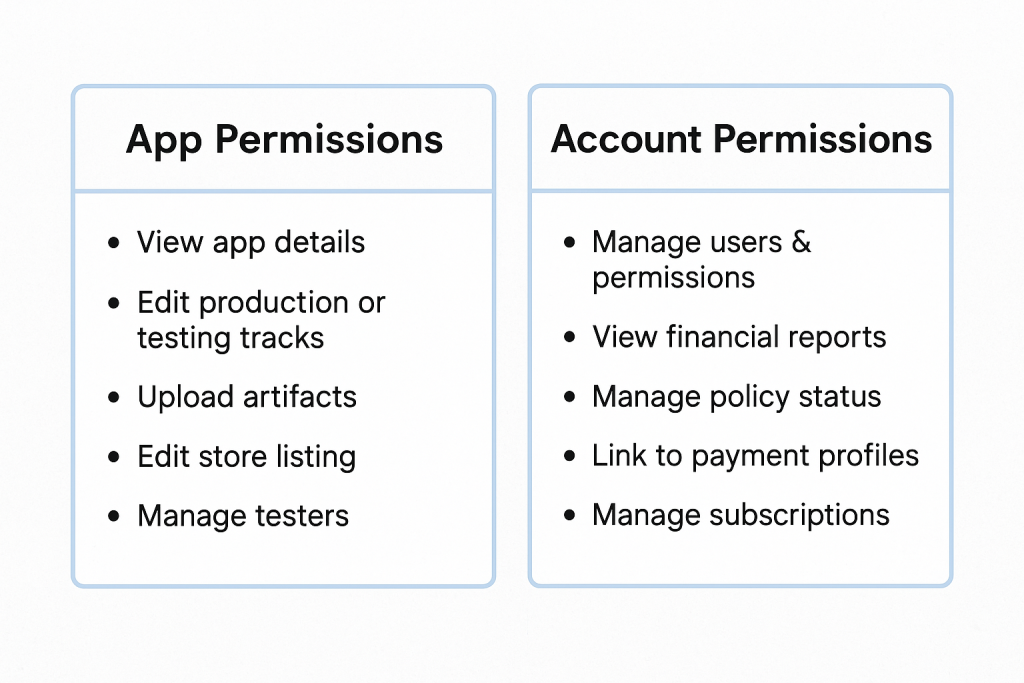
🔑 Key Difference
| Type | Scope | Affects |
|---|---|---|
| App Permissions | Specific App(s) only | Controls what a user/group can do with a particular app |
| Account Permissions | Entire Play Console Account | Controls what a user/group can do at the account-level (all apps, settings, finance, policy, etc.) |
🧱 Think of It Like This:
- App Permissions = “What can you do to a specific app?”
- Account Permissions = “What can you do in the entire developer account or across all apps?”
📦 1. App Permissions (Granular, Per-App)
These permissions control what a user/group can do with individual apps.
For example, per app, you can grant permission to:
- View app details
- Edit production or testing tracks
- Upload artifacts (like APK/AAB)
- Edit store listing
- Manage testers
- View or respond to reviews
You can apply these permissions differently for each app in your account. So a group may have full access to App A, but read-only for App B.
💡 These are useful when your organization has multiple apps and different teams working on each.
🏛️ 2. Account Permissions (Global or Admin-Level)
These are higher-level permissions that apply across your Play Console account, not tied to a specific app.
Examples:
- Manage users & permissions (e.g., add/remove team members)
- View financial reports and earnings
- Manage policy status and appeals
- Link Developer Account to payment profiles
- Manage subscription & monetization settings globally
💡 These are ideal for owners, finance teams, legal, admins, or SREs handling compliance and account-level ops.
🔍 Use Case Example
Let’s say you’re managing a team of 3 groups:
| Group Name | App Permissions | Account Permissions |
|---|---|---|
| Developers | Full access to App A & B | None |
| Marketing | Store listing only for App B | None |
| Finance/Admins | No app-level access | Can view earnings & manage users |
🎯 Best Practices
- ✅ Give developers mostly app permissions
- ✅ Give legal/finance mostly account permissions
- ✅ Only give account permission to trusted roles (Owners, Admins)
- ✅ Use Groups to manage roles in bulk instead of assigning users individually
- ✅ Audit permissions frequently to avoid accidental exposure of sensitive data
⚠️ Important Note
Even if someone has App Permissions, they cannot manage other users unless they also have the “Account > Manage Users & Permissions” permission.

I’m a DevOps/SRE/DevSecOps/Cloud Expert passionate about sharing knowledge and experiences. I am working at Cotocus. I blog tech insights at DevOps School, travel stories at Holiday Landmark, stock market tips at Stocks Mantra, health and fitness guidance at My Medic Plus, product reviews at I reviewed , and SEO strategies at Wizbrand.
Please find my social handles as below;
Rajesh Kumar Personal Website
Rajesh Kumar at YOUTUBE
Rajesh Kumar at INSTAGRAM
Rajesh Kumar at X
Rajesh Kumar at FACEBOOK
Rajesh Kumar at LINKEDIN
Rajesh Kumar at PINTEREST
Rajesh Kumar at QUORA
Rajesh Kumar at WIZBRAND
This article explains the difference between app permissions and account permissions in a very simple way. I like how you show real cases where confusion can happen, and how to avoid mistakes while managing apps. It is very useful for developers and small publishers who handle apps on the Google Play Console. Easy to read and good for learning the basics.