“File too large” – the most annoying message on the internet
You scan a form, add a few photos to a report, or export a document from Word – and suddenly the PDF is 10 MB or more. The email won’t send. The job portal, college form or government website says “Maximum file size 200 KB”. Sound familiar?
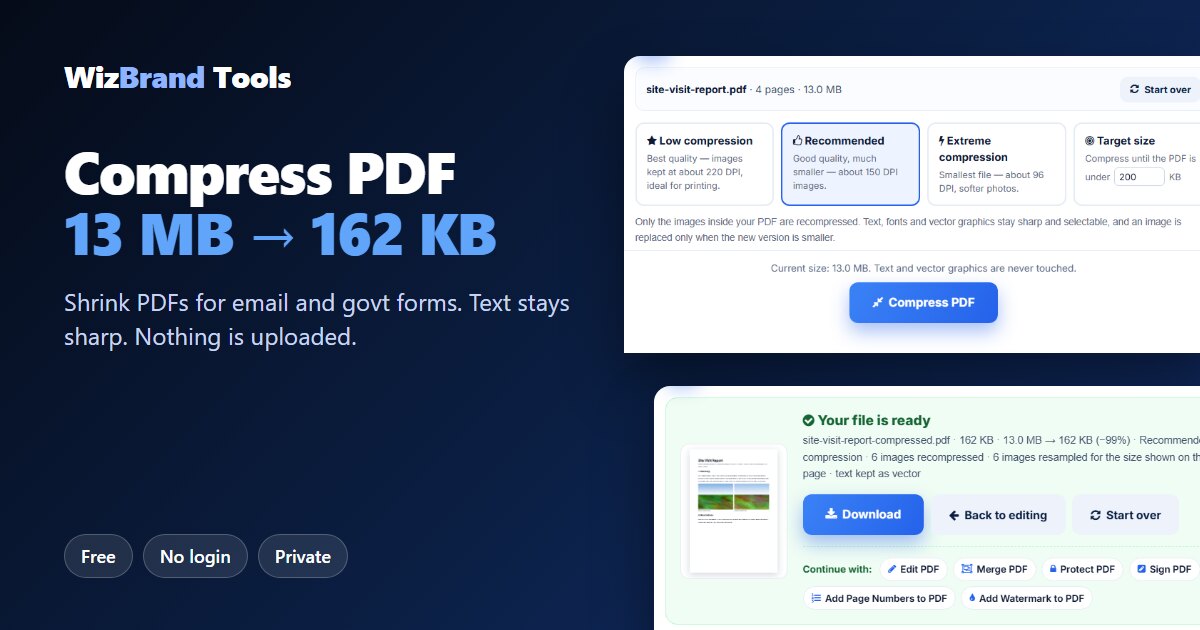
The free Compress PDF tool by WizBrand fixes this in seconds. Choose your PDF, pick a level (or type the exact size you need, like 100 KB) and download a much lighter file. Your text stays sharp and searchable, and – unlike most online compressors – your file is never uploaded. Everything happens inside your own browser.
In this guide we show exactly how it works with a real test: a 4-page report with six phone photos, 13.0 MB → 162 KB.
Why are PDFs so big?
Text takes almost no space. The weight comes from images. A phone photo has about 12 million pixels (4000 × 3000). When you paste it into a document at 8 cm wide, the PDF still keeps all 12 million pixels, even though the page only needs a small part of them. Six such photos and your “small” report is 13 MB.
A smart compressor measures how big each image is actually shown on the page and resizes it for that size. That is what the WizBrand tool does. It leaves the text, fonts and vector drawings exactly as they are, so nothing becomes blurry.
What the Compress PDF tool does
| Feature | What it means for you |
|---|---|
| Three levels | Low (best quality, ~220 DPI, for printing), Recommended (~150 DPI, best balance) and Extreme (~96 DPI, smallest file). |
| Target size in KB | Type the limit you need – 100 KB, 200 KB, 500 KB – and the tool steps down the quality until the PDF fits. |
| Text stays vector | Only images are recompressed. Text stays sharp, selectable and searchable. |
| Images sized for the page | Each image is resampled for the size it is shown at, not left at camera size. |
| Duplicates merged | The same logo or font repeated on every page (common in merged PDFs) is stored only once. |
| Before & after | You see the old size, new size and the percentage saved. |
| Never uploaded | Your PDF is processed on your own device. Nobody else sees it. |
| Big files | PDFs up to 200 MB. |
How to compress a PDF (3 easy steps)
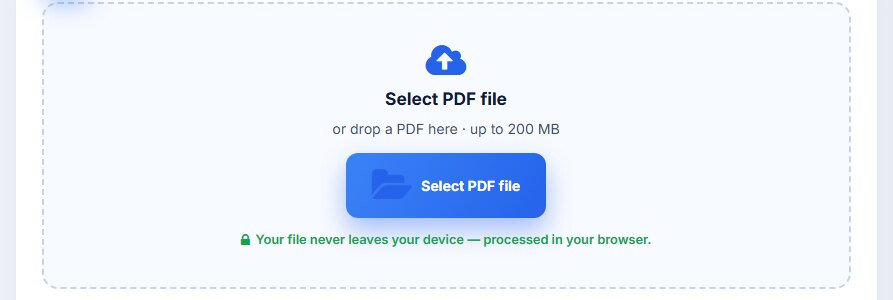
Step 1: Select your PDF
Open the Compress PDF tool and click Select PDF file, or drag and drop the PDF onto the page.
Step 2: Pick a compression level
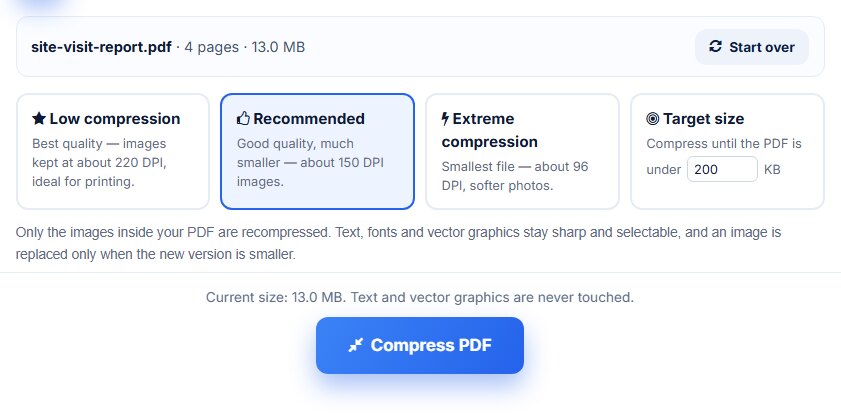
The tool shows the file name, number of pages and current size – in our test, 4 pages, 13.0 MB. Choose Recommended for most documents, Low if you will print it, or Extreme for the smallest file. Then click Compress PDF.
Step 3: Download the smaller PDF
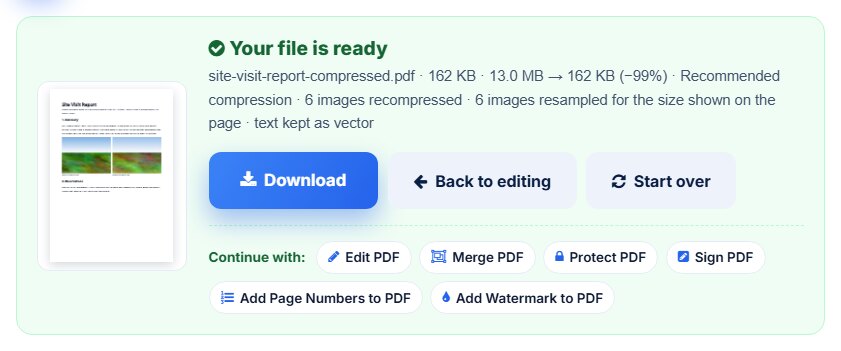
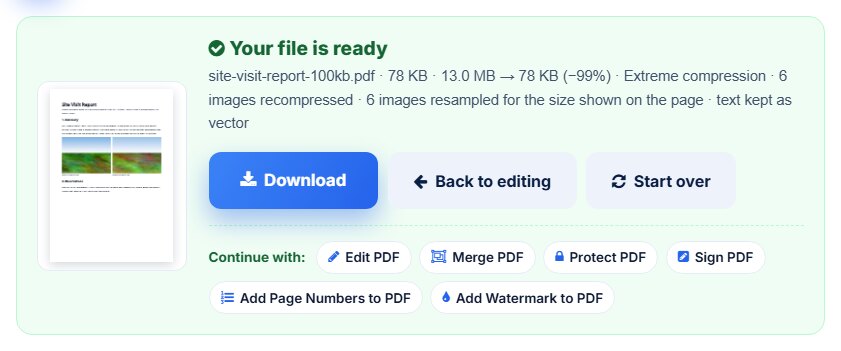
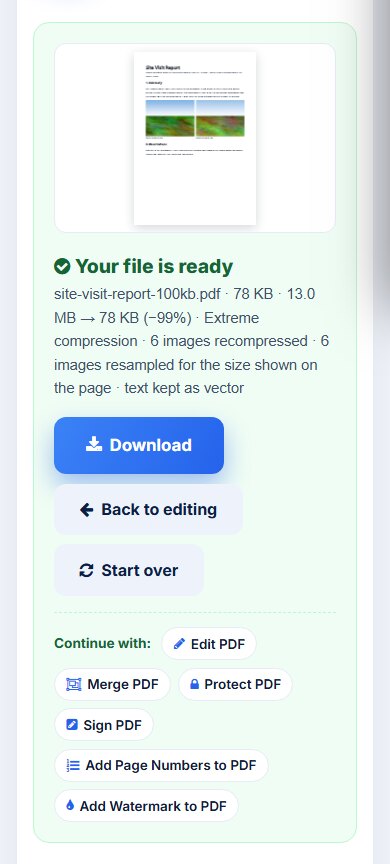
In a few seconds you see the result with the before and after size. Click Download to save it.
Compress a PDF to 100 KB, 200 KB or any size
Online forms – job applications, college admissions, exam registrations and government portals – often accept only small files. Instead of guessing the level, choose Target size and type the limit.
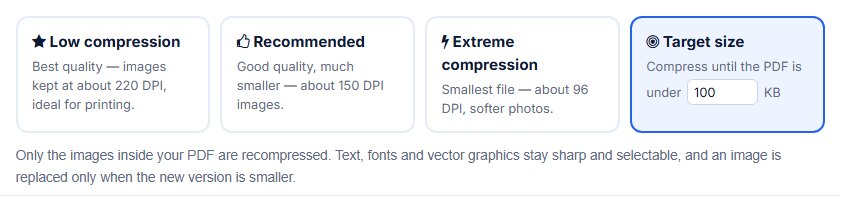
The tool starts with Recommended quality and steps down only as far as needed. In our test, Recommended gave 162 KB – still too big for 100 KB – so the tool went on to Extreme and stopped at 78 KB, safely under the limit.
Need a common size directly? Use these shortcuts: compress PDF to 50 KB, 100 KB, 200 KB, 500 KB or 1 MB.
Our real test results
We made a 4-page sample report with some text, a table and six photos at phone-camera size (4000 × 3000), each shown about 8 cm wide – just like a typical office report. We compressed it on 17 November 2026.
| Setting | Before | After | Saved |
|---|---|---|---|
| Recommended compression | 13.0 MB | 162 KB | 99% |
| Target size 100 KB (tool chose Extreme) | 13.0 MB | 78 KB | 99% |
In both cases all 6 images were recompressed and resampled for the size shown on the page, and the text was kept as vector text.
Honest note: how much your PDF shrinks depends on what is inside it. PDFs full of large photos or scans shrink a lot, like our test. A PDF that is mostly text is already small and can’t shrink much – in that case the tool tells you it is already optimised and gives you back your original file instead of a worse copy.
Is it safe? Your file never leaves your device
Most online PDF compressors upload your file to their server. That is a real worry for ID cards, bank statements, contracts or medical reports. The WizBrand tool runs entirely in your browser with JavaScript. Your PDF is not uploaded, stored or seen by anyone. Once the page has loaded, you can even switch off the internet and it still works.
Works on your phone too
Got the PDF on WhatsApp or in your phone’s Downloads folder? Open the tool in Chrome or Safari, select the file and compress it right there – no app needed.
Which compression level should I choose?
| You need… | Choose |
|---|---|
| To print the document or keep photos crisp | Low compression |
| To email it or share it on WhatsApp | Recommended |
| The smallest possible file | Extreme compression |
| To meet a form’s limit (100 KB, 200 KB…) | Target size |
Tips to keep your PDFs small from the start
- Scan at 150–200 DPI, not 600 DPI. That is plenty for documents.
- Scan text pages in black & white or grayscale when colour isn’t needed.
- Resize photos before pasting them into Word or PowerPoint – or compress the PDF afterwards.
- Remove pages you don’t need with Delete PDF pages before sending.
- Compress after merging. Merged PDFs often contain the same logo and fonts many times; compressing removes the duplicates.
Frequently asked questions
Is Compress PDF free?
Yes. It is completely free and unlimited, with no sign-up, watermark or credit card.
Are my files uploaded to your server?
No. The tool runs entirely in your web browser, so your PDF never leaves your device.
Will my text become blurry?
No. Only the pictures inside the PDF are recompressed. Text, fonts and vector graphics are kept as they are, so they stay sharp and selectable.
How do I compress a PDF to 100 KB?
Select your PDF, choose “Target size”, type 100 and click Compress PDF. The tool lowers image quality step by step until the file is under 100 KB.
Why did my PDF hardly get smaller?
PDFs that are mostly text or already well compressed can’t shrink much. The tool tells you so and offers your original file.
Can I compress a PDF on my phone?
Yes. It works in any modern mobile browser on Android and iPhone.
What is the maximum file size?
You can compress PDFs up to 200 MB.
Does it work for scanned PDFs?
Yes. Scanned pages are images, so they usually shrink a lot.
Conclusion: smaller PDFs in seconds, privately
A big PDF is almost always big because of its images. Resize those images for the page and the file shrinks dramatically – in our test from 13.0 MB to 162 KB, or to 78 KB when we asked for under 100 KB – while the text stays perfectly sharp.
Try it now with the free Compress PDF tool. It is free, needs no login and your file never leaves your device.
More free PDF tools
- Merge PDF – combine several PDFs into one
- Split PDF – break a PDF into smaller files
- JPG to PDF – turn photos and scans into a PDF
- Word to PDF – convert DOCX files to PDF
- Protect PDF – add a password to your PDF
- Image Size Reducer – shrink photos to a target KB
