Convert Word to PDF in seconds – free, fast and without losing formatting
You finished your resume, assignment or invoice in Microsoft Word. Now the recruiter, professor or client asks for a PDF. You open the file on another computer and the fonts have changed, the table has jumped to the next page, and the logo is in the wrong place.
That is exactly why people convert Word to PDF. A PDF looks the same on every phone, laptop and printer, so what you send is what they see.
The good news: you do not need to install software or buy a subscription. With the free Word to PDF converter by WizBrand, you upload a DOC or DOCX file, click convert, and download a clean PDF in a few seconds.
In this guide you will learn how to convert Word to PDF online for free, step by step, plus tips to keep your formatting perfect and answers to the most common questions.
What is Word to PDF conversion, and why use PDF?
Word to PDF conversion turns an editable Microsoft Word file (.doc or .docx) into a fixed-layout PDF (Portable Document Format) file. The text, images, tables and page breaks are locked in place.
Word files are made for editing. PDF files are made for sharing. Here is why PDF is the better choice when you send a document:
- Same look everywhere – a PDF opens the same on Windows, Mac, Android, iPhone and in every browser.
- No missing fonts – fonts are embedded, so your design does not break on another computer.
- Harder to edit by mistake – the reader cannot accidentally change your text.
- Professional – recruiters, universities, banks and government portals usually ask for PDF.
- Print-ready – margins and page breaks print exactly as you see them.
- Accepted by upload forms – many job portals and online forms accept only PDF files.
How to convert Word to PDF online free (3 easy steps)
Converting takes less than a minute and works on any device with a browser. Open the WizBrand Word to PDF converter and follow these steps.
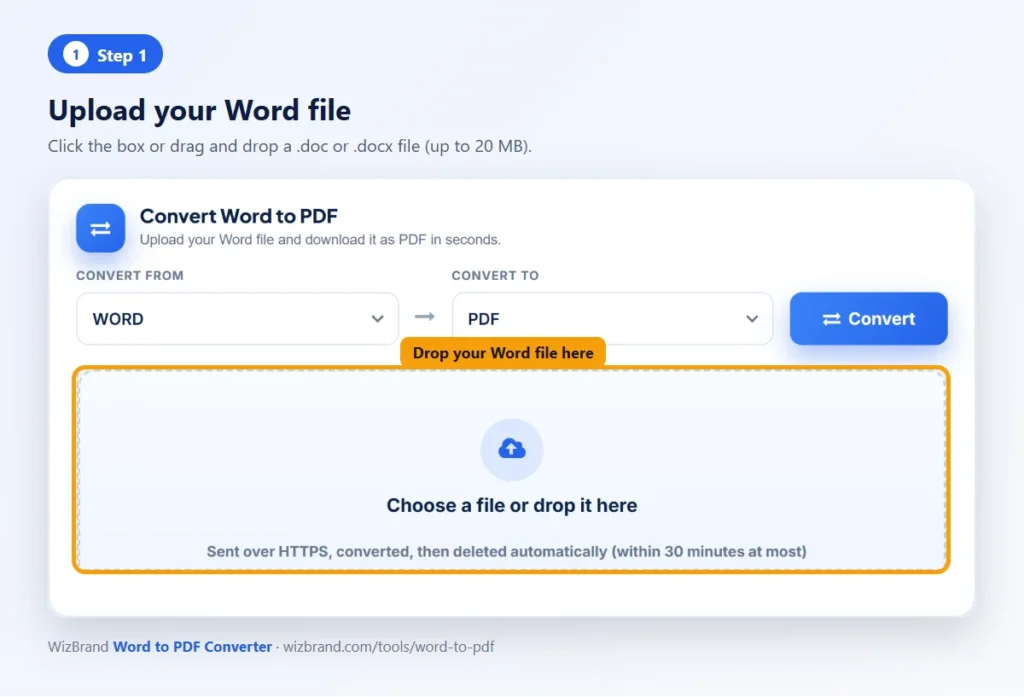
Step 1: Upload your Word file
Click the upload box or drag and drop your .doc or .docx file (up to 20 MB).
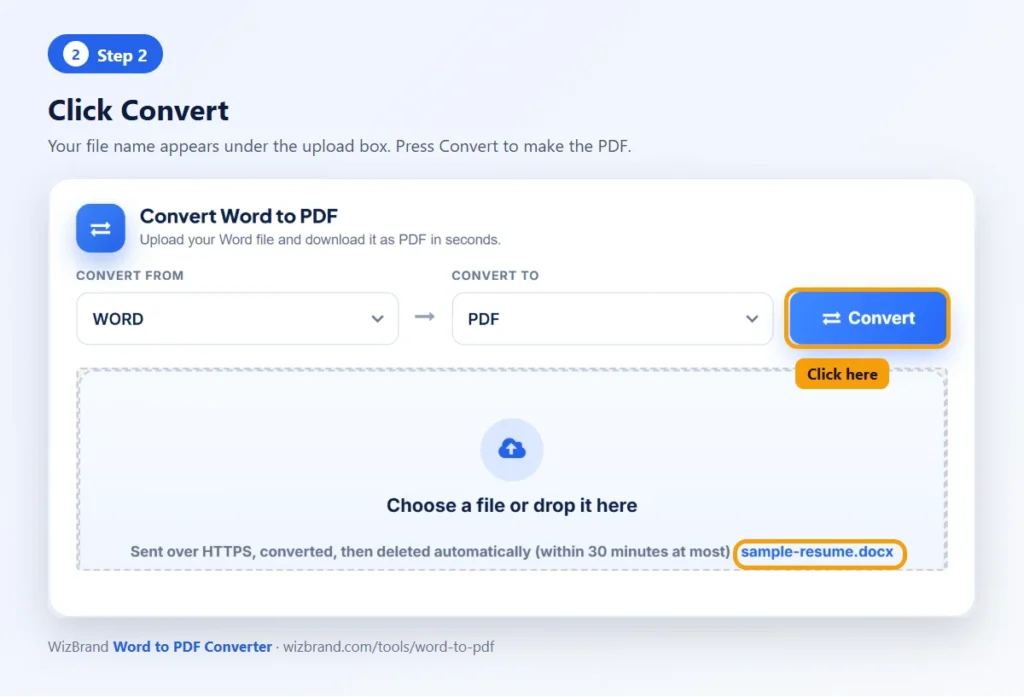
Step 2: Click Convert
Your file name appears under the upload box. Click Convert and the tool turns your document into a PDF, keeping fonts, images, tables and layout.
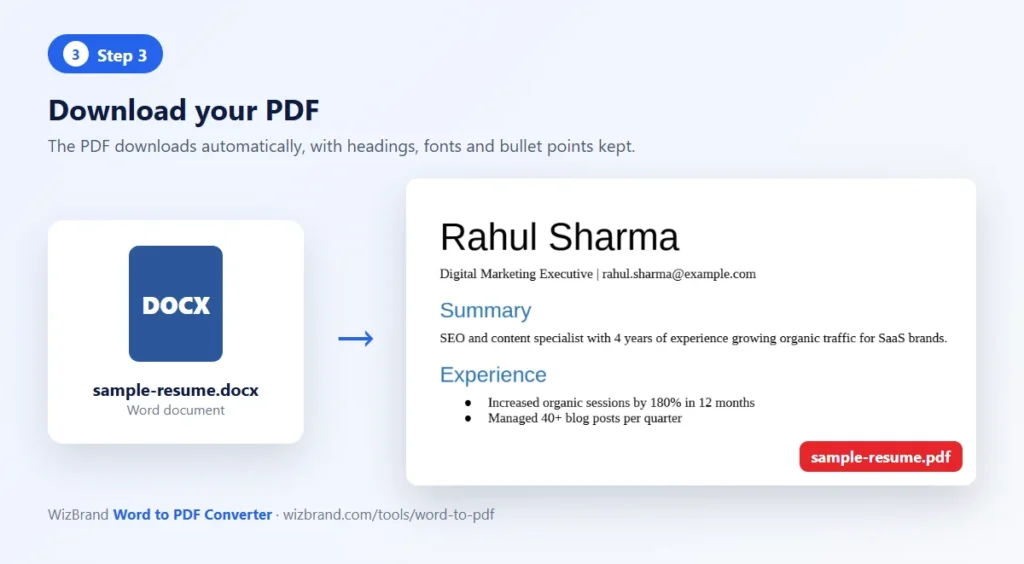
Step 3: Download your PDF
Your PDF downloads automatically. Open it, check it, and share it anywhere.
That’s it. No signup, no email, no watermark on your PDF.
Why use the WizBrand Word to PDF converter?
There are many converters online. Here is what makes this free Word to PDF tool easy to trust and use every day:
- 100% free – convert as many documents as you need at no cost.
- No signup or login – open the page and start converting.
- No watermark – your PDF looks clean and professional.
- DOC and DOCX supported – works with old Word 97–2003 files and new Word files.
- Files up to 20 MB – enough for long reports, theses and image-heavy documents.
- Keeps your formatting – headings, fonts, tables, images and page breaks stay in place.
- Hindi and other languages – Unicode text such as Hindi prints correctly instead of question marks.
- Works on any device – Windows, Mac, Linux, Android and iPhone, in any modern browser.
- Nothing to install – no Microsoft Office or desktop software required.
- Private – files are deleted from the server automatically, within 30 minutes at most.
Word to PDF online vs MS Word vs Google Docs vs desktop software
You can make a PDF in several ways. An online converter is the quickest when you do not have Microsoft Office or are on a phone.
| Method | Cost | Needs install? | Works on phone? | Best for |
|---|---|---|---|---|
| WizBrand Word to PDF (online) | Free | No | Yes | Quick conversion on any device, no Office needed |
| Microsoft Word – File > Save As > PDF | Paid Office licence | Yes | Limited | People who already have Word installed |
| Google Docs – File > Download > PDF | Free | No (Google account needed) | Yes | Files already in Google Drive |
| Desktop PDF software | Often paid | Yes | No | Heavy, daily PDF editing |
How to convert in MS Word: open the file, click File > Save As, choose PDF in “Save as type”, and click Save.
How to convert in Google Docs: upload the .docx to Google Drive, open it with Google Docs, then click File > Download > PDF Document. Complex layouts may shift slightly.
If you just want a PDF fast, without Office, a Google login or any software, the online Word to PDF converter is the simplest option.
Who needs to convert Word to PDF?
Almost everyone who works with documents. The most common uses:
- Job seekers – send your resume and cover letter as PDF so your layout looks perfect to every recruiter and applicant tracking system.
- Students – submit assignments, project reports and theses in the PDF format most universities require.
- Businesses – share invoices, quotations, proposals and contracts that clients cannot change by mistake.
- Freelancers and agencies – deliver client reports and SEO audits in a clean, branded format.
- Legal and HR teams – circulate policies, offer letters and agreements that stay exactly as approved.
- Government and bank forms – upload documents to portals that accept only PDF files.
- Bloggers and teachers – turn notes and ebooks into downloadable PDF guides.
Tips to keep your formatting perfect
Follow these tips and your PDF will look exactly like your Word file:
- Save as .docx first – newer .docx files convert more reliably than old .doc files.
- Use common fonts – Arial, Calibri, Times New Roman and Noto fonts convert best.
- Insert images “In line with text” – floating images can move during conversion.
- Use real page breaks – press Ctrl + Enter instead of many empty lines.
- Compress large images – keep the file under 20 MB for a faster upload.
- Check the PDF before sending – open it once and scroll through every page.
Common problems and quick fixes
| Problem | Quick fix |
|---|---|
| “Please upload a Word document up to 20 MB” | Make sure the file ends in .doc or .docx and compress images to reduce size |
| “This Word file could not be read” | Open the file in Word or Google Docs and re-save it as .docx |
| Fonts look different | Use standard fonts, or embed fonts in Word (File > Options > Save) |
| Images moved | Set image wrapping to “In line with text” |
| Password-protected file fails | Remove the password in Word, then convert |
Is it safe to convert Word to PDF online?
Yes. Your documents often hold personal details, salaries or client data, so privacy matters.
- Files are sent over a secure HTTPS connection.
- Uploaded and converted files are deleted from the server automatically, within 30 minutes at most.
- No account means no personal data is stored with your files.
- We never share, sell or read your documents.
Frequently asked questions
How do I convert Word to PDF for free?
Open the free Word to PDF converter, upload your .doc or .docx file, click Convert and download your PDF.
Can I convert DOCX to PDF without Microsoft Word?
Yes. The online tool does the conversion in the cloud, so you do not need Microsoft Office installed.
Will my formatting change after converting Word to PDF?
No. Fonts, tables, images, headers and page breaks are kept. Standard fonts and inline images give the best results.
What is the maximum file size?
You can upload Word files up to 20 MB.
Does the PDF have a watermark?
No. Your PDF is clean, with no watermark or branding added.
Can I convert Word to PDF on my phone?
Yes. The tool works in Chrome, Safari and other mobile browsers on Android and iPhone.
Does it support Hindi and other languages?
Yes. Unicode text such as Hindi is converted correctly.
Is my file safe?
Yes. Files travel over HTTPS and are deleted from the server automatically within 30 minutes.
Conclusion: convert your Word file to PDF now
A PDF keeps your resume, report or invoice looking exactly the way you designed it, on every device. You do not need paid software to make one.
Upload your document to the free Word to PDF converter and get a clean, watermark-free PDF in seconds. No signup, no install.
More free PDF tools you may like
- Excel to PDF – turn spreadsheets into PDF
- PPT to PDF – convert PowerPoint slides to PDF
- JPG to PDF – combine photos into one PDF
- Merge PDF – join several PDFs into one file
- Split PDF – pull pages out of a PDF
- PDF to JPG – save PDF pages as images
- Sign PDF – add your signature to a PDF
